
What is Zapier?
Zapier is an online automation tool that connects apps such as Slack, Gmail, Google Sheets, and many others. You can connect two or more apps and automate repetitive tasks without needing to rely on developers or coding to build these integrations. With custom automated workflows, you can send emails, get updates about apps, copy data between your software, and even schedule meetings automatically.
Common Terms
Zap
A Zap is an automated workflow between your apps. For example, you may have a Zap that saves your Gmail attachments to Dropbox, and another Zap that saves emails you star in Gmail to a text file. Zaps consist of at least two parts: a trigger and one or more actions.
Trigger
A trigger is the event in an app that starts the Zap process. Once you set up a Zap, Zapier will monitor for that event. For example, you may receive a lot of emails through your Gmail account, but the Zap is not triggered until an email contains an attachment.
Action
An action is the event that completes the Zap. For the save Gmail attachments to Dropbox example, the action is uploading the attachment from your email to Dropbox.
How Can Zapier Help with agentOS?
Zapier can integrate with thousands of apps. Below are a few examples of how it can be used with agentOS:
- Integration with Facebook pages — post adverts straight from agentOS to your Facebook Page or Group
- Integration with Google Calendar — pull appointments from the agentOS diary directly into a Google Calendar
- Integration with MailChimp — pull all email address and contact information from agentOS into MailChimp and send out bulk or mass emails with ease
Logging in to Zapier
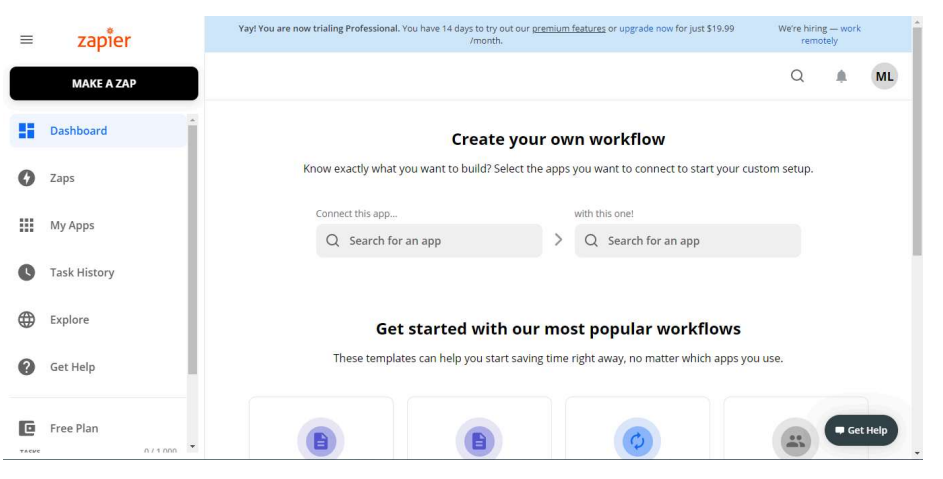
When you first log in to Zapier, you will be taken to your Dashboard. From here you can quickly build a Zap and browse popular Zap templates — pre-made Zapier workflows that you can use straight away.
Creating a Zap
There are two ways to create a Zap: you can use a Zap template (a pre-built workflow), or create your own Zap from scratch for more customisation. To create from scratch, click the + button in the top left corner of the navigation menu.
Setting Up the Trigger
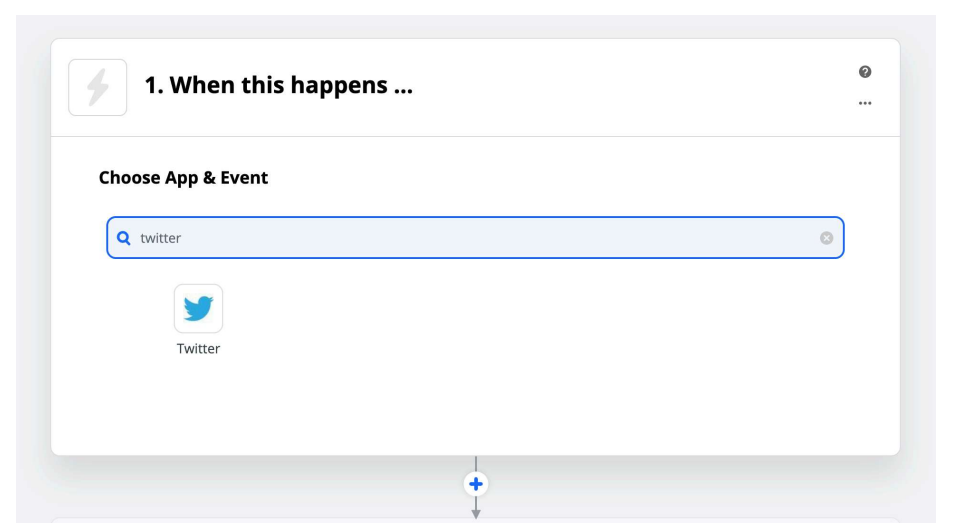
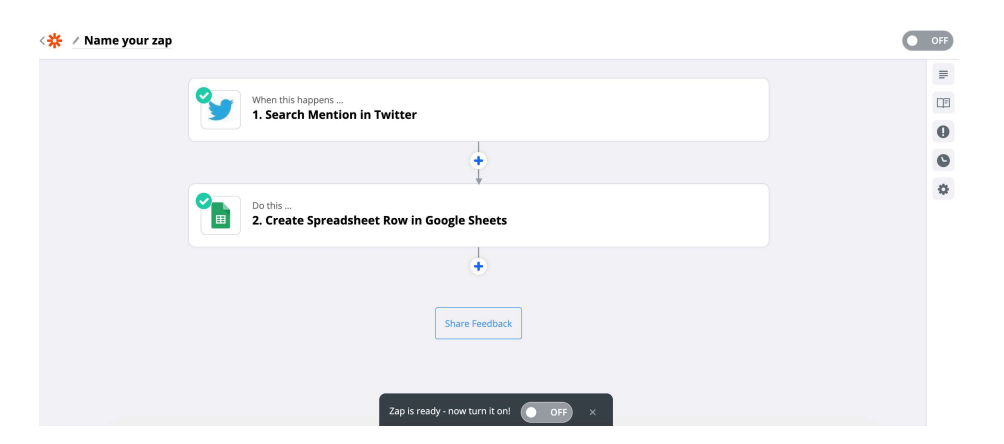
Step 1 — Pick the trigger app. This is the app that will start the Zap. Enter the app's name in the search box or, if you have already connected apps to Zapier, click the app icon. In this example, Twitter is used as the trigger app.
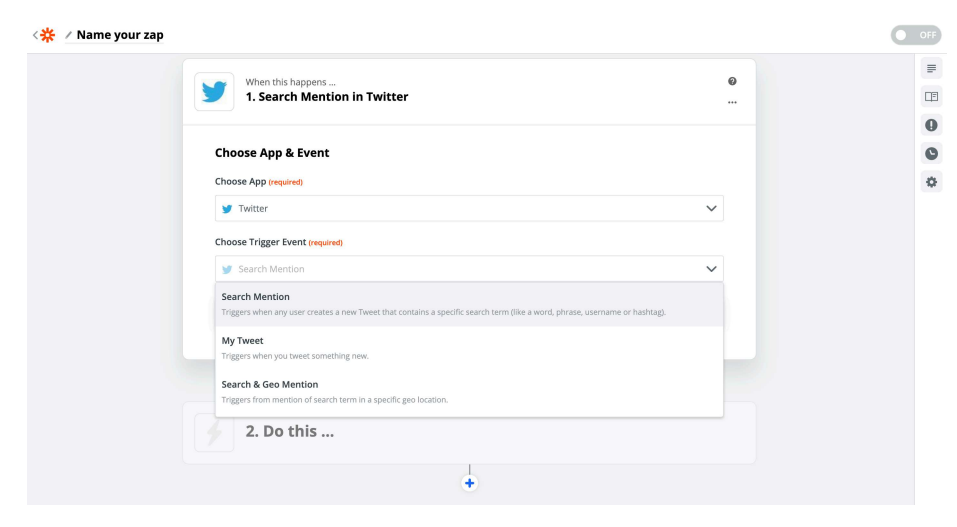
Step 2 — Pick the specific trigger event for the app from the list of options. Trigger examples include events like New Email Received, Document Updated, or Changed Spreadsheet Row. In this example, Search Mention is selected.
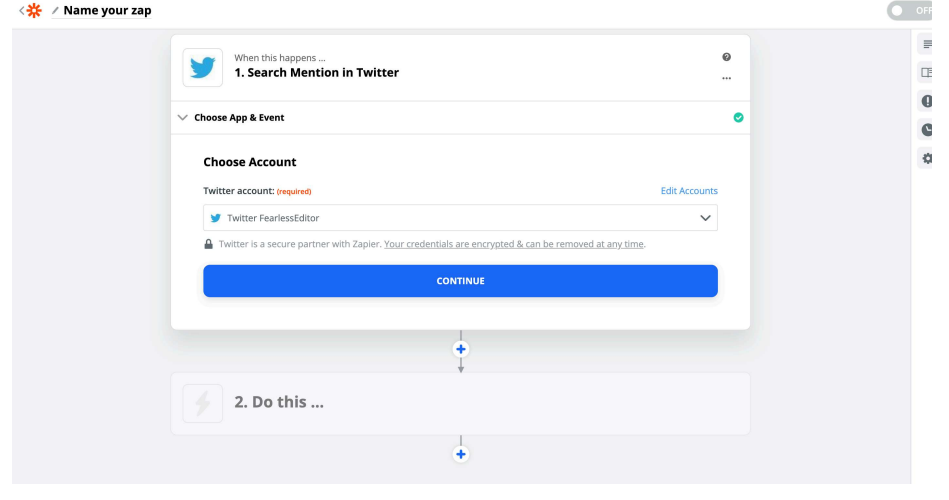
Step 3 — Connect or select your account. Choose an account already connected to Zapier, or click Sign in to add a new account. A pop-up will appear prompting you to authorise Zapier to connect to the app. Click Continue.
Step 4 — Set up any additional fields or app options required for the Zap to work as intended. For example, you might specify a label for Gmail, a spreadsheet, or a folder in Dropbox. In this example, a Twitter search term is entered. Then click Continue.
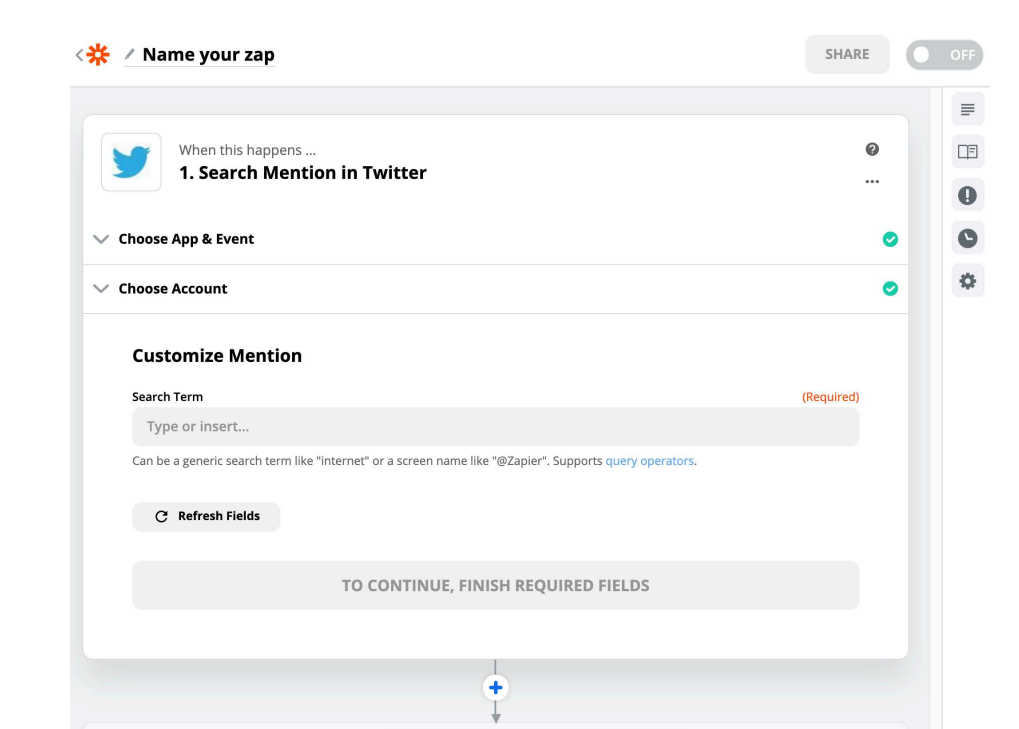
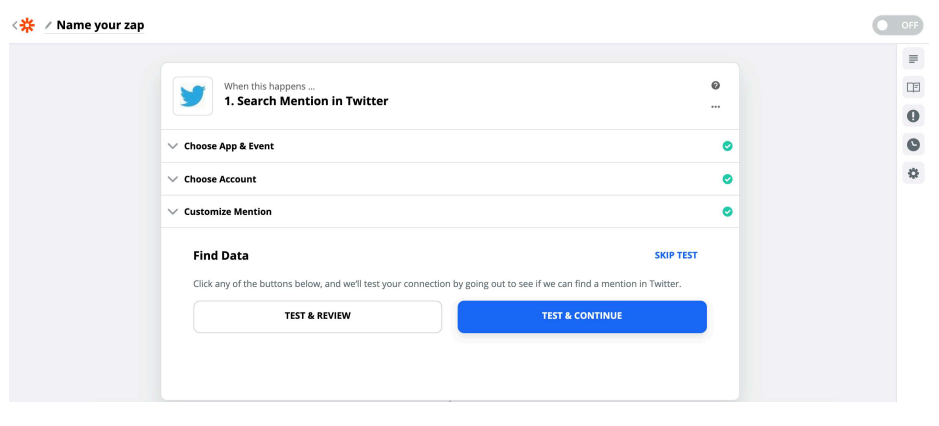
Step 5 — Test your trigger step to make sure it works correctly. You will see which information from the app will be used for the trigger. Click Test & Continue and wait for the success message before proceeding.
Setting Up the Action
Now tell the Zap exactly what you want it to do.
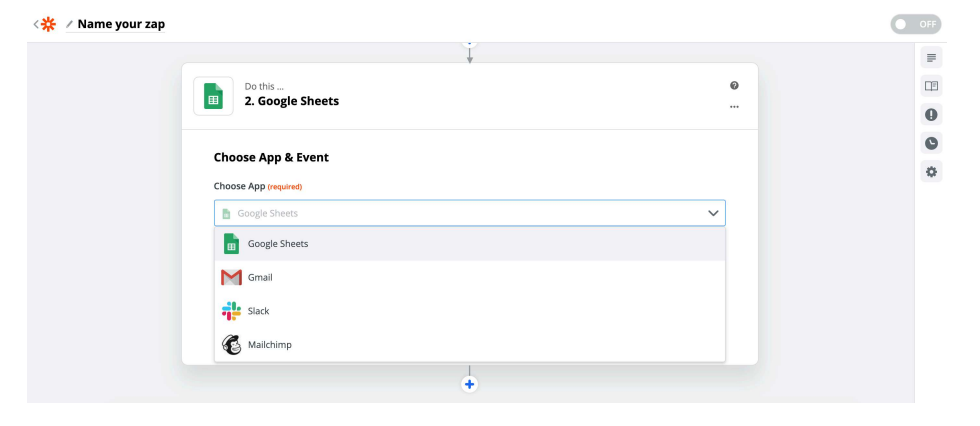
Step 1 — Choose the action app. Type in the name of the app you want the action applied to. It can be the same app as the trigger or a different one. In this example, Google Sheets is used.
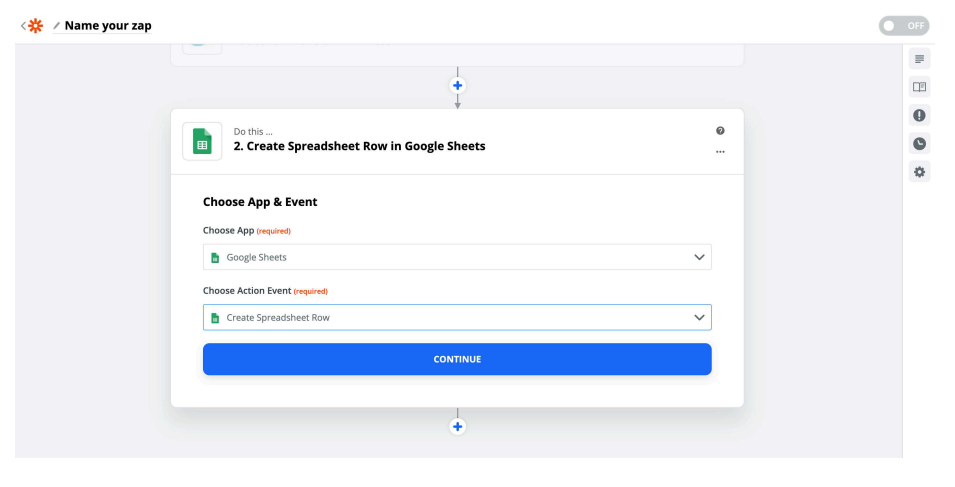
Step 2 — Choose how you want the app to behave in response to the trigger. Action examples include Update a Calendar Event or Send an Email. In this example, Create a Spreadsheet Row is selected. Then click Continue.
Step 3 — Connect or select your account. Choose an account already connected to Zapier or click Sign in to add a new account. A pop-up will appear prompting you to authorise Zapier. Then click Continue.
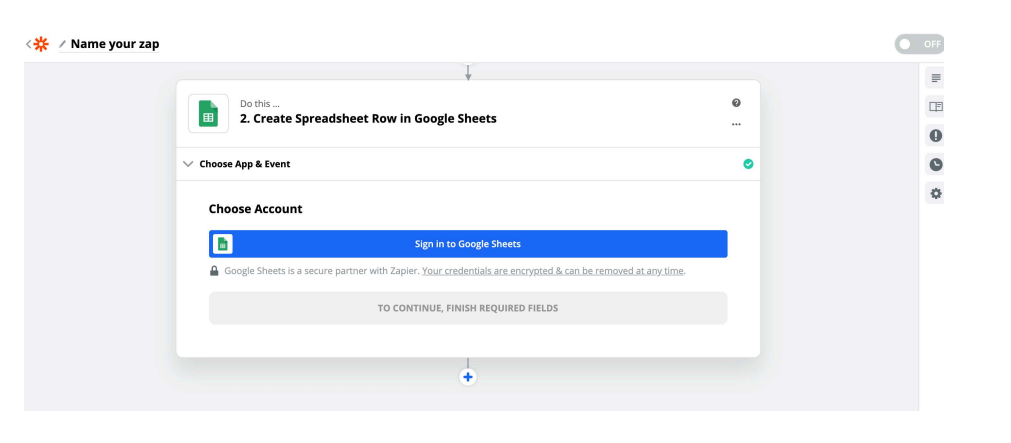
Step 4 — Customise the Zap. Use the dropdown menu on each field to tell the Zap to pull in data from the trigger step. Once you click on a dropdown, a list of data from your trigger app will appear — choose the data points that most closely match the field in your action app. Some fields are required. For example, if your action is to update Google Sheets, you will need to select which spreadsheet and worksheet to update. For some fields, you can also type information in directly rather than selecting from a dropdown. Once you have made your choices, click Continue.
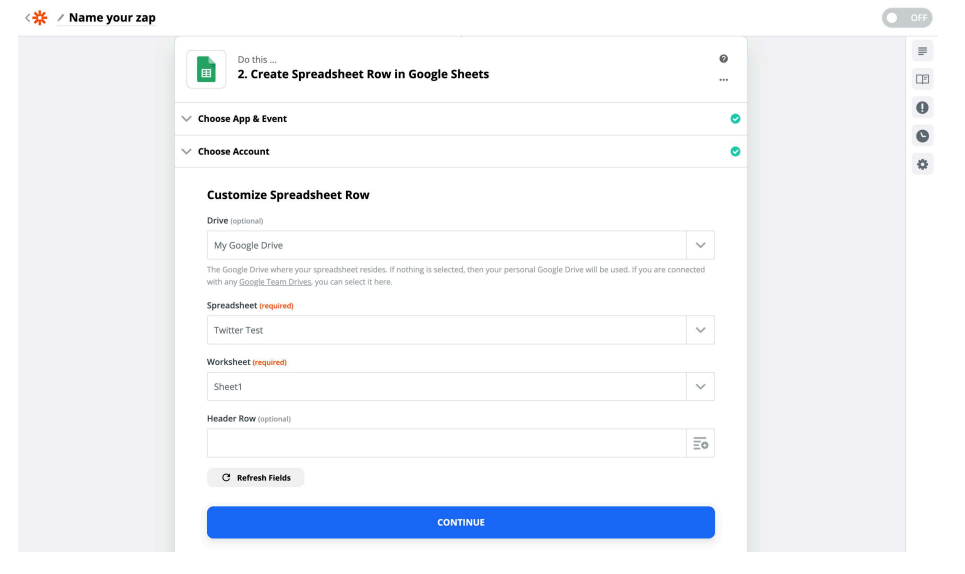
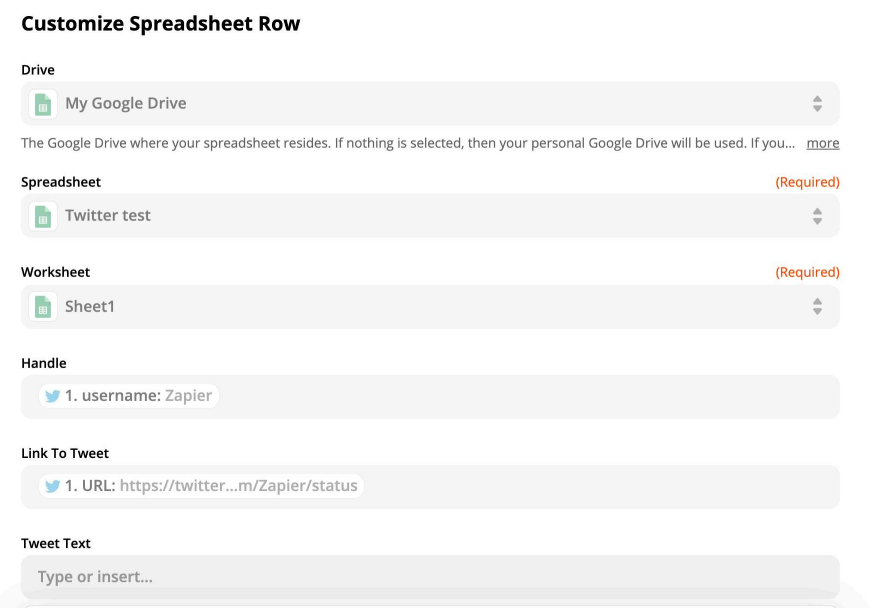
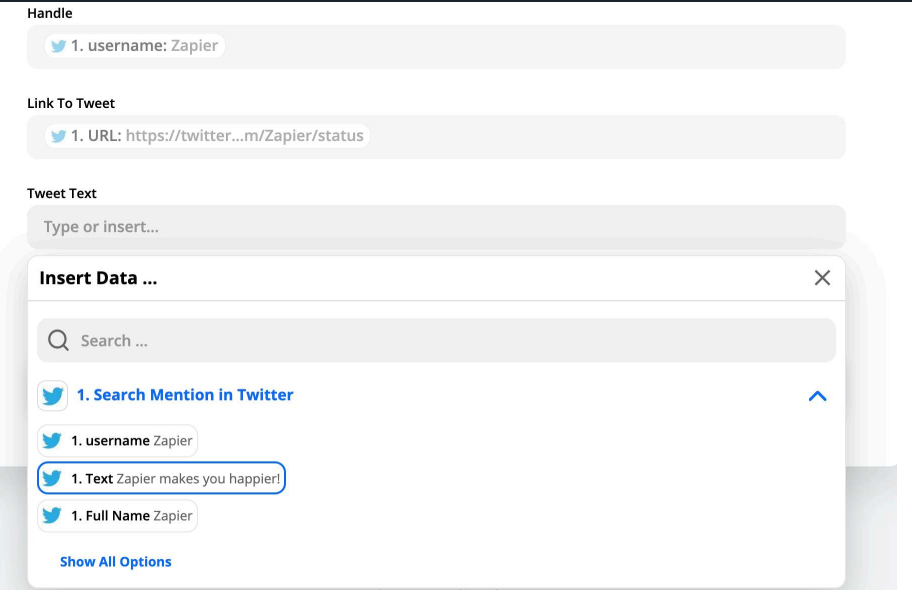
Step 5 — Test the action. You will see which information from the trigger app will be sent to the action app. Click Create & Continue to confirm the step works as intended.
Step 6 — Click Done Editing. Give your Zap a name by clicking the pencil icon in the top left corner of the editor. Then toggle the On/Off button to On. Your Zap will run automatically from this point on until you turn it off.
You can return to edit your Zap at any time. All your Zaps can be found on your Zaps page.
If you need any help setting up your first Zaps, contact support@agentos.com.