
Why Ongoing Sanctions Monitoring Matters
A one-off sanctions check only captures a snapshot in time. Someone who is clear today could be added to the sanctions register tomorrow. Ongoing 24-hour monitoring ensures you are alerted to any changes in your clients' sanctions status as they happen, helping you remain compliant with OFSI regulations at all times.
A real example of this in action: the 24-hour monitoring identified a 100% match for a sanctioned company operating behind a tenant's name — a breach that would have been missed by a standard one-off check, and which could have resulted in OFSI fines of up to £1 million.
Accessing the Calmony Sanctions Monitoring Dashboard
To access the dashboard:
- From your agentOS home screen, locate and click the Calmony Sanctions Monitoring tile.
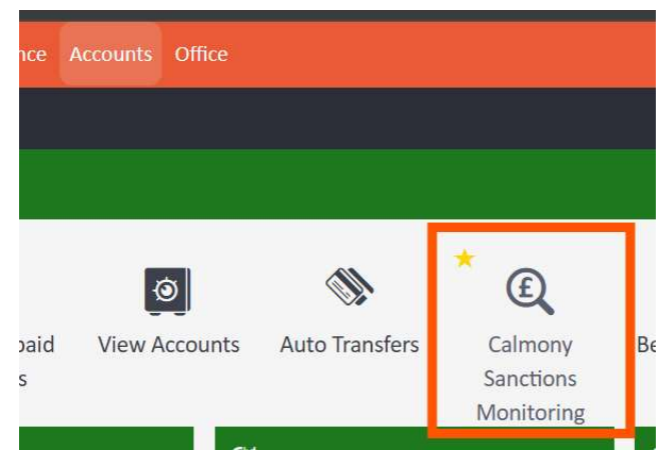
- The dashboard will open, showing all individuals on your agentOS account who have been screened against the sanctions register.
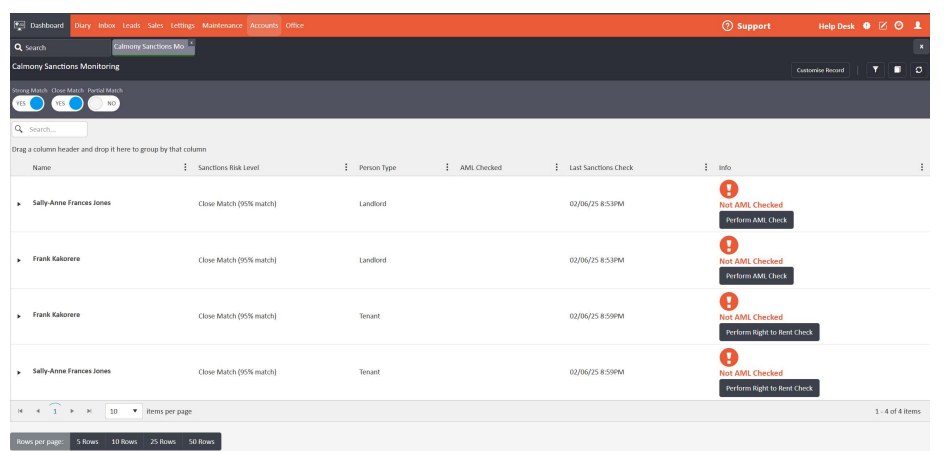
The dashboard displays the following columns:
- Name — the individual's name
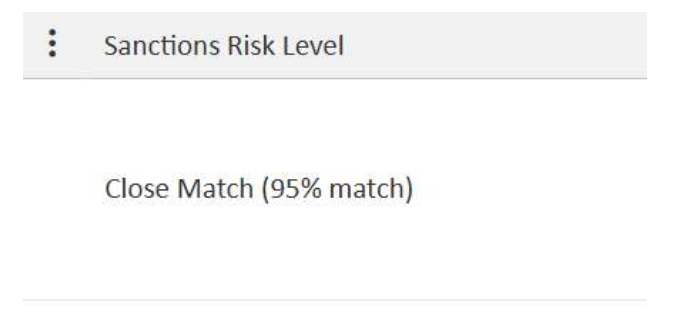
- Sanctions Risk Level — the degree of potential match (e.g. Close Match at 95%)
- Person Type — whether the individual is a Landlord, Tenant, or other person type
- AML Checked — whether an AML check has already been performed
- Last Sanctions Check — the date and time of the most recent automated check
- Info — status indicators and action buttons, including a Perform AML Check button where applicable
You can filter results by match type using the toggle buttons at the top of the list: Strong Match, Close Match, and Partial Match.
Understanding Fuzzy Matches
The service uses fuzzy matching to compare your client data against the sanctions register. Rather than requiring an exact match, it uses algorithms to assess similarities between names and entities, assigning a percentage score to indicate the likelihood of a match.
This is essential because sanctions lists may contain misspellings, aliases, or different translations of the same name. Fuzzy matching reduces the risk of overlooking individuals or entities subject to sanctions whose names appear slightly differently in your records.
Example: A client named "John Citizen" might return a fuzzy match for "Jon Citizen" on the sanctions list.
The higher the percentage score shown in the dashboard, the stronger the potential match.
Reviewing an Individual's Sanctions Match
To review the full match details for a specific individual:
- Navigate to the person's profile in agentOS.
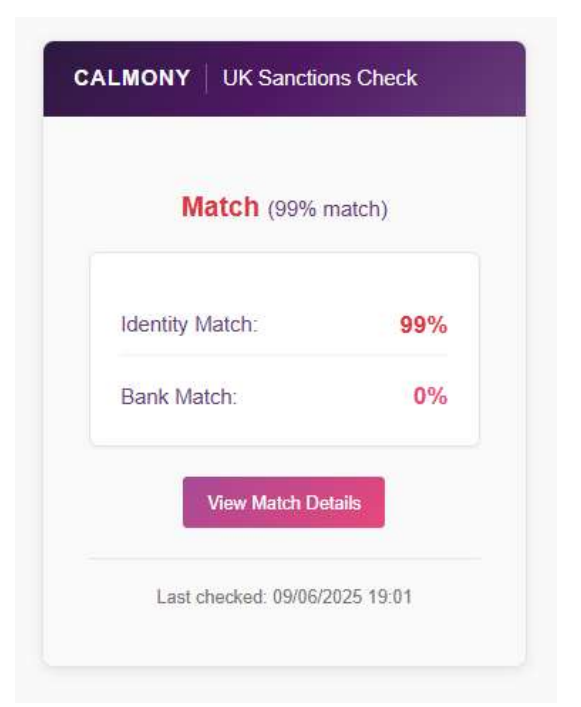
- On their Overview page, locate the UK Sanctions Check widget.
- Click the View Match Details button.
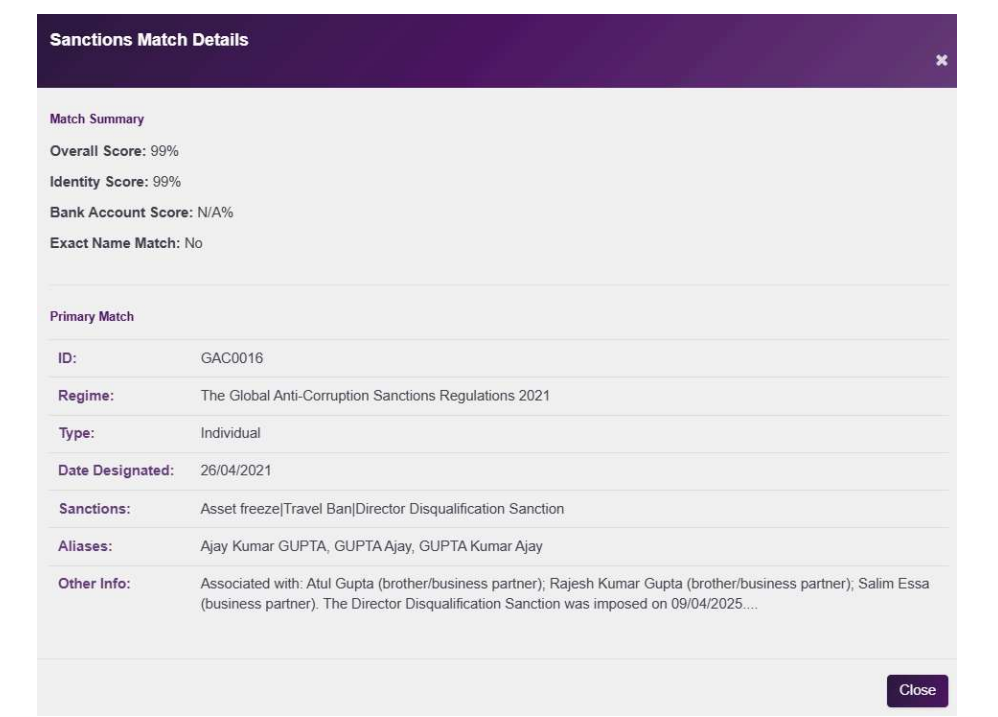
A pop-up will appear displaying the full match details, including:
- Overall Score — the combined match percentage
- Identity Score — how closely the name matches
- Bank Account Score — whether any bank details match
- Exact Name Match — whether the name is an exact match
The Primary Match section provides further detail on the sanctioned individual or entity:
- ID — the unique sanctions list reference number
- Regime — the sanctions regime under which they are listed (e.g. Global Anti-Corruption Sanctions Regulations 2021)
- Type — Individual or Entity
- Date Designated — when they were added to the sanctions list
- Sanctions — the specific sanctions applied (e.g. asset freeze, travel ban, director disqualification)
- Aliases — any alternative names associated with the sanctioned individual
- Other Info — additional context, such as associated individuals or business partners
Taking Action — Performing an AML Check
Once you have reviewed a potential match, you can perform an AML check on that individual. This can be done in two ways:
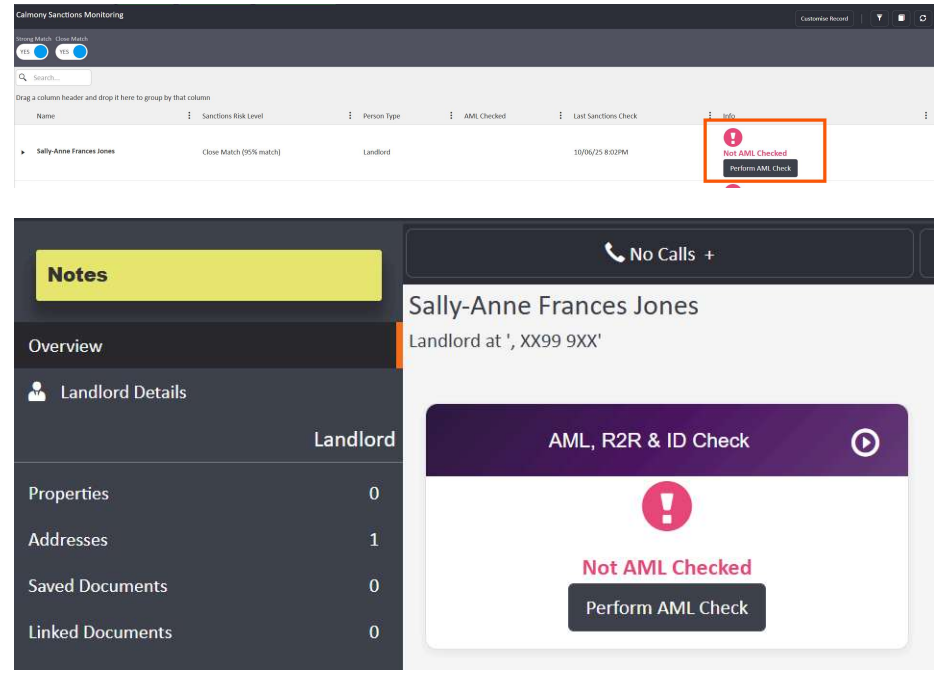
Option 1 — From the Calmony Sanctions Monitoring dashboard:
- Locate the individual in the dashboard.
- Click the Perform AML Check button in the Info column.
[INSERT SCREENSHOT 6 — Dashboard list view with Perform AML Check button visible in the Info column]
Option 2 — From the individual's profile in agentOS:
- Search for the individual by name using the search bar.
- Open their record from the search results.
- On their profile, locate the AML, R2R & ID Check widget.
- Click the Perform AML Check button.
Selecting a Check Type
When you click Perform AML Check, a screen will appear asking you to select a check type and an email template.

Use the Check Type dropdown to select the most appropriate check for the individual (e.g. Landlord Enhanced AML Check, Landlord ID & Ownership Check, Landlord Basic AML Check).
Use the Email Template dropdown to select the template that will be sent to the individual, requesting their authority to proceed with the selected checks.
Once you have made your selections, click AML, R2R & ID Check to initiate the check.
Important Notes
- It is your responsibility to review fuzzy matched results and decide whether an AML check is warranted. The monitoring service flags potential matches — the decision to act rests with you.
- Sanctions checks run automatically every 24 hours. The Last Sanctions Check column confirms when each individual was most recently screened.
- If you need assistance interpreting a match result, contact support@agentos.com.