
⚠️ Important: If you access Quick Add Tenancy from the Tenancies section of an existing property, it will create a new, separate property record — resulting in a duplicate. Only use Quick Add Tenancy via Lettings > Tenancies when you want to create a brand new property from scratch.
Quick Add Tenancy is designed for building a new property record and its tenancy together in one process. It also supports importing basic property details directly from a Rightmove listing URL.
Step 1: Navigate to Lettings > Tenancies
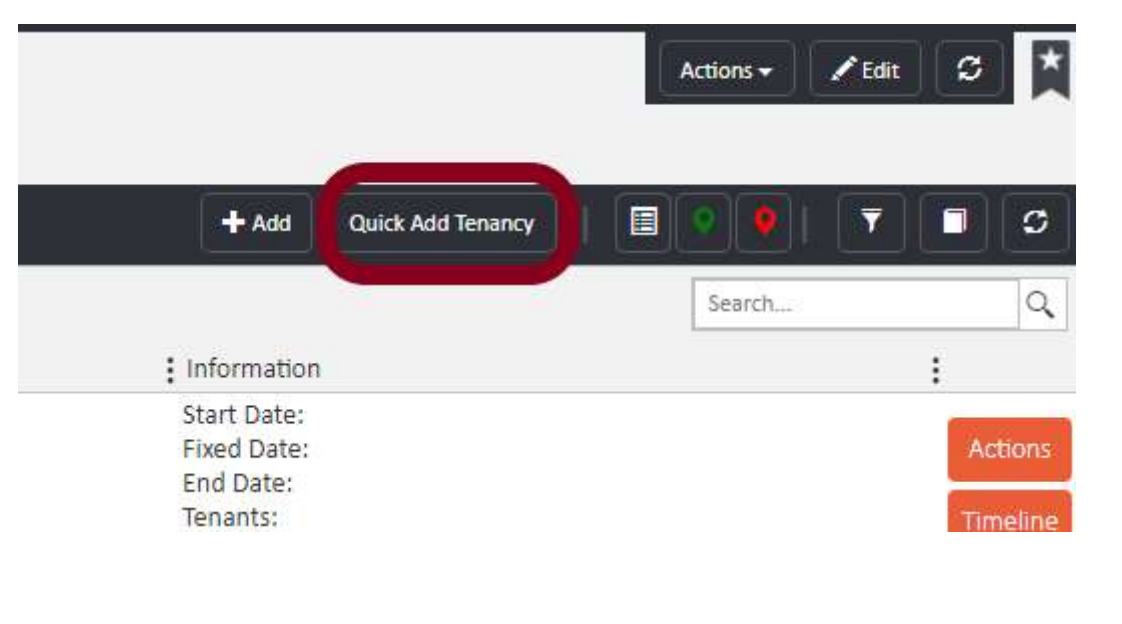
From the main navigation bar, click Lettings, then select Tenancies. On the Tenancies page, click the Quick Add Tenancy button in the top right-hand corner.

Step 2: Choose your area and branch (or import from Rightmove)
A window will appear with three options: choose an existing Area from the dropdown, or create a new Area by entering an Area Name and selecting a Branch. On the right-hand side, you can optionally paste a public Rightmove URL into the Rightmove Import field to pre-populate the property details.
Click Quick Add Tenancy to proceed.
Step 3: Complete the Property Details tab
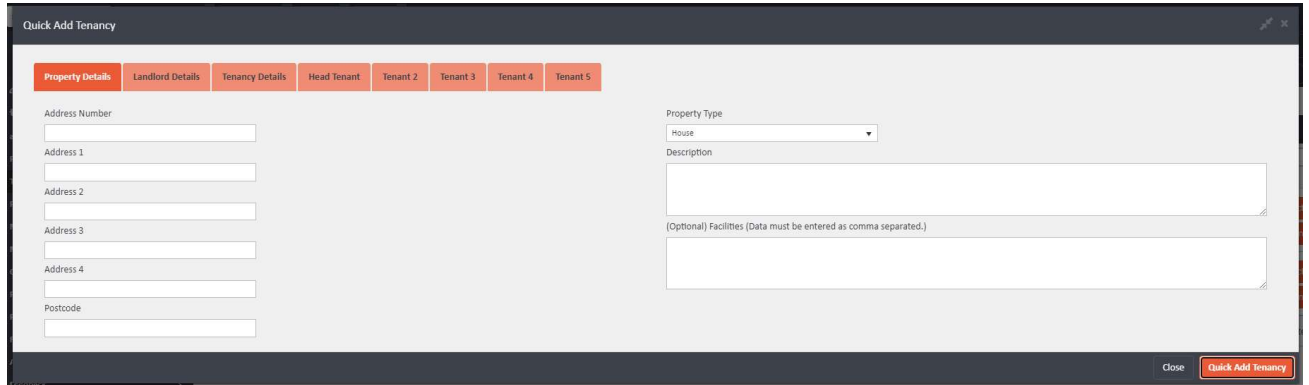
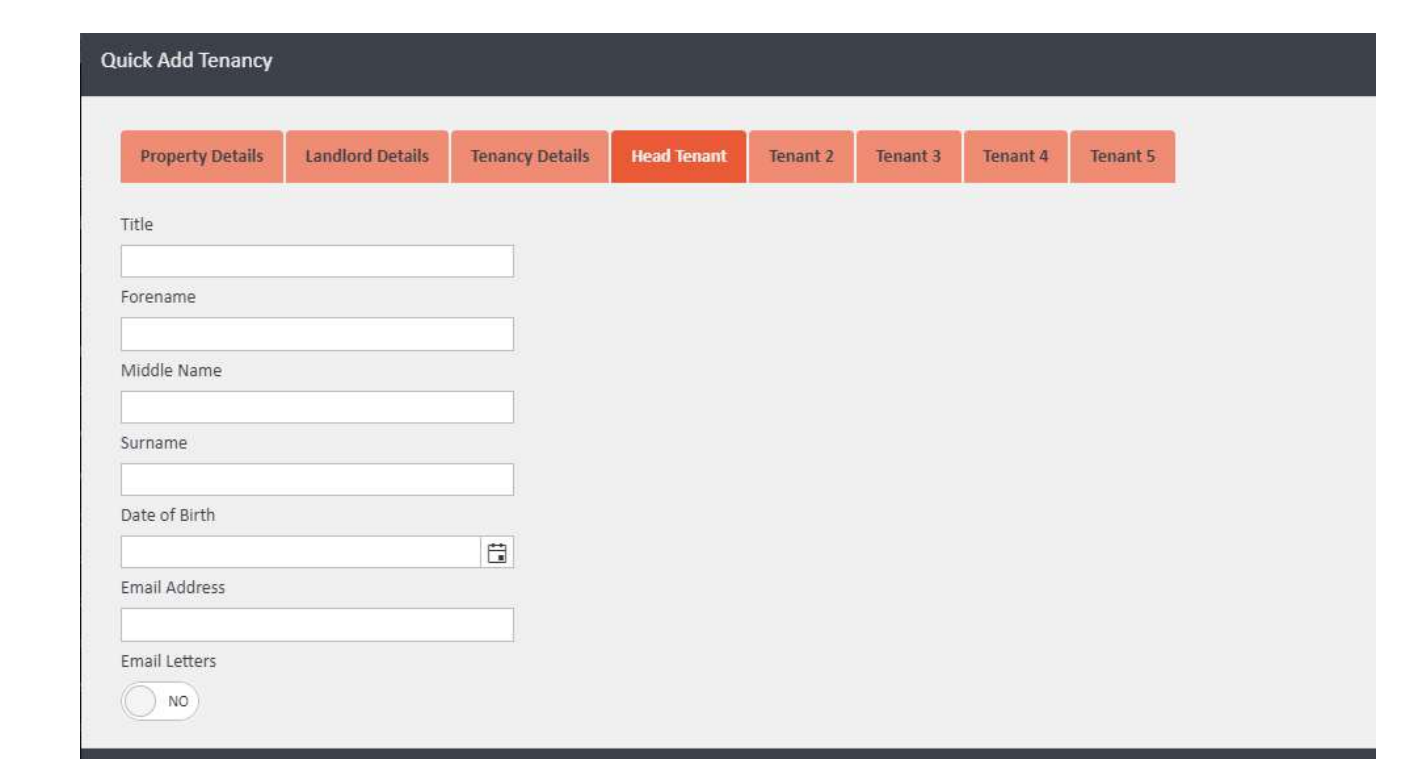
The form opens with eight tabs across the top: Property Details, Landlord Details, Tenancy Details, Head Tenant, Tenant 2, Tenant 3, Tenant 4, and Tenant 5.
On the Property Details tab, enter the property address and type. At minimum, Address 1 and Postcode are required. You can also add a Description and any optional Facilities (entered as comma-separated values).

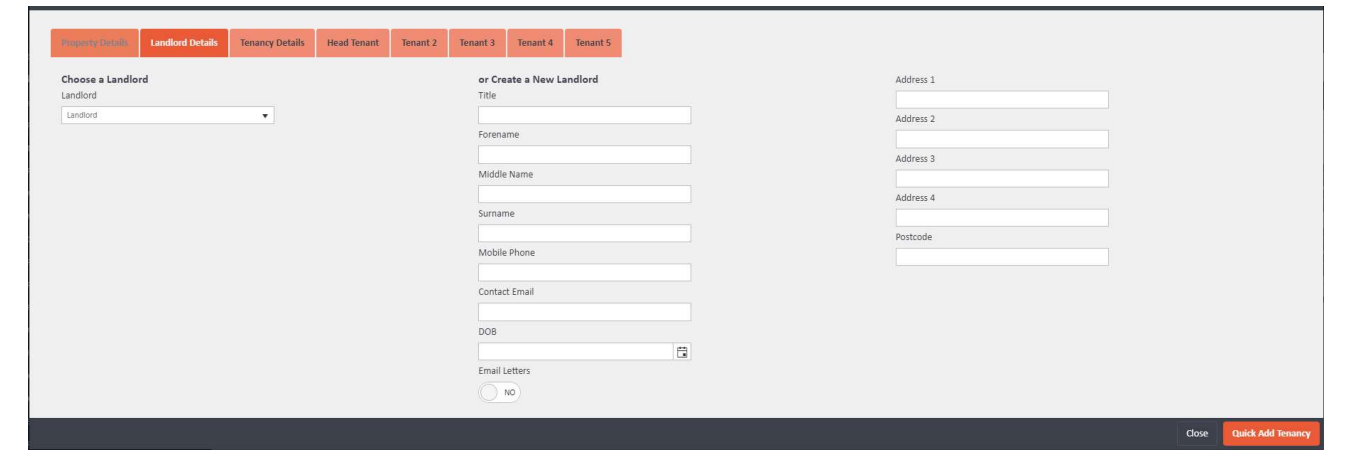
Step 4: Complete the Landlord Details tab
On the Landlord Details tab, either select an existing landlord using the Choose a Landlord dropdown, or create a new landlord by completing the fields on the right: Title, Forename, Middle Name, Surname, Mobile Phone, Contact Email, DOB, Email Letters toggle, and address fields.
Step 5: Complete the Tenancy Details tab
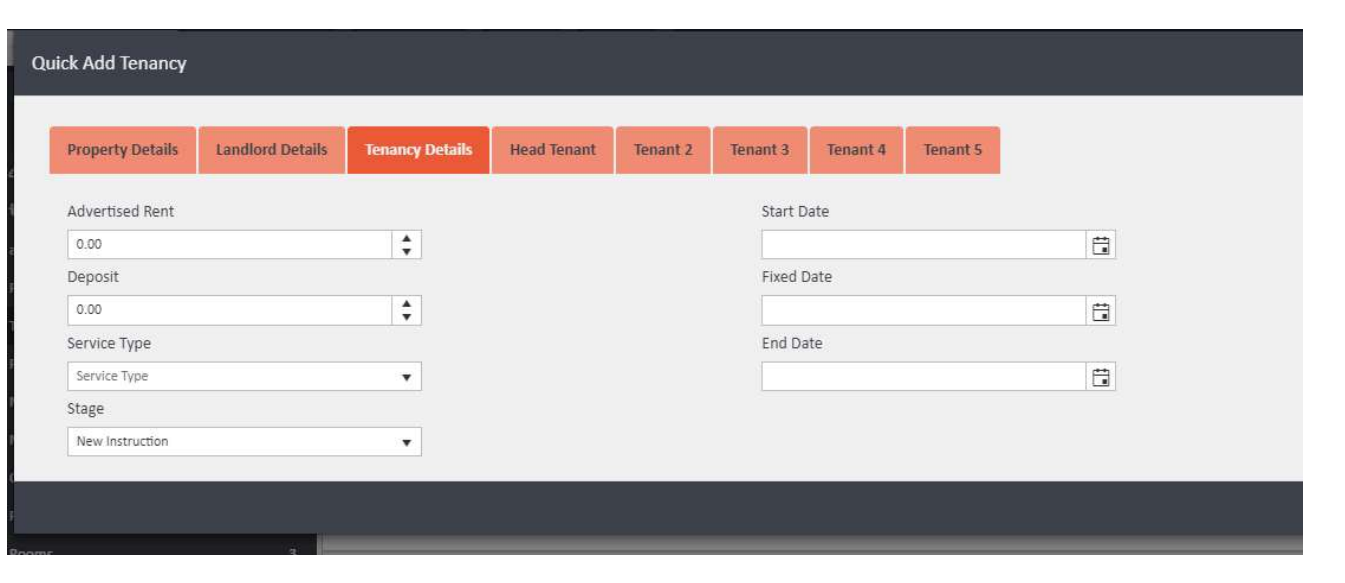
On the Tenancy Details tab, enter the following:
- Advertised Rent and Deposit amounts
- Service Type — select the appropriate service type for this tenancy
- Stage — choose from New Instruction, Advertised, Let Agreed, or Signed
- Start Date, Fixed Date, and End Date
Note: If you are importing a Signed tenancy, you must also add the tenants on the tenant tabs. You can enter up to five tenants using the Head Tenant, Tenant 2, Tenant 3, Tenant 4, and Tenant 5 tabs.
Step 6: Complete tenant details (if applicable)
If the tenancy stage is Signed, complete the Head Tenant tab (and any additional tenant tabs as needed). Fields include Title, Forename, Middle Name, Surname, Date of Birth, Email Address, and an Email Letters toggle.
Step 7: Save
Once all required information is complete, click Quick Add Tenancy in the bottom right-hand corner to create the property and tenancy record.
If you need any assistance, contact the agentOS support team at support@agentos.com.