
If you use an external company to carry out referencing or credit checks, you will need to upload the documents onto the system manually. To do this, first locate the tenant using the quick search bar at the top of the screen.
There are two places on a tenant's profile where these documents can be stored:
Option 1: Saved Documents
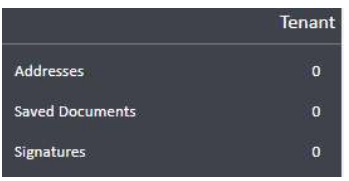
On the tenant's profile, look at the left-hand navigation ladder. You will see a Saved Documents section. Click on it and then click Upload on the right-hand side of the page to add the document.
Option 2: Referencing Documents
Further down the left-hand ladder, you will find a Referencing section. This contains three sub-sections: AML & ID Checks, Credit Checks, and Referencing Documents.
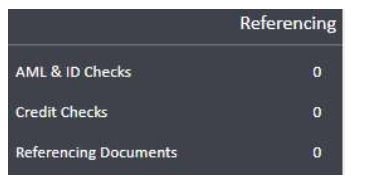
Click on Referencing Documents, then click Add. Once the document slot has been created, click on it to store the document against that slot.
Tip: The Referencing Documents section is specifically designed for storing documents related to the referencing process, making it easier to keep compliance documents organised and separate from other tenant files.
If you need any assistance, contact the agentOS support team at support@agentos.com.