
Floorplans must be uploaded to the property record in agentOS and tagged correctly as a Floor Plan type in order to display in the dedicated floorplan section on property portals.
⚠️ Image requirement: The floorplan image must be in a 4:3 landscape ratio. If the image is not in this ratio, it will distort when displayed on portals.
Step 1: Find the property and open Photos
Use the quick search bar at the top of the screen to locate the property. Once on the property record, scroll down the left-hand navigation ladder and click Photos.
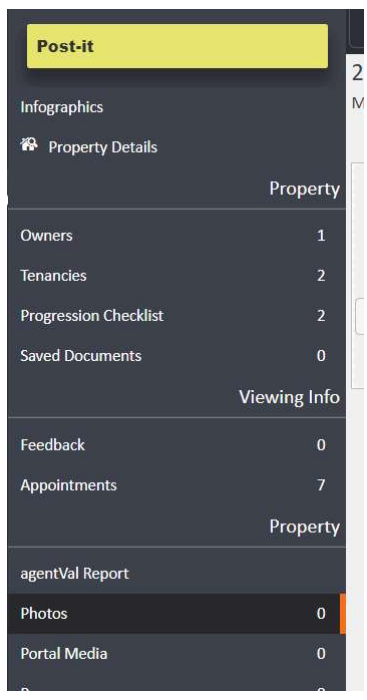
Step 2: Upload the floorplan image
Click Select Files... to open the file browser and select your floorplan image to upload it.
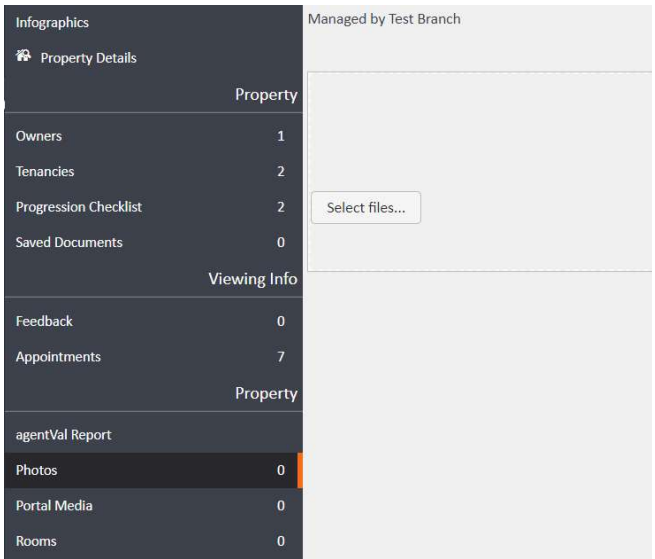
Step 3: Edit the photo to set the type
Once the image has uploaded, click the Edit button in the top right-hand area of the photo panel.
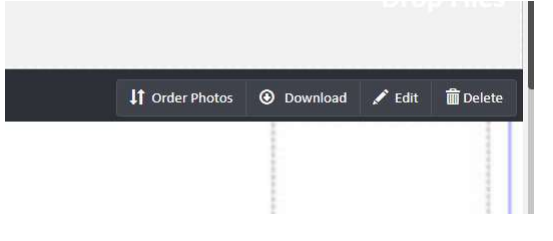
The Edit Photo window will open. In the Photo Type dropdown, select Floor Plan from the list of options (Photo, Map, Floor Plan, Site Map).
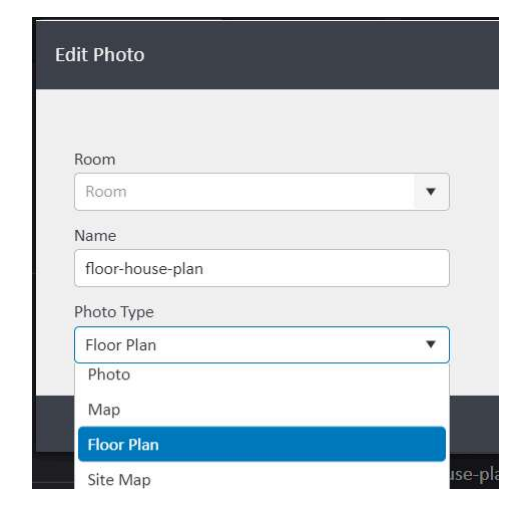
Click save to confirm. The floorplan will now be correctly tagged and will display in the floorplan section on your connected portals.
If you need any assistance, contact the agentOS support team at support@agentos.com.