
Signing a tenancy in agentOS is an important step — it activates the let on the system and triggers all associated account charges, including auto charges, rent, advance payments, and the deposit.
⚠️ Important: The start date and any special conditions cannot be changed after the tenancy has been signed. If the tenancy is not signed, agentOS will not call for any due rent. Check everything carefully before proceeding.
Step 1: Find the property
Navigate to Lettings > Properties and search for the property by entering the street name in the Street box. The results will update automatically. Alternatively, use the search bar at the top of the screen to find the property directly.
Step 2: Open the tenancy
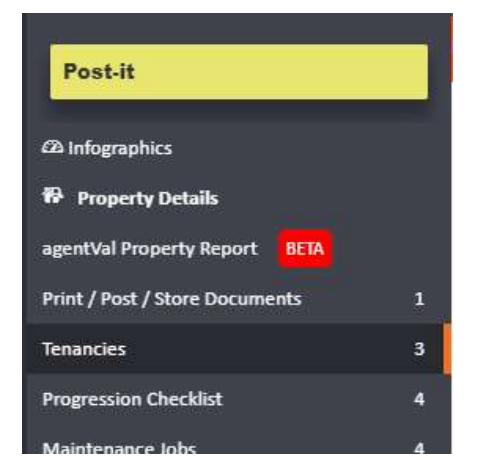
On the left-hand navigation ladder of the property record, click on Tenancies. Find the tenancy you would like to sign and click on it.
Step 3: Check the tenancy details
Before signing, review the following to ensure everything is correct:
- The Details section — check all tenancy information is accurate
- The Rent Schedule — confirm the rent schedule is set up correctly
- Special Conditions — review any special conditions on the left-hand ladder, if applicable
- Additional Auto Charges — check any auto charges set to trigger on signing, if applicable
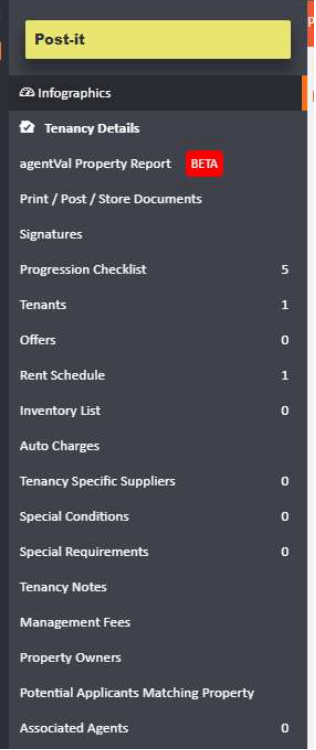
Also check the Tenancy Agreement itself to make sure all information is correct before proceeding.
Step 4: Sign the tenancy
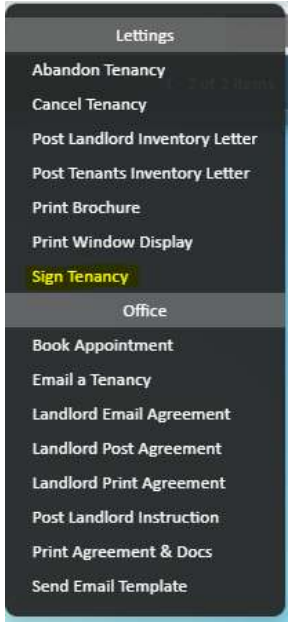
Once you are satisfied that all details are correct, click the Actions button and select Sign Tenancy from the dropdown menu under the Lettings section.
Step 5: Confirm
A confirmation prompt will ask whether you are sure you want to proceed. Click OK to confirm. The tenancy will be signed and the let will begin on the system.
If you need any assistance, contact the agentOS support team at support@agentos.com.