
Question (Title):
How do I set up Two-Factor Authentication (2FA) on my agentOS account?
Subtitle (Quick Answer):
Two-Factor Authentication (2FA) adds an extra layer of security to your agentOS login. You can enable it when setting a new password, and it can be made mandatory across your organisation via a company setting.
Detailed Answer:
What Is Two-Factor Authentication?
Two-Factor Authentication (2FA) is an additional security measure that makes it significantly harder for unauthorised users to access your agentOS account, even if your password is compromised. When 2FA is enabled, logging in requires both your password and a time-sensitive code generated by an authenticator app on your device.
When Will I Be Prompted to Enable 2FA?
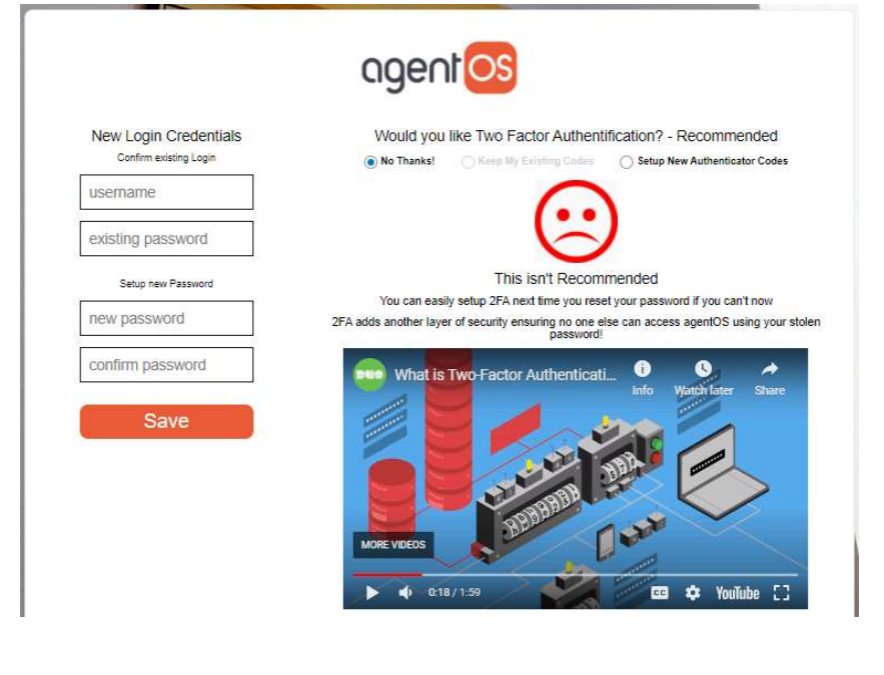
You will be prompted to set up 2FA every time you create a new password. This includes:
- Following a password reset
- When your current password expires
At this point, you will be presented with three options:
- No Thanks — Skip 2FA setup for now (only available if 2FA is not mandatory for your organisation)
- Keep My Existing Codes — Continue using your previously configured authenticator codes, if 2FA has already been set up
- Setup New Authenticator Codes — Configure a new authenticator link and codes
How Does the Login Process Work With 2FA Enabled?
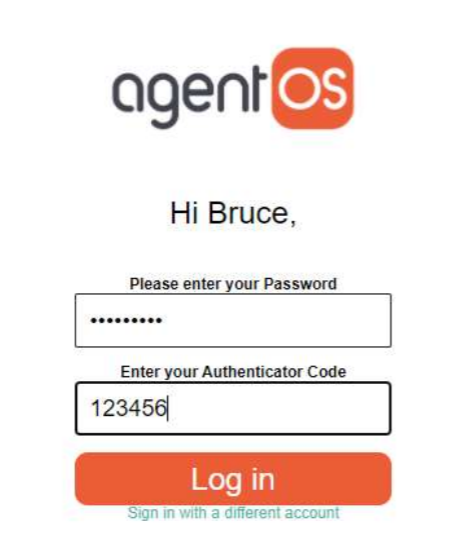
To accommodate 2FA, the agentOS login process works as follows:
- You will first be asked to enter your username
- You will then be taken to the password screen, where you enter your password and your authenticator code from your authenticator app
- Click Log in to complete the sign-in
How Do I Disable 2FA?
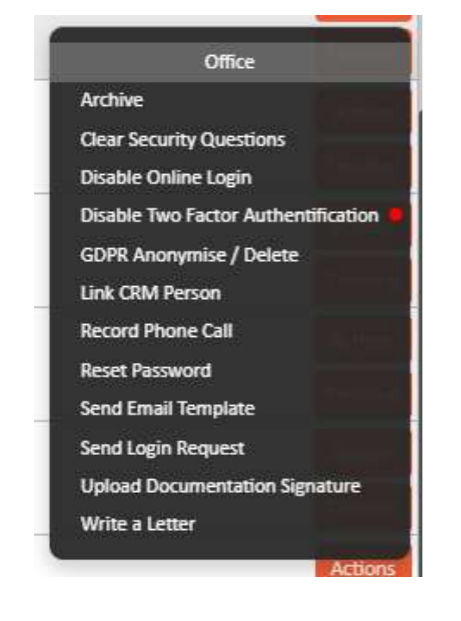
Two-Factor Authentication can be disabled from a staff member's profile by an administrator. To do this:
- Open the relevant staff member's profile in agentOS
- Click the Actions menu
- Select Disable Two Factor Authentication
Once disabled, the staff member will need to reset their password if they wish to re-enable 2FA.
Making 2FA Mandatory
2FA is optional by default. If you would like to make it mandatory for all users in your organisation, please contact the agentOS support team at support@agentos.com.