
Note: This article is intended for internal staff use only and is not intended for clients.
Preferred Logo Dimensions
Before uploading the client's logo, ensure it meets the following specifications:
- Dimensions: 300px x 100px
- Resolution: 72–144 DPI
- Format: PNG or SVG (with transparency)
- Aspect Ratio: 3:1
Step 1 — Add the Client's Logo to agentOS
Once the client has provided their logo, it needs to be loaded into the system.
Go to Settings > Email Signature Images.
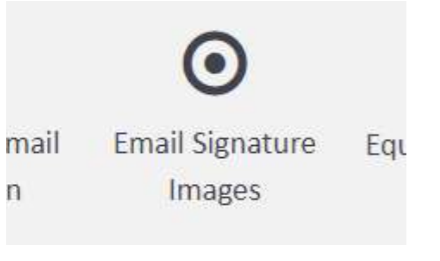
Click Upload Signature Image and drag or select the logo file to upload it.
Once the image has been uploaded, a URL will be generated. Copy this URL.

Step 2 — Add the Logo URL to the Online Brochure Settings
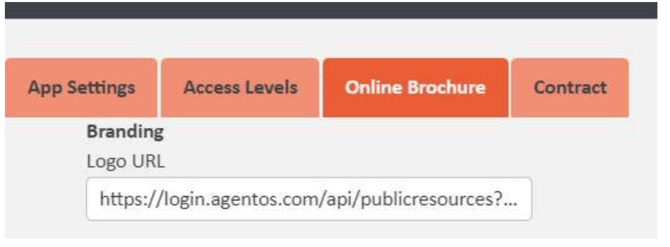
Navigate to Company Settings > Online Brochure tab. Paste the copied logo URL into the Logo URL field under the Branding section.
Step 3 — Set the Branding Colours
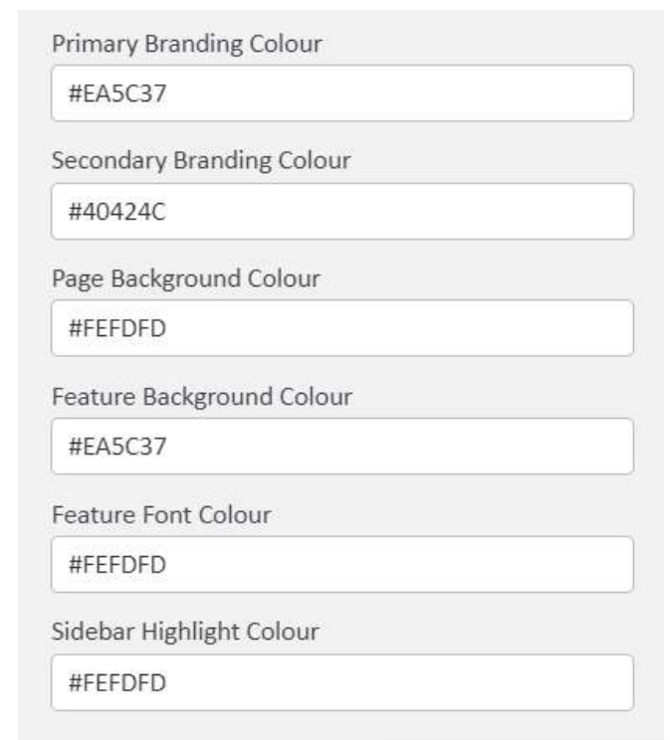
Aim to use the client's primary branding colours where possible. Use a colour picker tool to obtain the hex colour codes from the client's branding, then enter them into the following fields within the Online Brochure tab:
- Primary Branding Colour — used for the header bar
- Secondary Branding Colour — used for the sidebar background
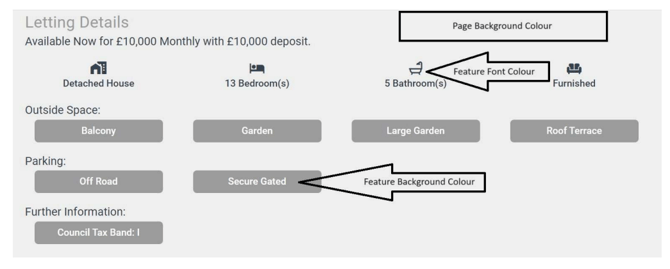
- Page Background Colour — used for the main page background
- Feature Background Colour — used for feature/highlight buttons
- Feature Font Colour — used for text on feature buttons
- Sidebar Highlight Colour — used for the active item in the sidebar
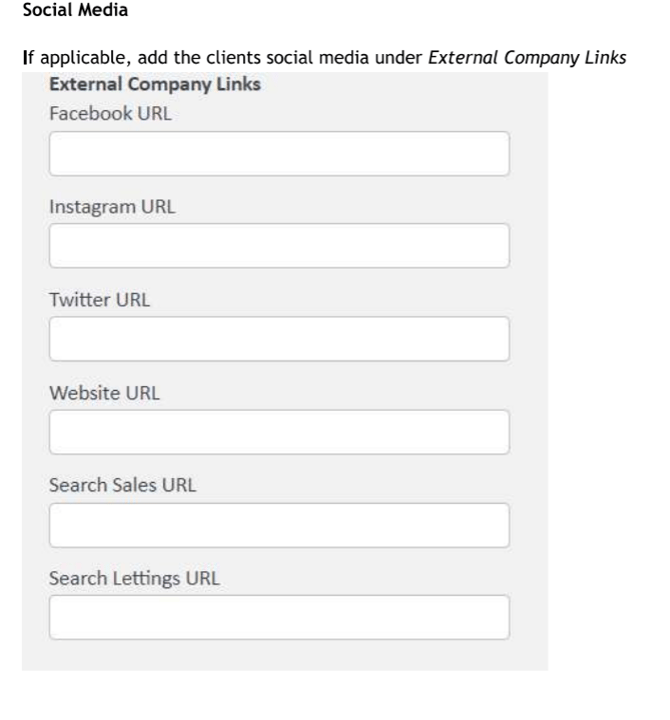
Step 5 — Update the Disclaimer
Update the disclaimer text in the Disclaimer field as per the client's preference.
The default disclaimer reads:
Disclaimer - Property ID[GlobalRef]: The content presented for this property is an advertisement. Neither agentOS.com nor[MarketingName] guarantee the accuracy or comprehensiveness of the ad or any connected or related information, and agentOS.com has no authority over the material. This property ad is not a substitute for property details. The data is supplied and preserved by the advertising agent[MarketingName]. For inquiries regarding this listing, please get in touch with[MarketingName] directly.

Step 6 — Enable the Online Brochure
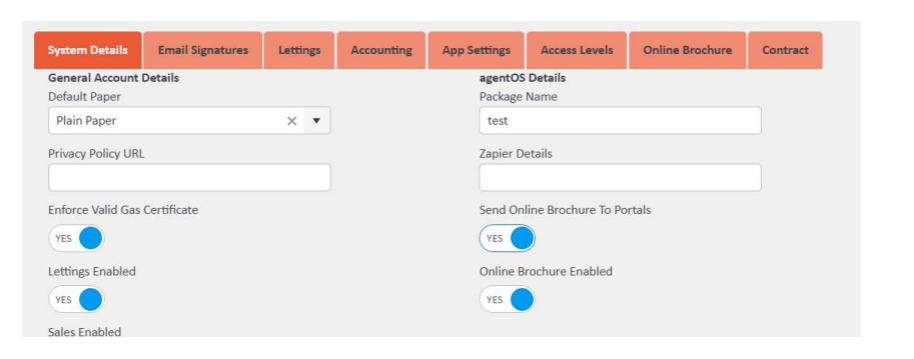
Once all the above steps are complete, go to the System Details tab in Company Settings and set the following toggles to YES:
- Send Online Brochure To Portals
- Online Brochure Enabled
For any questions, contact support@agentos.com.