
The rent schedule is what triggers agentOS to call for rent on the date you specify. By default, the system sets the rent due date to match the tenancy start date. If you need rent to be collected on a different day of the month, you will need to build the schedule manually.
Step 1: Open the tenancy
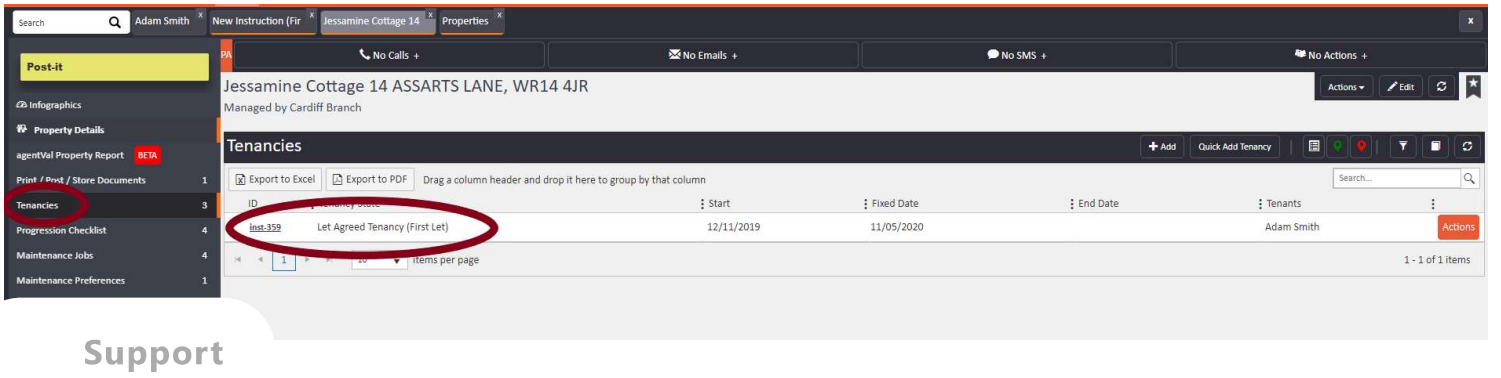
Use the quick search bar at the top of the screen to find the property, then select Tenancies from the left-hand navigation ladder and click into the relevant tenancy.
Step 2: Navigate to Rent Schedule
Once inside the tenancy, click Rent Schedule in the left-hand navigation ladder.
Then click the Setup Rent Schedule button at the top of the page.

Step 3: Delete any existing schedule entries (if editing)
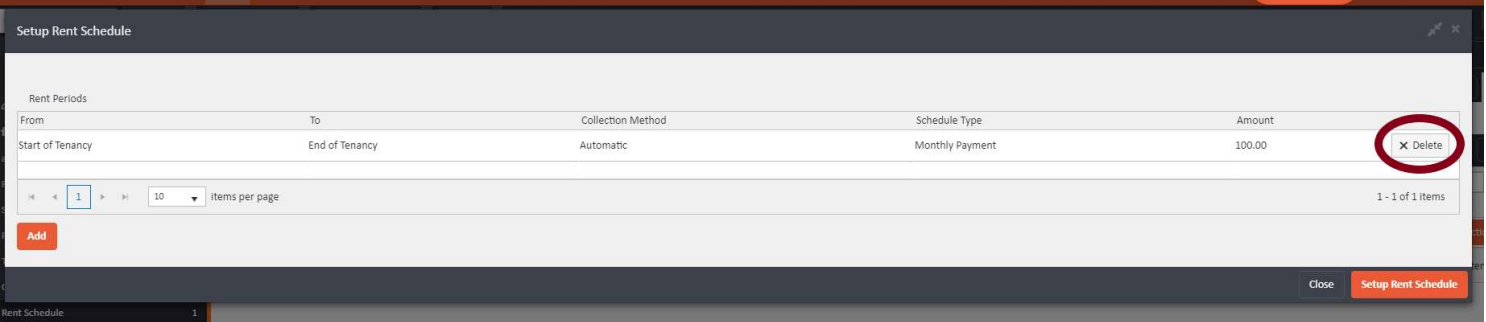
If you are editing an existing rent schedule rather than setting one up for the first time, you must first clear the current entries. Click the X Delete button on each existing line until the schedule is empty, leaving a blank slate. Then click Add to begin building the new schedule.
Step 4: Add your rent period
Click Add to open the rent period entry form. This is where you define when rent applies and at what amount.
le tenancy:
Leave both the Apply From and Apply Until fields blank. This tells the system that rent runs from the start of the tenancy to the end with no interruptions. Set your Collection Method, Schedule Type, and Amount, then click Add.
For multiple rent amounts (e.g. a rent increase mid-tenancy):
You will need to add separate lines — one for each period. For each line other than the final one, populate the Apply Until field with the last date of that rental period. Leave the Apply Until field blank on the final line so that it runs to the end of the tenancy.
Example: Rent increase mid-tenancy
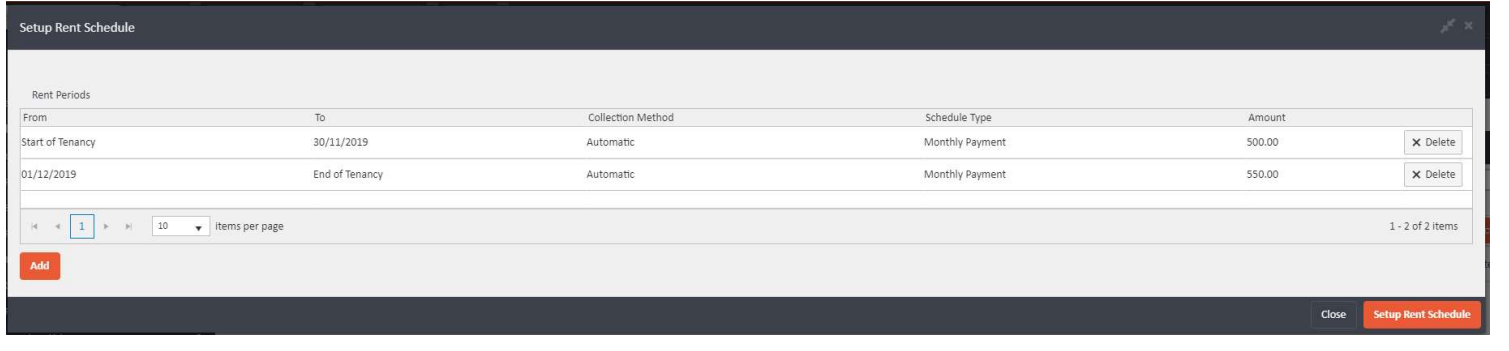
In this example, rent starts at £500 per month from the start of the tenancy, increasing to £550 per month from 01/12/2019.
First line: Leave Apply From blank (start of tenancy). Set Apply Until to 30/11/2019. Set Schedule Type to Monthly Payment and Amount to £500.
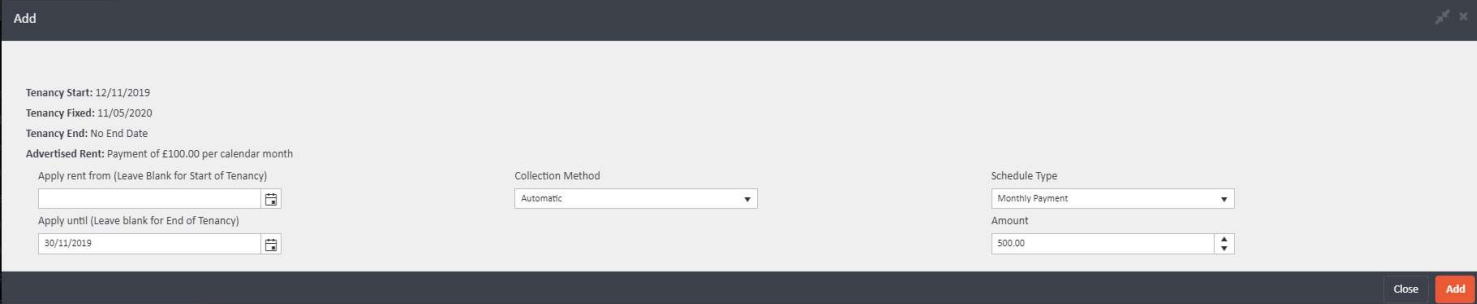
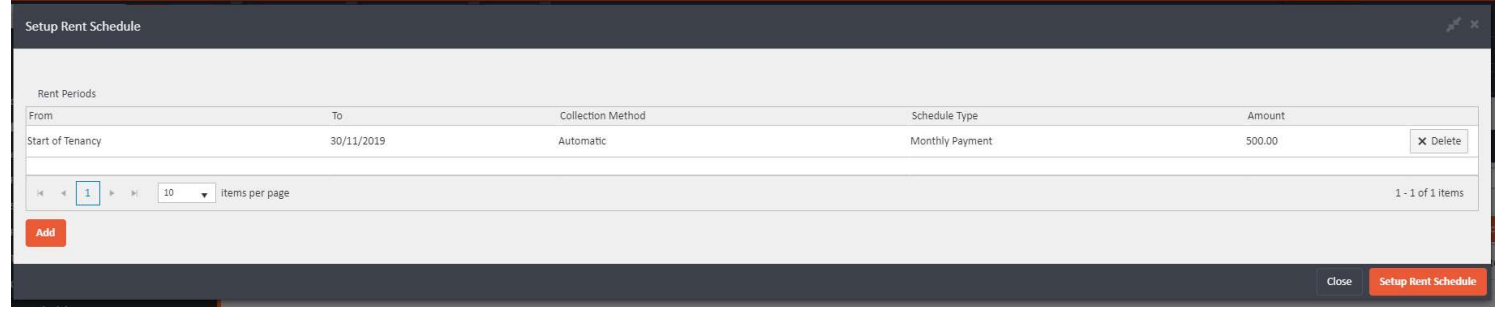
Click Add. The first line will now appear in the schedule showing Start of Tenancy to 30/11/2019 at £500.
Second line: Click Add again. Set Apply From to 01/12/2019. Leave Apply Until blank (this line runs to the end of the tenancy). Set Schedule Type to Monthly Payment and Amount to £550.
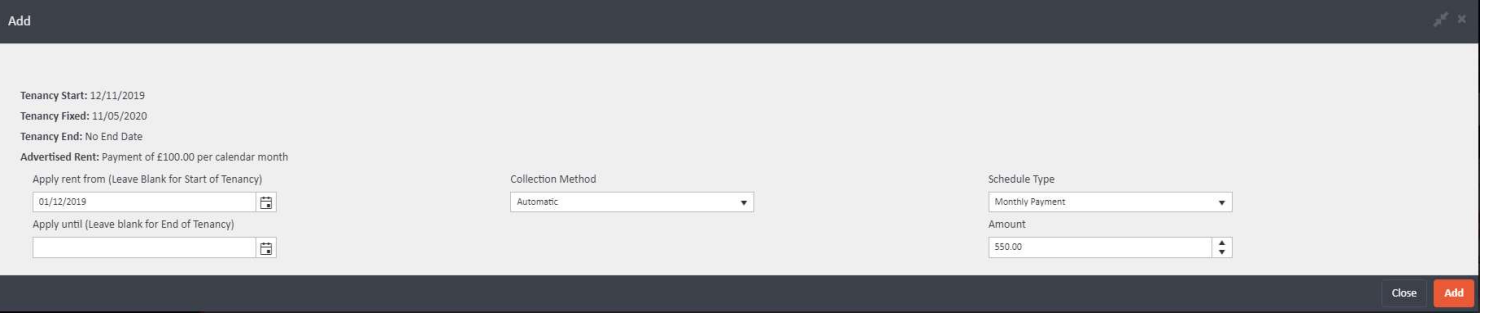
Click Add.
Step 5: Save the schedule
Once all your rent period lines are in place and you are satisfied with the details, click Setup Rent Schedule in the bottom right corner to save.
Multiple tenants: check the rent breakdown
If there are multiple tenants on the tenancy, review the Rent Breakdown section before leaving the screen. If no head tenant has been designated, agentOS will automatically divide the rent equally between all tenants. Adjust this if required to ensure the correct split is recorded.
If you need further assistance, contact the agentOS support team at support@agentos.com.