
Overview
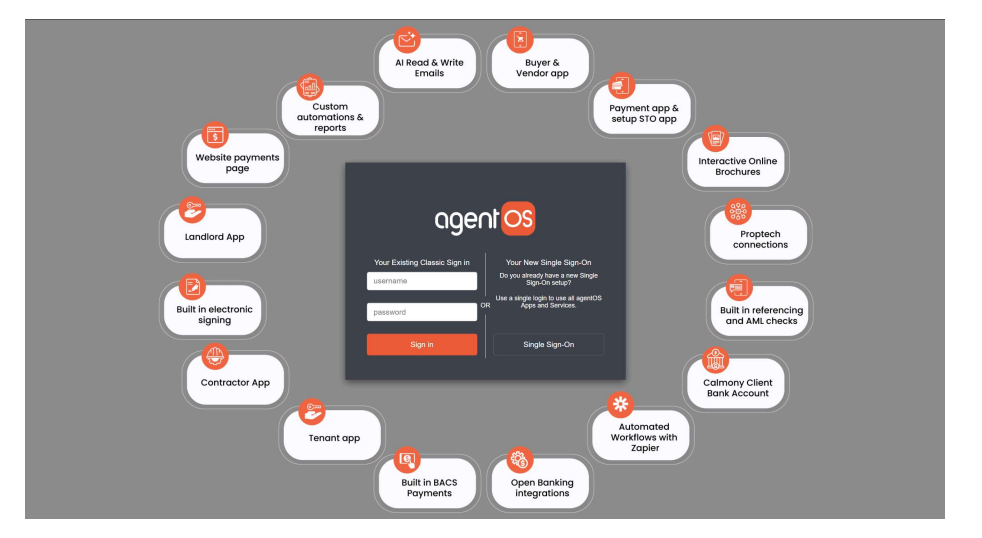
There are two methods for setting up SSO in agentOS:
- Using Microsoft Entra — for organisations using Microsoft corporate accounts
- Setting up via the staff profile — for staff not using Microsoft Entra
Method 1 — Using Microsoft Entra
Step 1 — Access the SSO Setup Screen
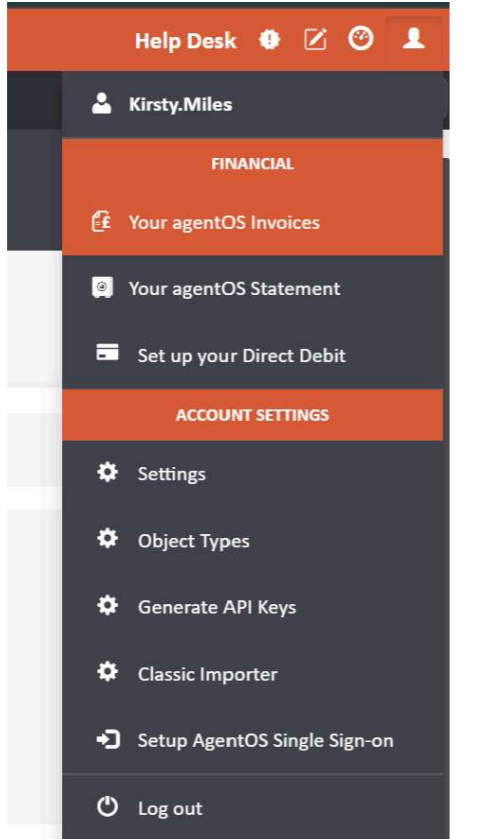
Click the person icon in the top right-hand corner of agentOS and select Setup agentOS Single Sign-on from the dropdown menu.
Step 2 — Sign In via Microsoft Entra
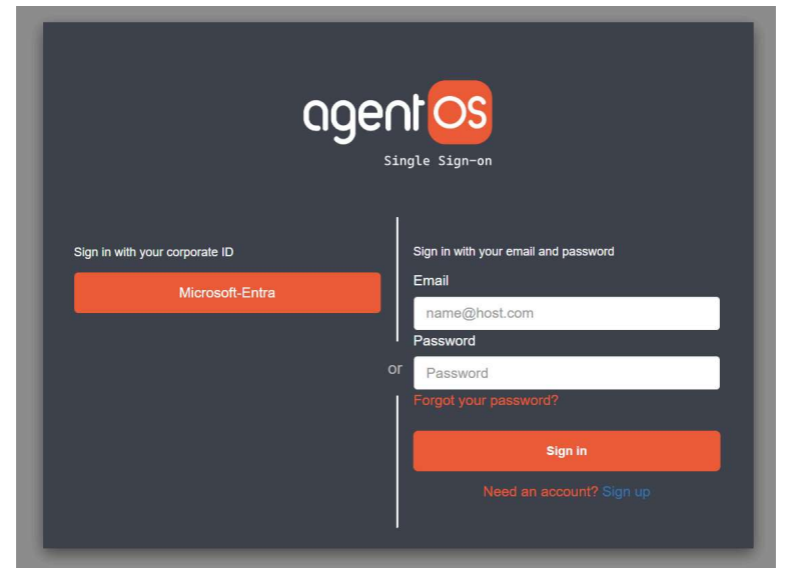
You will be taken to the agentOS Single Sign-On screen. Click Microsoft-Entra to sign in using your corporate ID.
Step 3 — Confirm Your Microsoft Login
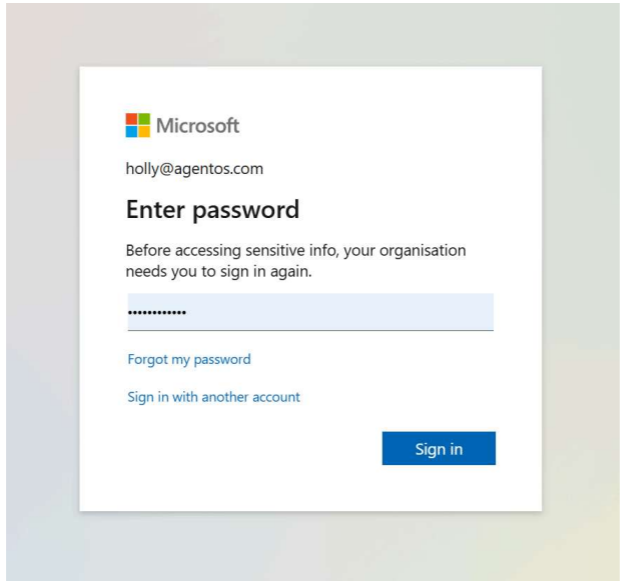
You will be directed to Microsoft to confirm your login. Enter your Microsoft password and click Sign in.
Step 4 — Approve the Sign-In Request
Depending on your organisation's security settings, you may be prompted to approve the sign-in request via your Microsoft Outlook mobile app or authenticator. Open your app and enter the number shown on screen to approve the request.
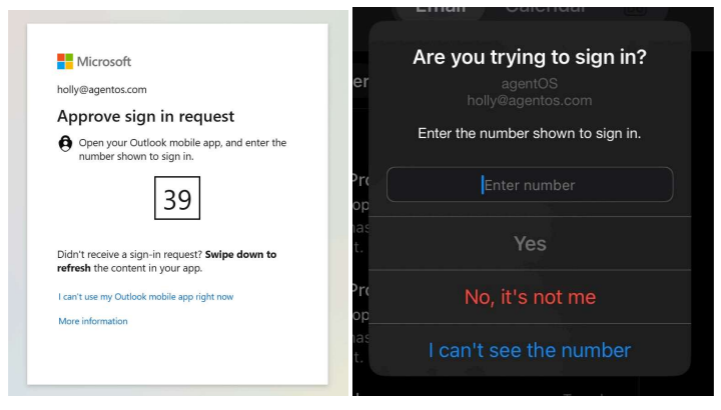
Once approved and signed in, you will be able to access your agentOS staff login.
Method 2 — Setting Up via the Staff Profile
If you are not using Microsoft Entra, you can set up SSO using the Classic Sign In option and a staff profile.
Step 1 — Send the SSO Setup Email
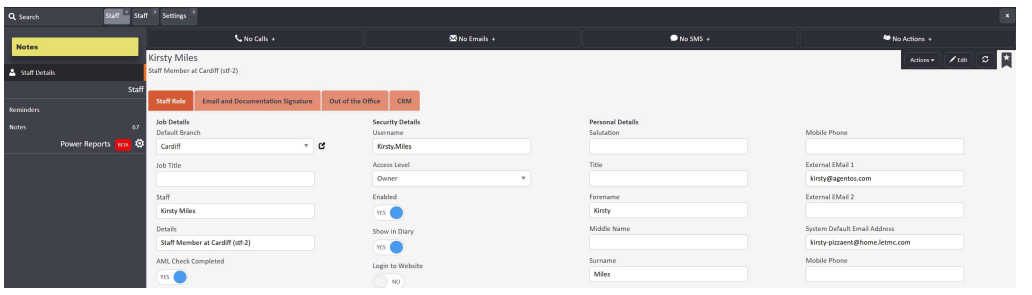
Using the Classic Sign In option, go to the person icon > Settings > Staff. Find the staff profile you want to set up for SSO. Click Actions on their record and select Send Single Sign-On Email.

Step 2 — Follow the Setup Email
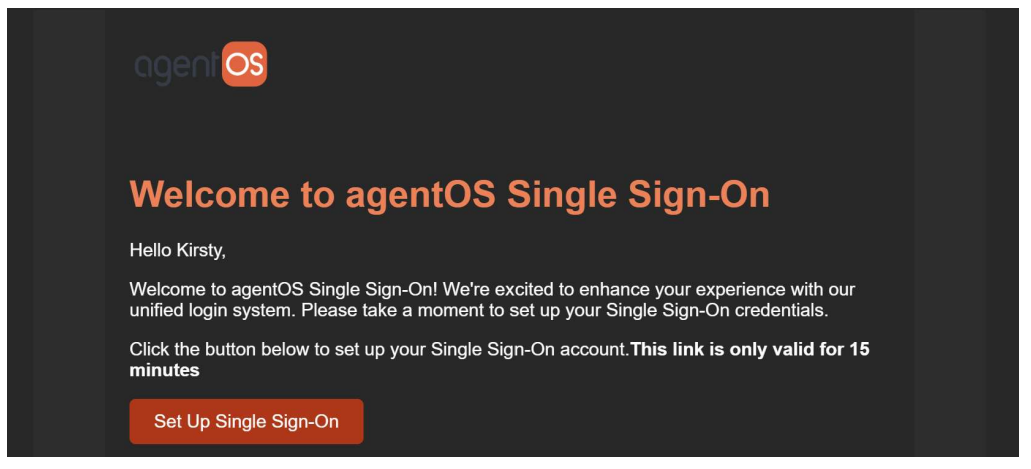
The staff member will receive an email at their External Email 1 address with the subject "Welcome to agentOS Single Sign-On". The email contains a Set Up Single Sign-On button. This link is only valid for 15 minutes — if it expires, a new email will need to be sent.
Step 3 — Set a Password
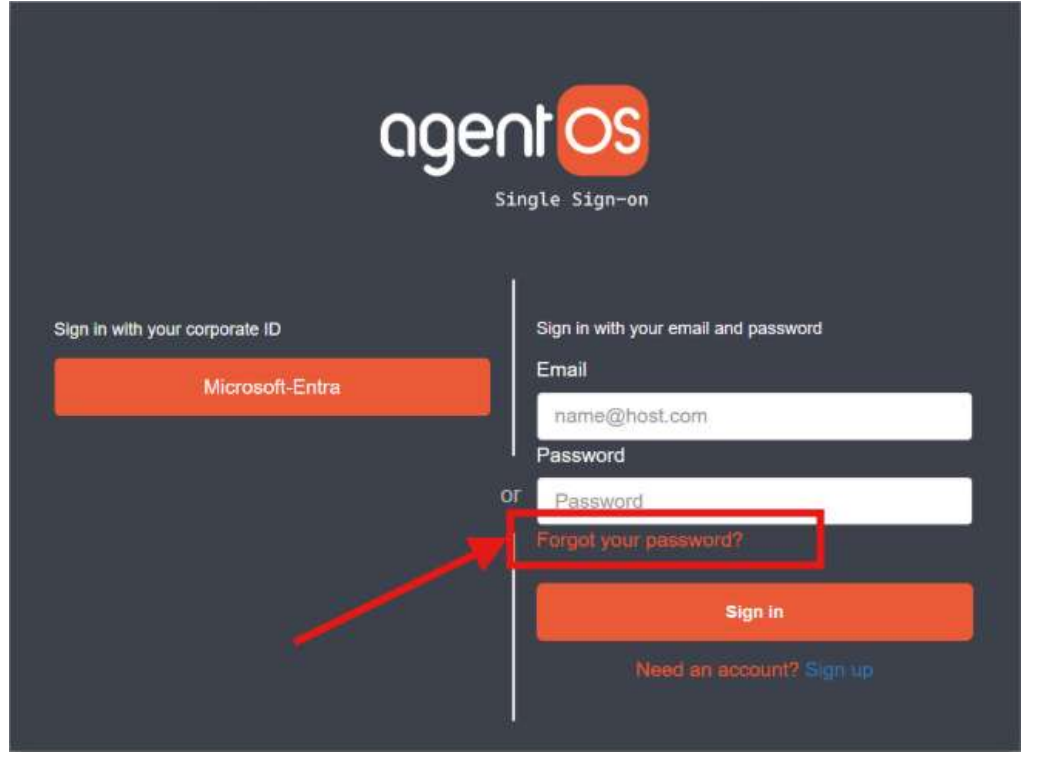
Clicking the link will take the staff member to the agentOS Single Sign-On screen. Use the Forgot your password? link to set a password for the SSO account.
Step 4 — Verify the Account
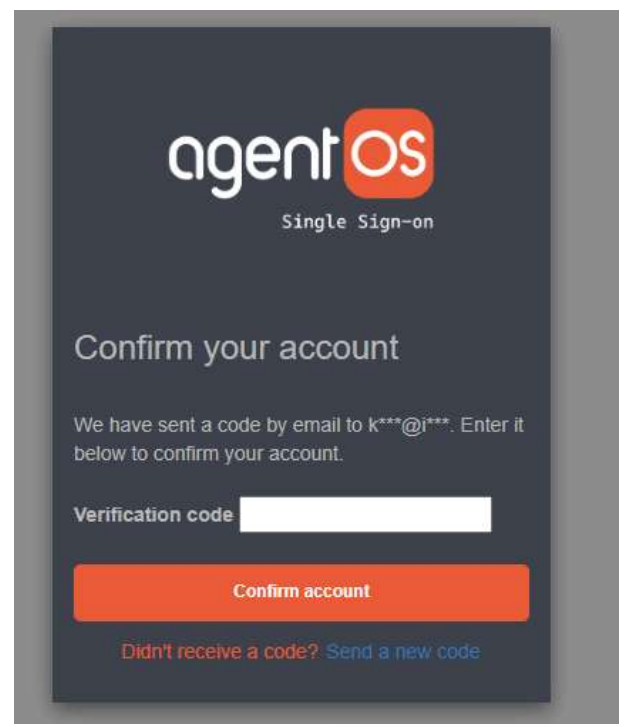
After setting the password, a verification code will be sent by email. Enter the code on the Confirm Your Account screen and click Confirm account. If the code is not received, check the spam folder or click Send a new code.
Step 5 — Set Up MFA (Optional)
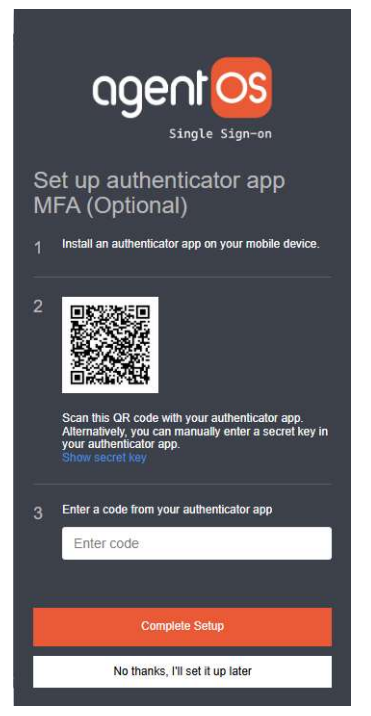
You will then be prompted to set up Multi-Factor Authentication (MFA) using an authenticator app. This step is optional and can be skipped for now.
To set up MFA, install an authenticator app on your mobile device, scan the QR code shown on screen, and enter the code generated by the app. Click Complete Setup.
If you prefer to skip MFA for now, click No thanks, I'll set it up later.
Step 6 — SSO Active
Once setup is complete, a success pop-up will confirm that your Single Sign-On is now active. You can now use this email address when logging in to agentOS.
Resetting Your SSO Password
If you forget your SSO password, click the Forgot your password? link on the agentOS Single Sign-On login screen. Enter your email address and click Reset my password.

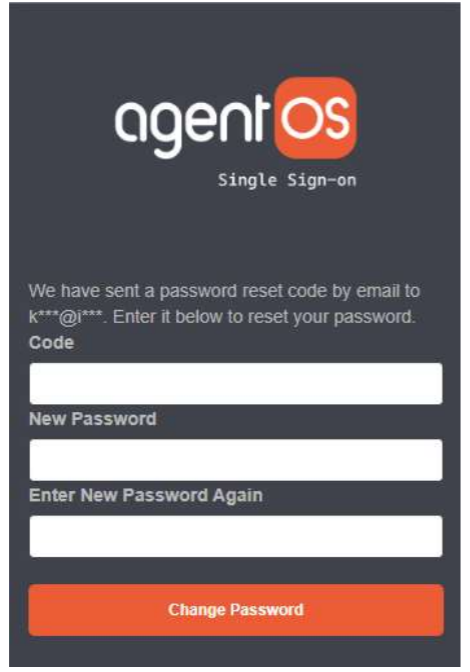
You will receive a password reset code by email. Enter the code along with your new password on the reset screen and click Change Password.
For any questions, contact support@agentos.com.