
Inspection dates can only be set on active tenancies. If an inspection is missed, the date will automatically skip ahead to the next one in the recurrence cycle.
💡 Useful integrations: Touchright and iSurvey both integrate with agentOS for carrying out property inspections.
Part 1: Setting the inspection frequency on a tenancy
Step 1: Open the tenancy and click Edit
Search for the property using the search bar, then open the tenancy. Click Edit in the top right-hand corner of the tenancy page.
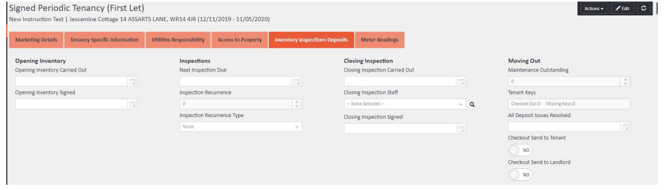
Step 2: Open the Inventory Inspections Deposits tab
Select the Inventory Inspections Deposits tab from the row of tabs across the top of the tenancy record.
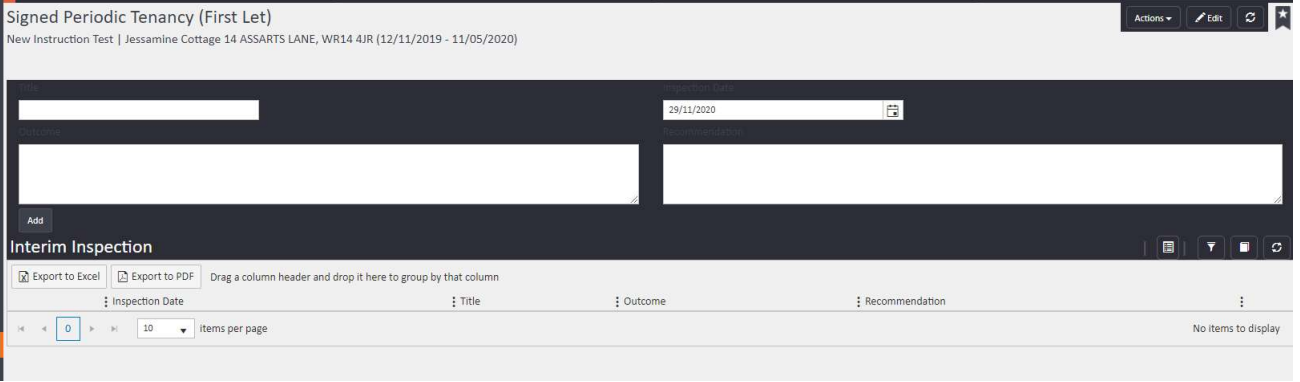
Step 3: Set the recurrence
In the Inspections section of this tab, complete the following fields:
- Next Inspection Due — enter the date of the first upcoming inspection
- Inspection Recurrence — enter how many units of time between each inspection (e.g., 2)
- Inspection Recurrence Type — select the period type (e.g., Weekly, Monthly, Quarterly, Yearly)
These two fields work together. For example:
- Type: Weekly, Recurrence: 2 = an inspection every 2 weeks
- Type: Monthly, Recurrence: 4 = an inspection every 4 months
- Type: Quarterly, Recurrence: 1 = an inspection every quarter
- Type: Yearly, Recurrence: 1 = an inspection every year
Once saved, agentOS will use these settings to prompt inspection reminders and populate the Inspections Becoming Due report.
Part 2: Adding an inspection record
Step 1: Open the tenancy and navigate to Interim Inspections
Search for the property using the search bar and open the tenancy. On the left-hand navigation ladder, click Interim Inspections.
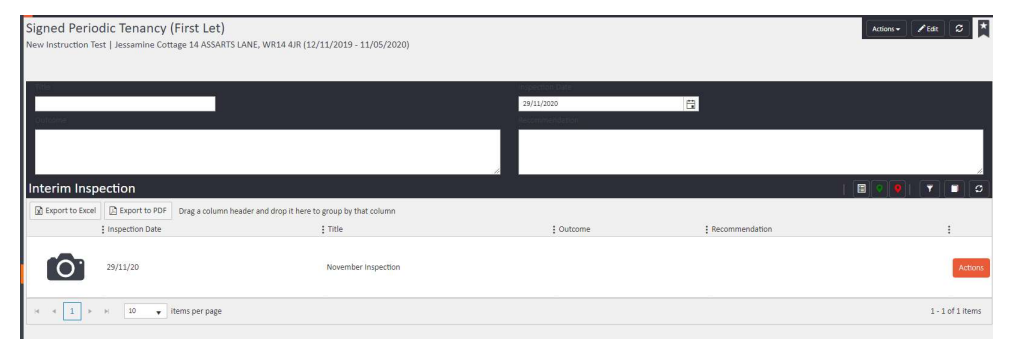
Step 2: Add a new inspection
Click the Add button above the Interim Inspections list. A form will appear at the top of the section where you can enter:
- Title — your own label for the inspection (e.g., "November Inspection")
- Inspection Date — the date the inspection was carried out
- Next Inspection Due — agentOS will autofill this based on your recurrence settings, but you can override it if needed
- Outcome — your notes from the property visit
- Recommendation — what you think needs to be done at the property
Click Add to save the inspection. It will then appear in the list in the lower half of the page.
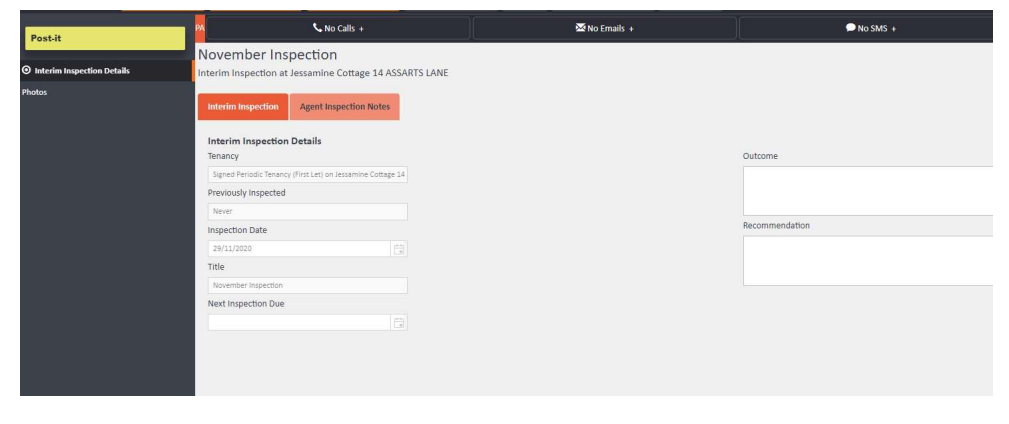
Step 3: Open the inspection record
Click anywhere along the row of the saved inspection to open it. The inspection detail view will open, with a Photos option appearing in the left-hand navigation ladder, and two tabs available: Interim Inspection and Agent Inspection Notes.
- Use Photos to add images from the inspection
- Use Agent Inspection Notes to record any internal notes you don't wish to share with the landlord or tenant
Click Save and Close when done.
Step 4: Send the inspection report
To send an inspection report to the landlord or tenant, return to the Interim Inspections list and click the Actions button (the three-dot icon) on the relevant inspection row. From the dropdown, select either:
- Post Landlord Inspection Letter
- Post Tenants Inspection Letter
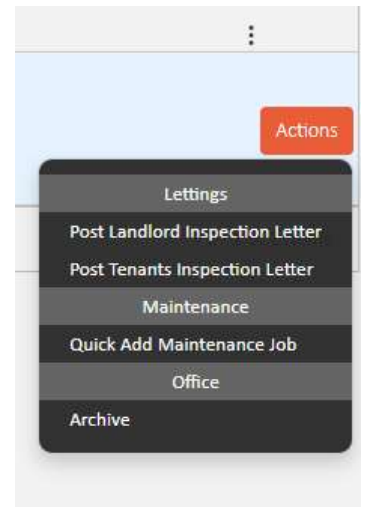
This sends the letter to the postbag for authorisation before it is dispatched.
⚠️ Note: Adding an inspection record does not update the Next Inspection Due date on the tenancy. This is managed automatically according to the recurrence settings saved on the tenancy.
Viewing inspection reminders in your inbox
To see upcoming inspection reminders, click Inbox in the top navigation bar. In the left-hand ladder, scroll down to the Lettings section and click Interim Inspections. Set your filters as needed to view inspections due within your chosen timeframe.
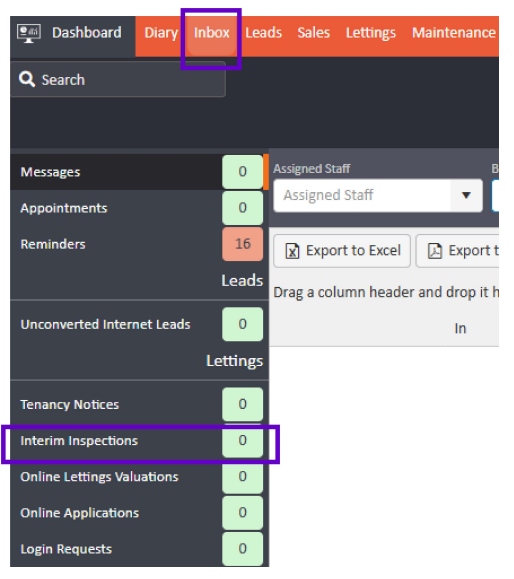
You can also refer to the Inspections Becoming Due report for an overview of all upcoming inspections across your portfolio.
If you need further assistance, contact support@agentos.com.