
Step 1 — Generate Your Report
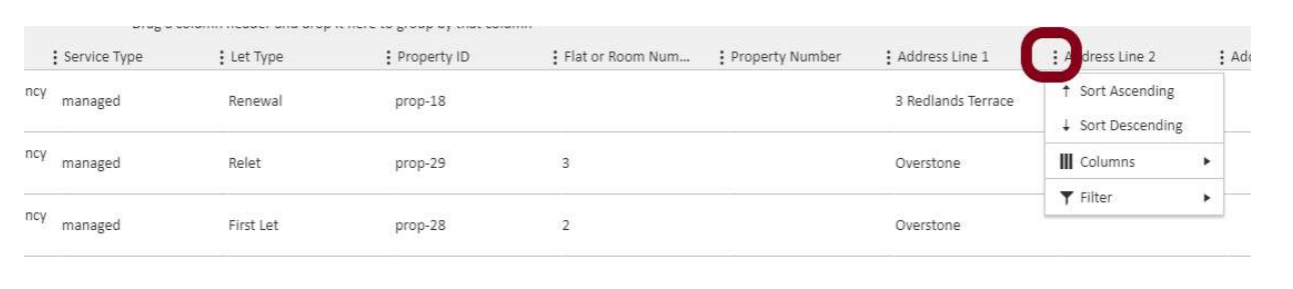
First, generate the report you want to search within. Once the report has loaded, look at the column headers. Wherever you see three dots (⋮) next to a column header, you are able to apply a filter to search within that column.
Step 2 — Open the Filter
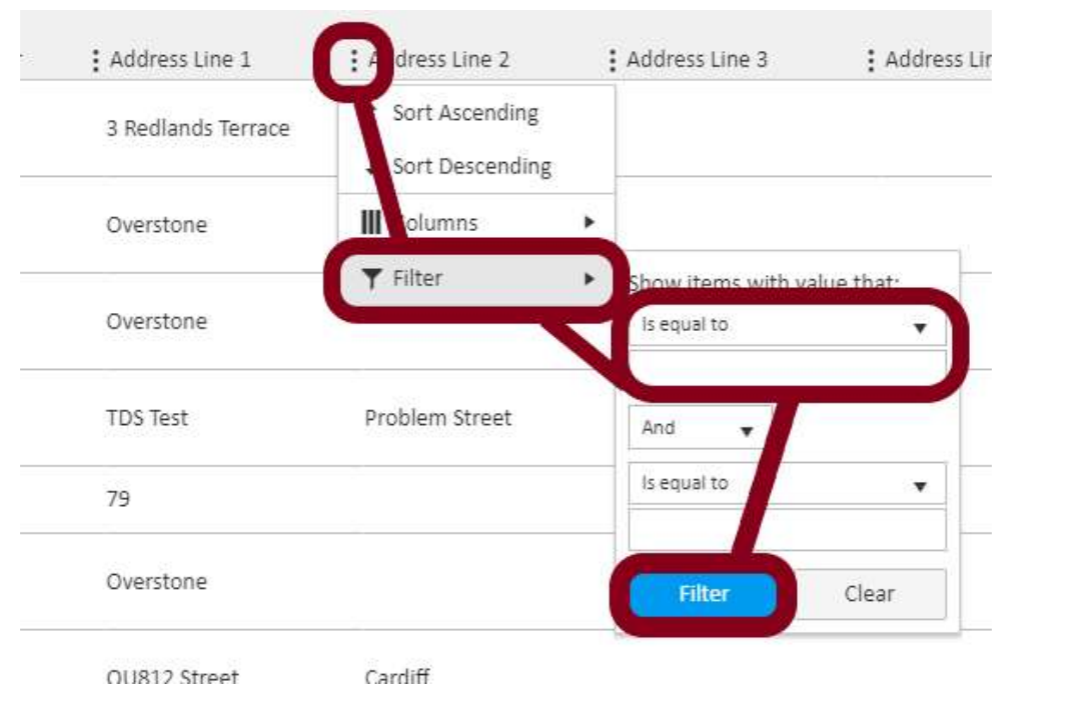
Click the three dots on the column you want to search within. From the dropdown menu that appears, select Filter. A filter box will expand from the menu.
Step 3 — Set the Filter to Contains
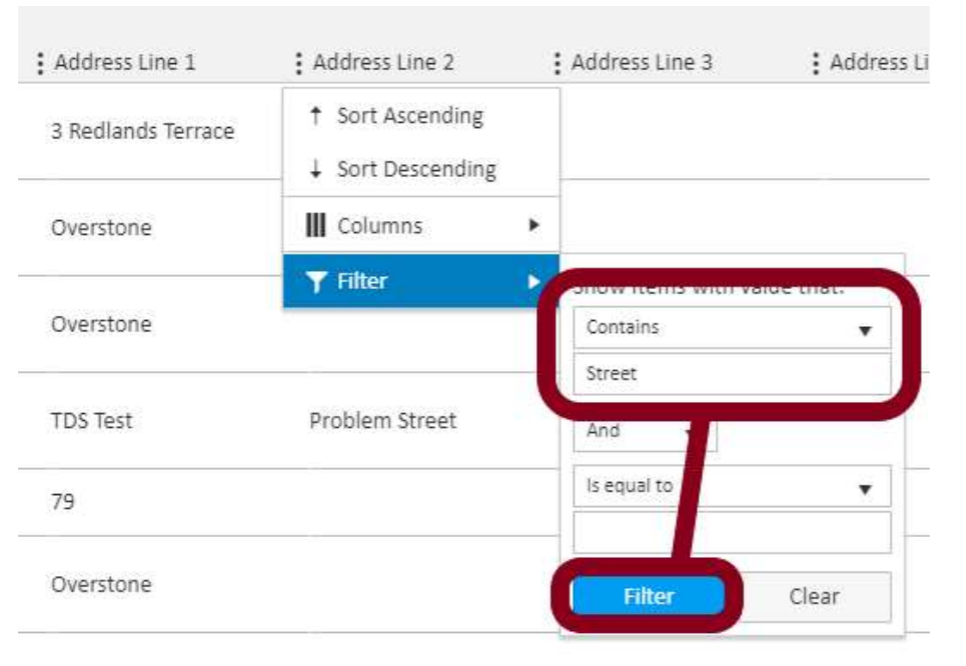
In the filter box, change the first dropdown from Is equal to to Contains. This allows you to search for any items where the column value includes your chosen keyword, rather than requiring an exact match.
Step 4 — Enter Your Search Term and Apply the Filter
Type the keyword or name you want to search for into the text box below the Contains dropdown. Once you have entered your search term, click Filter to apply it. The report will update to show only the rows that match your search.
To remove the filter and return to the full report, click Clear.
For any questions, contact support@agentos.com.