
Calendly is an online scheduling tool that allows prospective property viewers to book appointments at a time that suits both parties. When connected to agentOS, bookings flow directly into your agentOS diary without any manual entry required. The integration must be enabled by the agentOS support team before use — see Step 4 for details.
Step 1: Create Your Calendly Account
If you do not already have a Calendly account, begin by setting one up:
- Navigate to https://calendly.com in your web browser.
- Click Sign Up. You can register with an email address or by connecting your Google or Microsoft account.
- Follow the on-screen setup instructions, including setting your time zone and basic preferences.
Step 2: Create a Calendar and Set Your Availability
Once logged in, you will be taken to your Calendly dashboard.
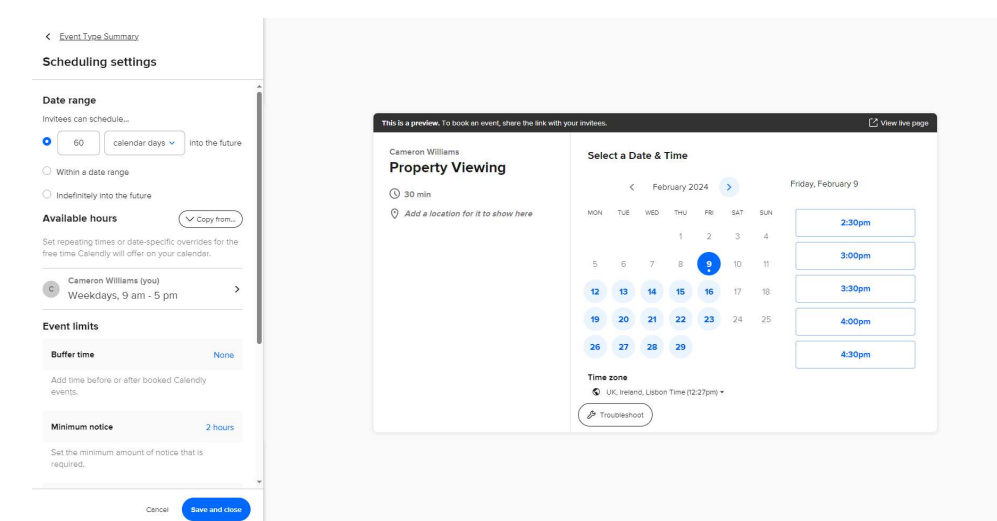
- Click Event Types to begin setting up your calendar.
- Click + New Event Type and choose between a One-on-One or Group event, depending on your requirements for property viewings.
- Fill in the event details, including the event name (for example, "Property Viewing"), a location (which can be a custom address or left blank for virtual meetings), and duration.
- Navigate to the "When can people book this event?" section to set your availability windows for property viewings.
Step 3: Customise Your Booking Form
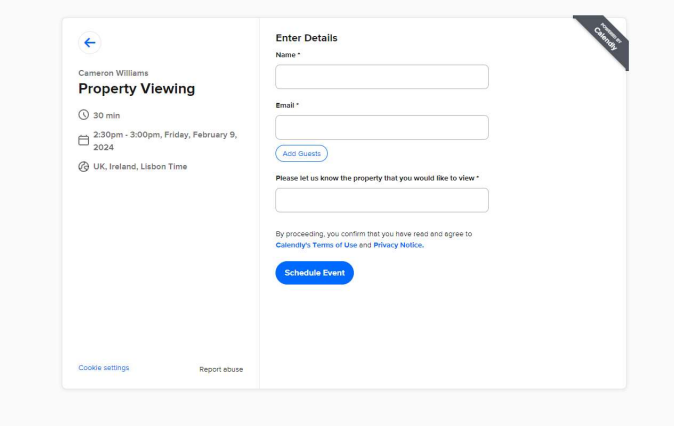
You can collect additional information from viewers at the point of booking.
- In the event customisation options, locate the Invitee Questions section.
- Add any custom questions relevant to property viewings — for example, asking for the address of the property they would like to view.
- Once all questions and event details are finalised, save your event type.
Step 4: Integrate with agentOS
To ensure that bookings made through Calendly flow automatically into your agentOS diary, the integration must be enabled by the support team:
- Contact support@agentos.com with your Calendly login details so the team can enable the integration.
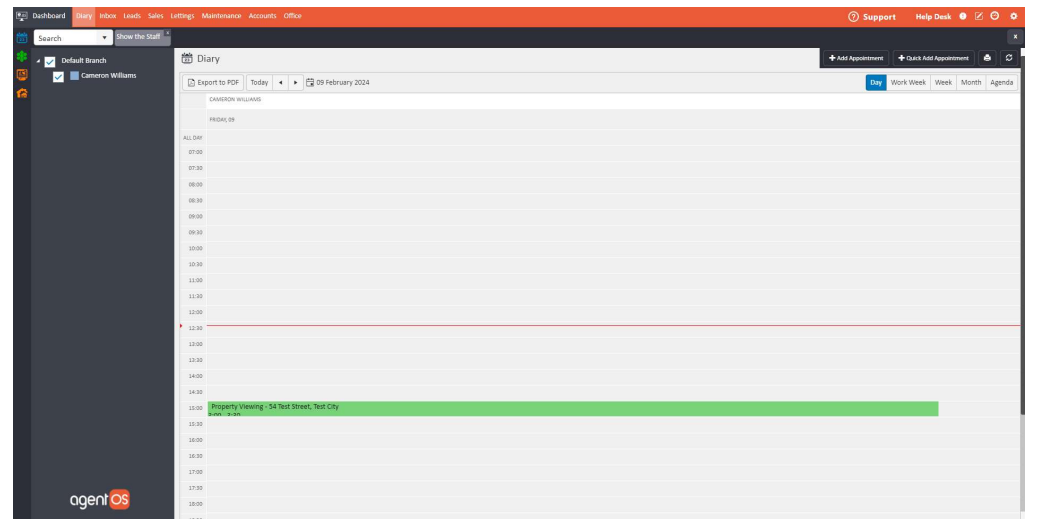
- Once active, any booking placed through Calendly will appear automatically in your agentOS diary, tagged with the event type name (for example, "Property Viewing") and the property address provided by the viewer.
Step 5: Viewing Appointment Details in agentOS
Once a booking has been made and appears in your agentOS diary:
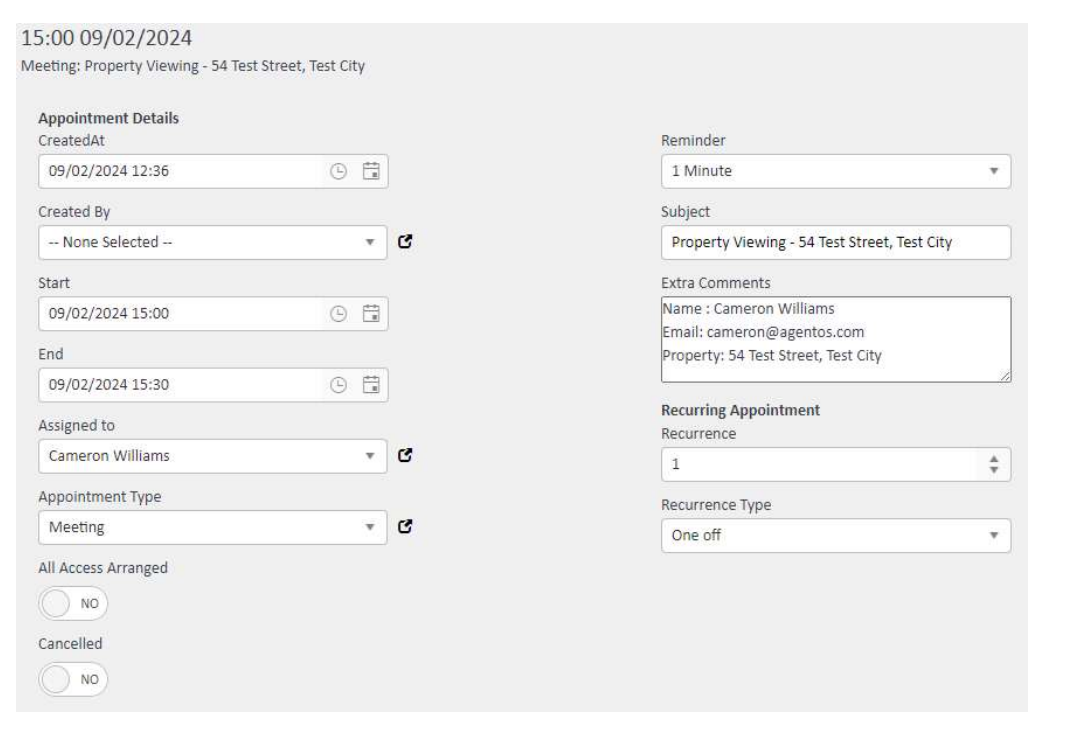
- Click on the appointment in the diary to open it.
- The appointment record will display the viewer's name, email address, and the specific property they are interested in viewing.
Conclusion
By combining Calendly with your agentOS diary, you can manage property viewings efficiently, with all appointments organised and integrated in one place. This saves time on manual diary management and provides a smooth experience for both agents and prospective viewers.
For any additional help, contact support@agentos.com.