
The Land Registry search feature in agentOS allows you to quickly look up property ownership information. There are two ways to access it: via the dedicated Land Registry Searches area, or from a landlord's profile.
Accessing Land Registry Searches
To find the dedicated area, go to the Lettings tab and select Land Registry Searches.
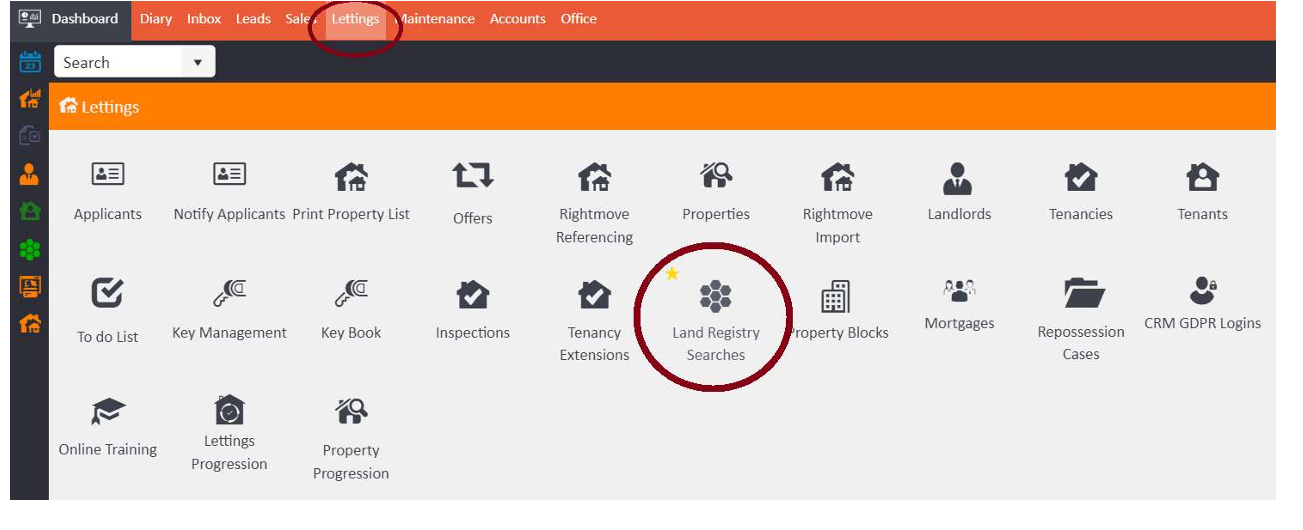
From here you can view any pre-existing Land Registry searches that have been carried out, as well as create new ones.
Starting a New Search
To start a new search, click the Actions button in the top right corner of the Land Registry Searches screen.
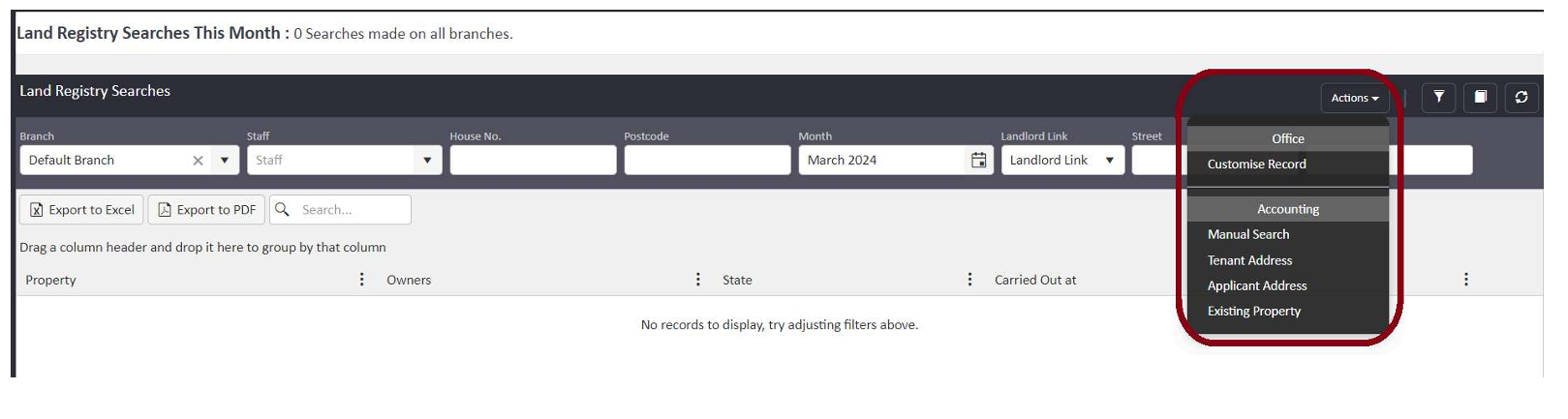
The Actions menu offers the following search options:
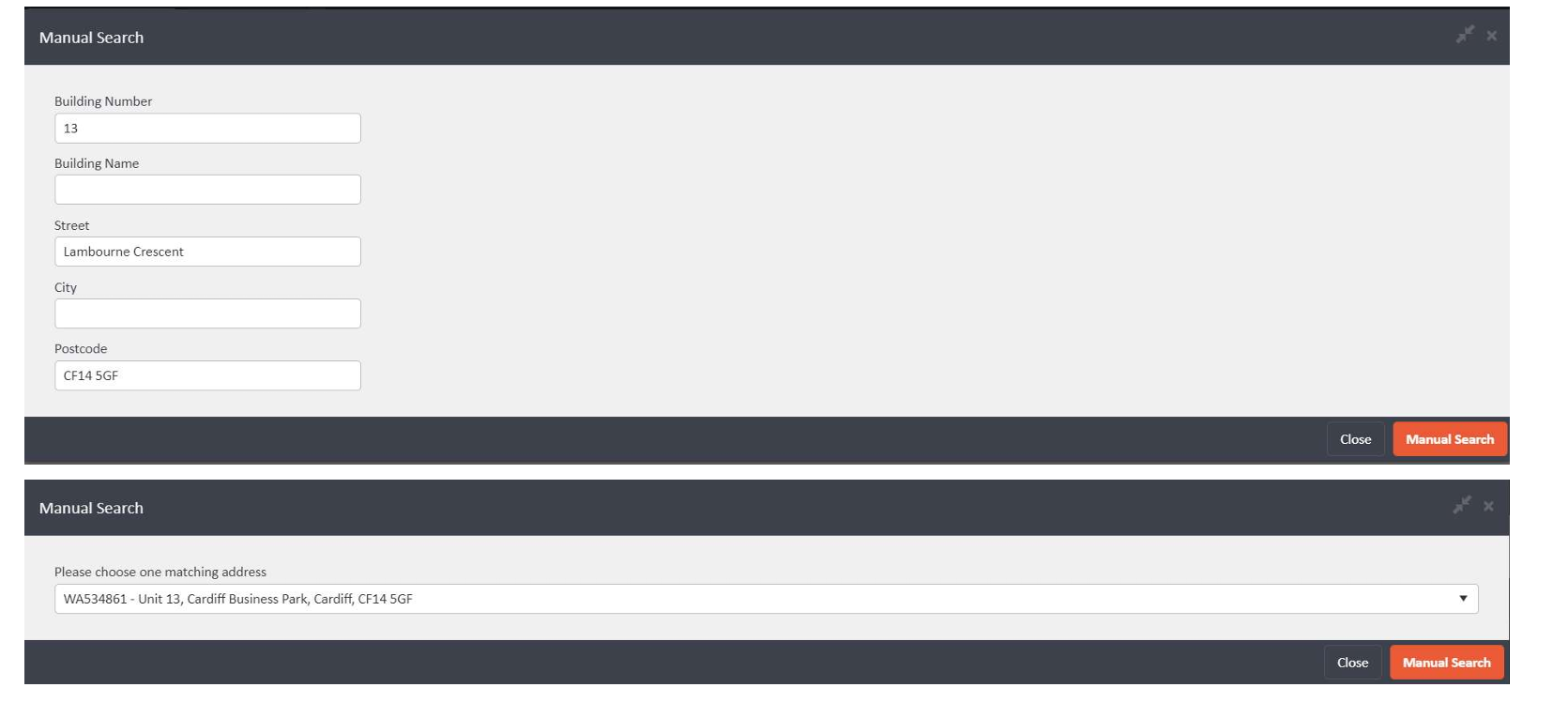
Manual Search — allows you to manually enter a property address to search against.
Enter the building number, building name, street, city, and postcode, then click Manual Search. The system will return any matching addresses for you to select from.
Tenant Address — allows you to search for a pre-existing tenant on the system and uses their pre-tenancy address for the search.
Select the tenant from the dropdown. Once selected, their address details will be pulled through automatically into the address fields. Click Tenant Address to run the search.
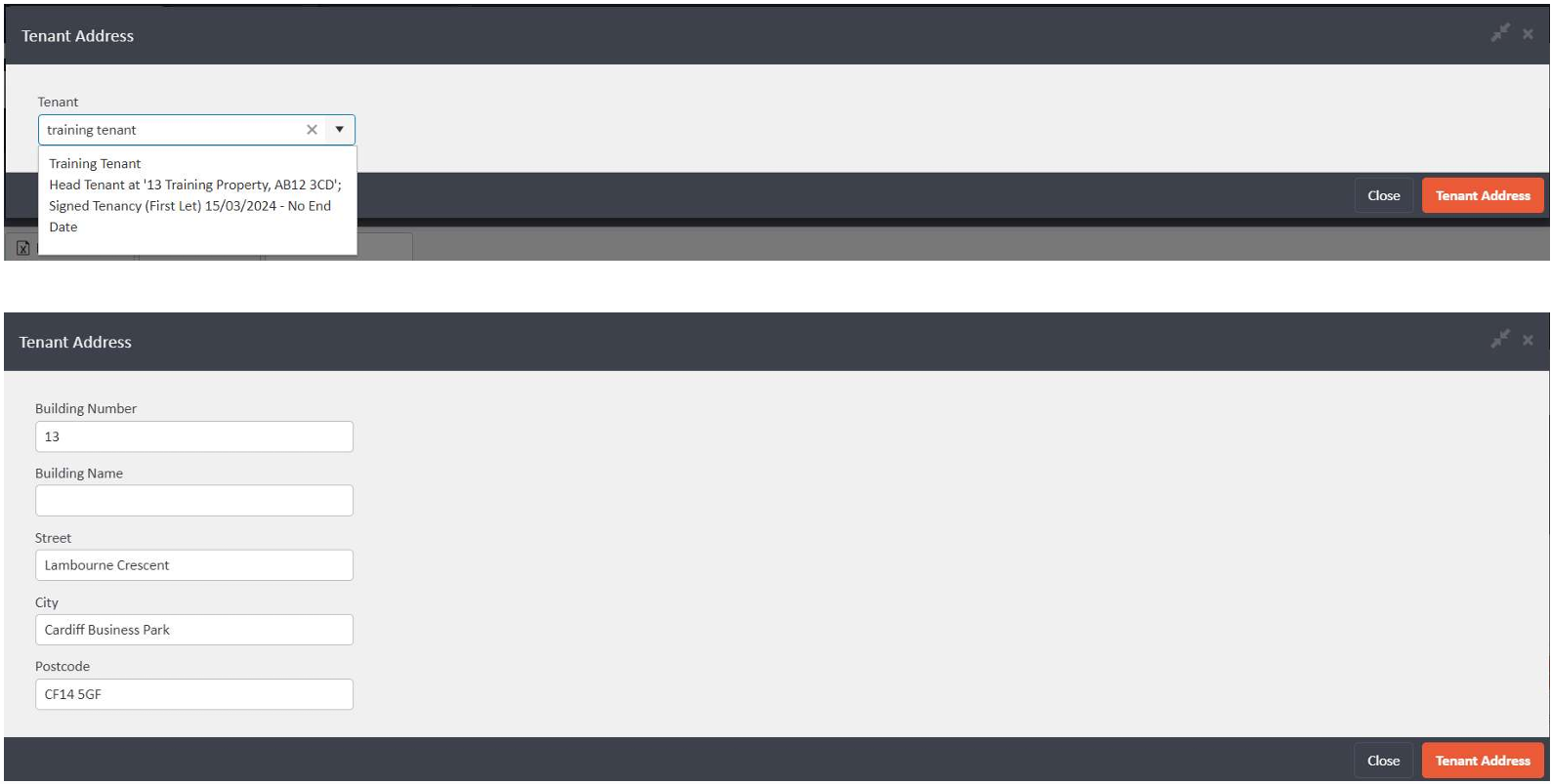
Please note: the pre-tenancy address layout may not always perfectly align with the required format for a Land Registry search. If this happens, make slight adjustments to the address fields to ensure the information fits correctly before running the search.
Applicant Address — similar to the Tenant Address option, this allows you to search for a pre-existing applicant on the system and uses the permanent address connected to their profile.
Select the applicant from the dropdown. Their address will be pulled through into the address fields automatically. Click Applicant Address to run the search.
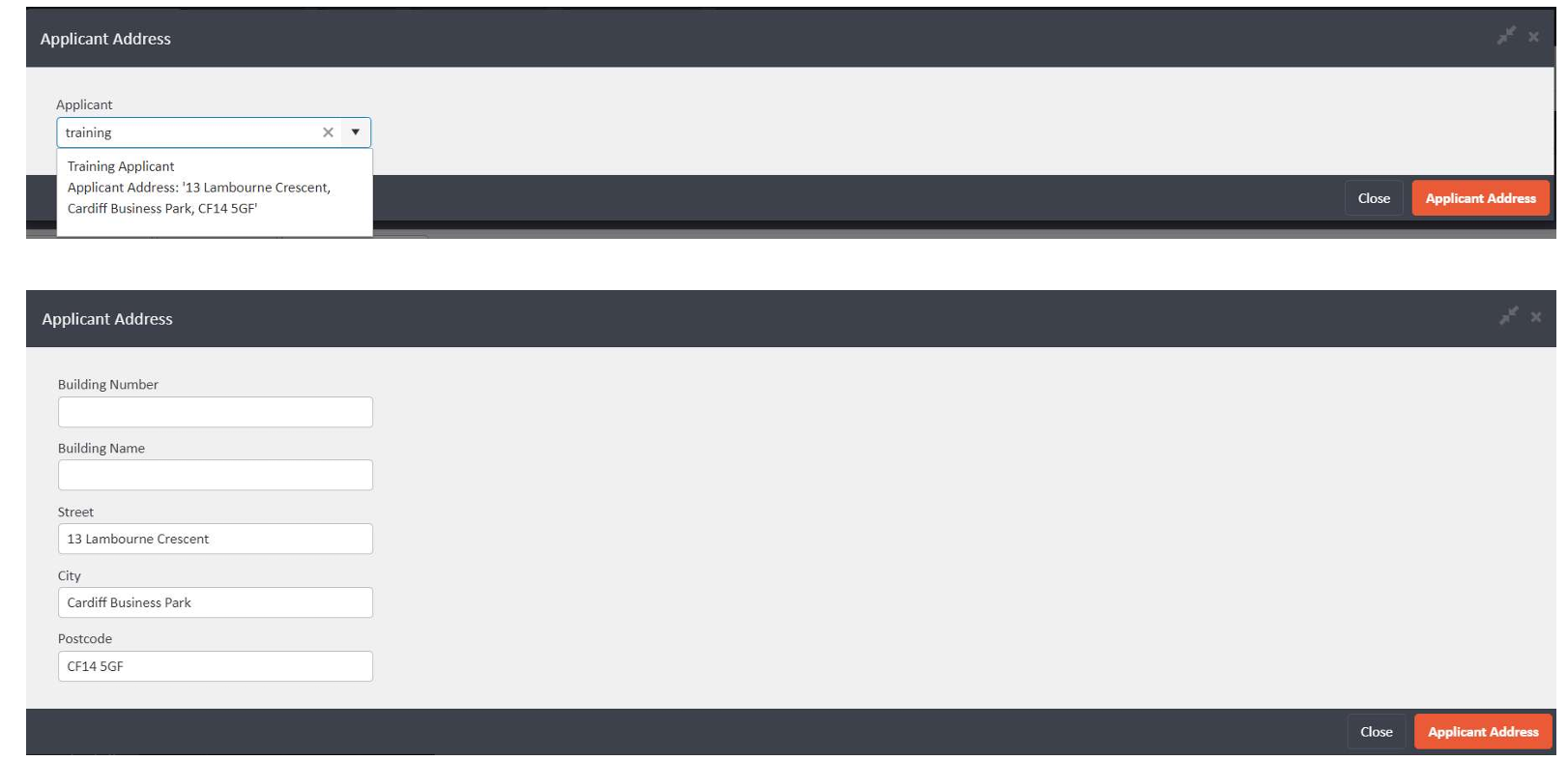
As with the Tenant Address search, the applicant's address layout may not perfectly align with the required format. Make any necessary adjustments to the fields before running the search.
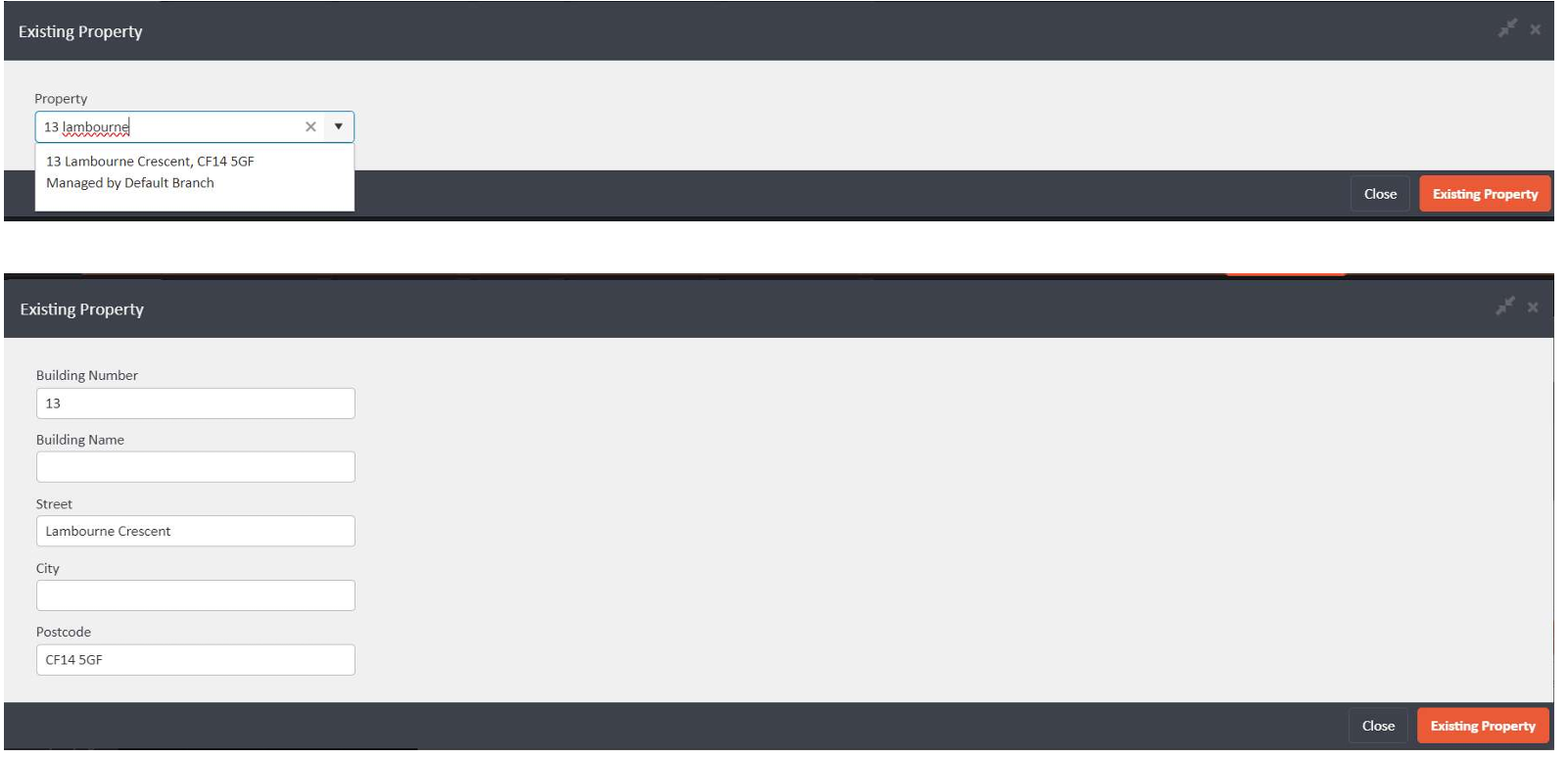
Existing Property — allows you to search using a property profile already set up on your agentOS account.
Search for the property by name or address, select it from the dropdown, and the address fields will populate automatically. Click Existing Property to run the search.
Viewing Results
Once a search has been completed, the results will appear in the Land Registry Searches list. Click into any search to view further detail.
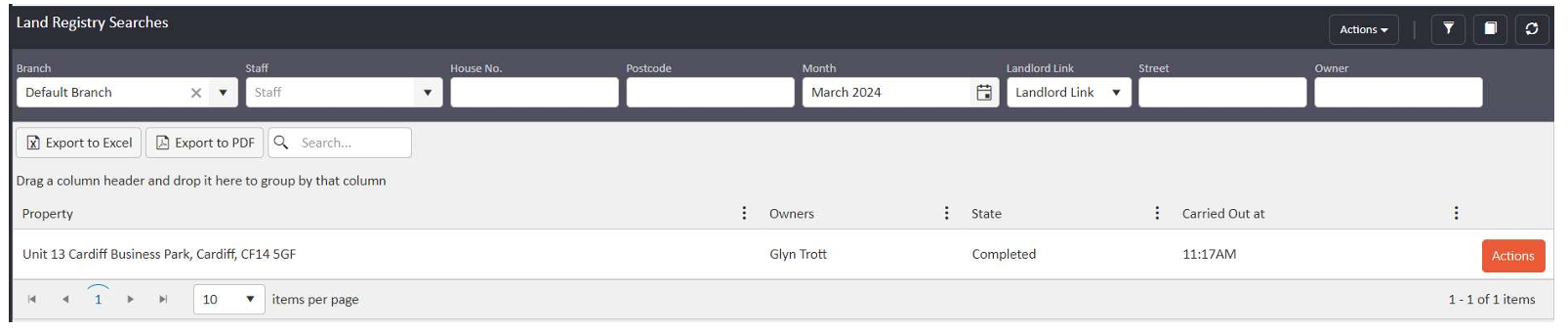
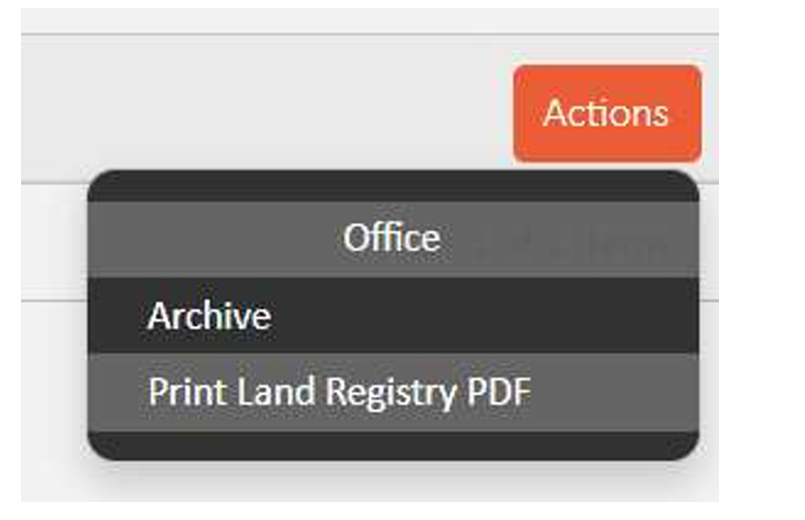
You can also use the Actions button against a completed search to print the results as a PDF document.
For any questions about Land Registry searches, contact support@agentos.com.