
If a notice has been issued on a tenancy and needs to be withdrawn, you can rescind it directly from the tenancy record in agentOS.
Step 1: Open the tenancy
Use the quick search bar at the top of the screen to find the tenancy — type the property address and select the relevant tenancy from the results.
Alternatively, navigate to the property record, click Tenancies in the left-hand navigation ladder, and open the tenancy from there.
Step 2: Go to Manage End Notices
Once the tenancy is open, locate Manage End Notices in the left-hand navigation ladder and click on it.

Step 3: Rescind the notice
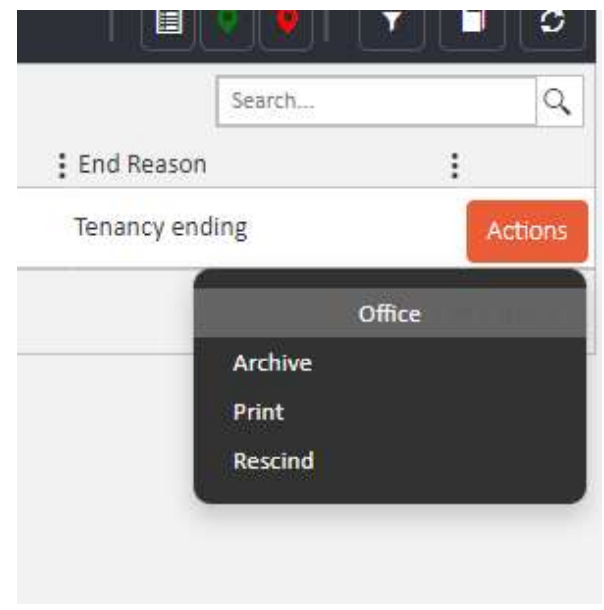
Find the issued notice in the list. Click the orange Actions button on the right-hand side of the notice row. A dropdown menu will appear with the following options under the Office heading: Archive, Print, and Rescind.
Select Rescind.
Step 4: Enter a reason
The system will prompt you to enter a reason for rescinding the notice. Type your reason into the field provided, then click Rescind again to confirm and complete the action.
If you need further assistance, contact the agentOS support team at support@agentos.com.