
Step 1 — Find the Staff Member
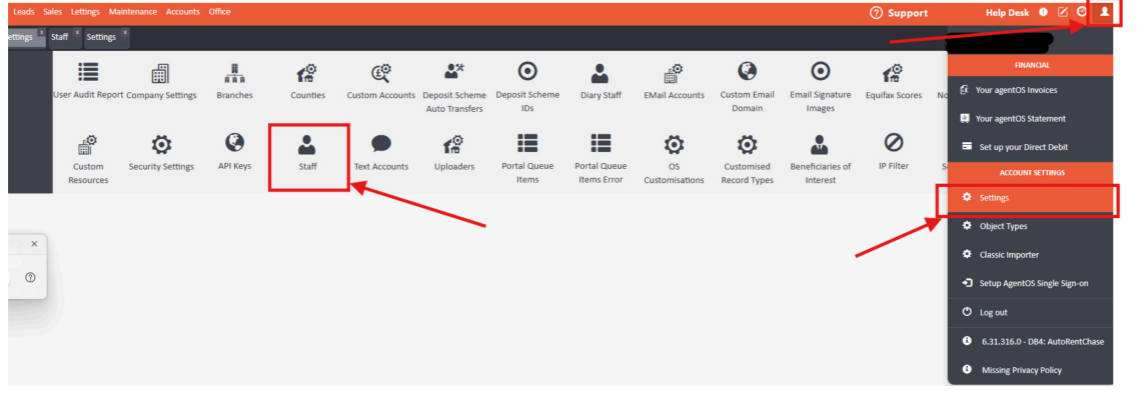
Search for the staff member by name using the search bar and open their record. Alternatively, navigate to the Staff list by clicking the person icon in the top right-hand corner > Settings > Staff.
Step 2 — Edit the Staff Record
Click Edit on the staff member's profile to open their record for editing.
Step 3 — Disable the Account
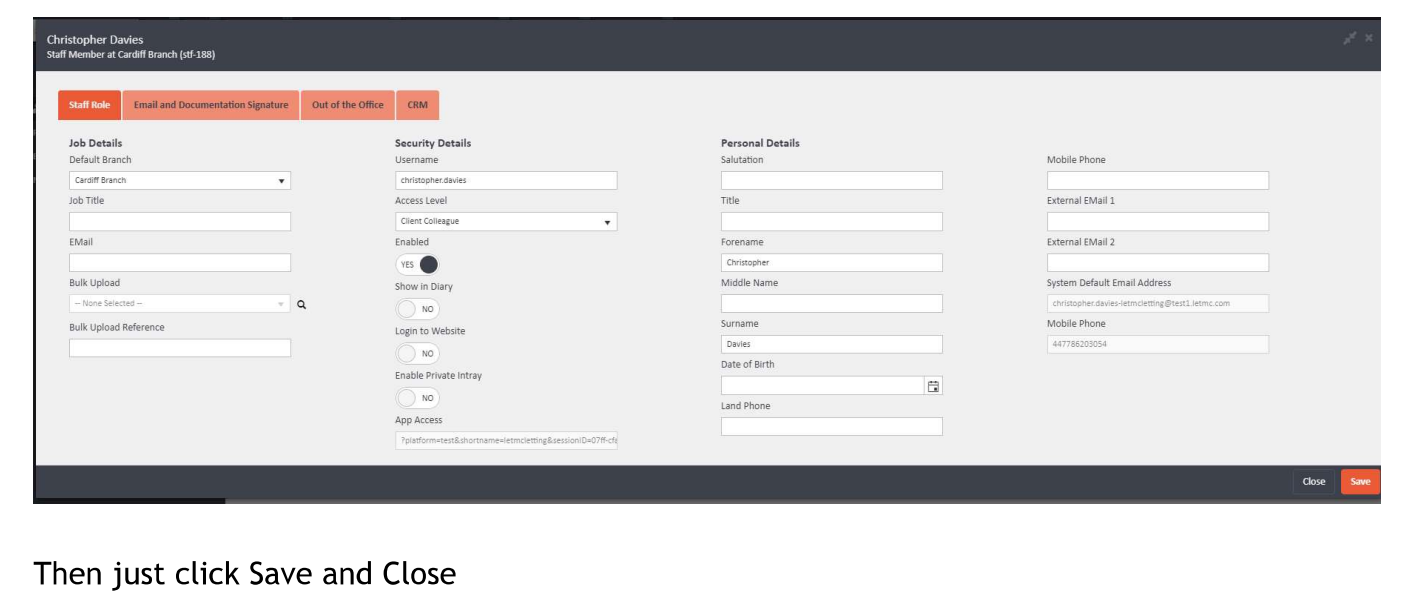
In the Security Details section of the staff record, locate the Enabled field and switch the toggle from Yes to No.
If you have already moved all of this staff member's diary appointments to another member of staff, you can also switch the Show in Diary toggle to No at this stage.
Step 4 — Save and Close
Click Save to apply the changes, then Close to exit the record.
Important: Archiving Alone Does Not Stop Billing
Archiving a staff member's record will not discontinue billing for that account. The account must be properly disabled by following the steps above in order to stop the associated monthly charge. Do not rely on archiving alone to remove a staff member's access or billing.
Reassigning the Staff Member's Email Address
If the departing staff member had a dedicated email address set up in agentOS and you need to reassign it to another member of staff, please refer to the related article on assigning an email account to a different staff member for full instructions on how to do this.
For any questions, contact support@agentos.com.