
The offers feature allows you to record and track offers made by applicants on a lettings property. It is optional and not required to complete the tenancy process.
Finding the Offers section
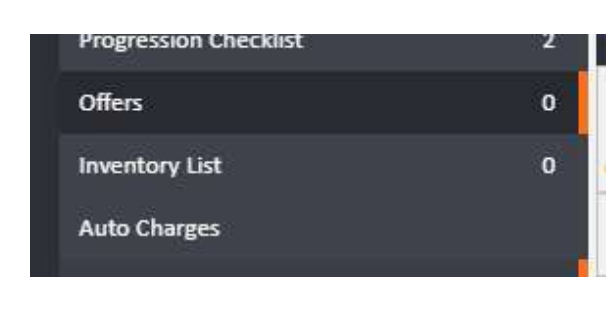
Open the tenancy in agentOS. In the left-hand navigation ladder, click Offers. The number next to it shows how many offers are currently recorded.
Adding an offer
At the top of the Offers section, you will see the Add form. Complete the following fields:
- Applicant — select the applicant making the offer
- Current Offer — the opening offer amount
- Maximum Offer — the maximum the applicant is willing to pay
- Number of Tenants — how many tenants are part of this offer
Click Add to save the offer.

Viewing and actioning an offer
Once saved, the offer appears in the Offers grid below the Add form. The grid shows the Offer Made time, Negotiator, Current Offer, Maximum Offer, Advertised Price, and Number of Tenants.

To action an offer, click the Actions button on the relevant row. The dropdown shows the following options under the Lettings section:
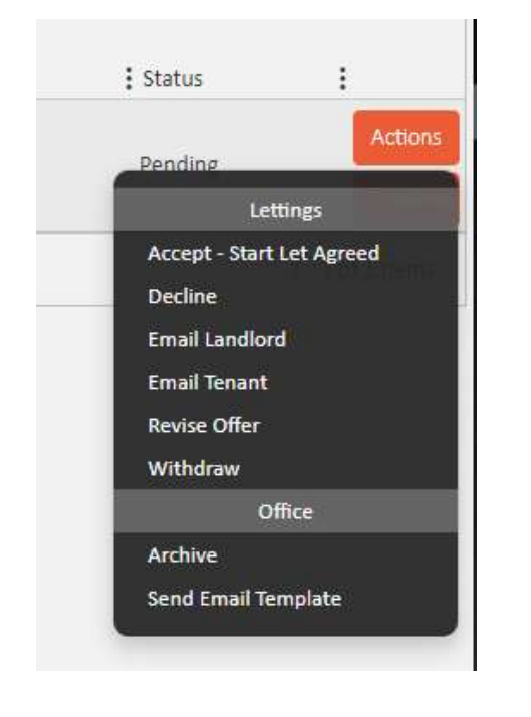
Each outcome works as follows:
- Accept - Start Let Agreed — the tenancy moves to Let Agreed (if currently Advertised) and the applicant is added as a tenant. Any other open offers remain open.
- Decline — the offer is closed. No further actions can be taken on it.
- Revise Offer — the offer is updated but remains open. All actions are still available.
- Withdraw — the offer is closed. No further actions can be taken on it.
⚠️ Offers can be submitted at any stage of a tenancy instruction's life cycle, but the instruction will only change to Let Agreed if it is currently at the Advertised stage when the offer is accepted.
Multiple offers and multi-occupancy tenancies
Any number of offers can be accepted, with each accepted offer adding the applicant as a tenant. This allows you to record and accept offers from each applicant separately when letting to multiple occupants.
Viewing offer details and sending letters
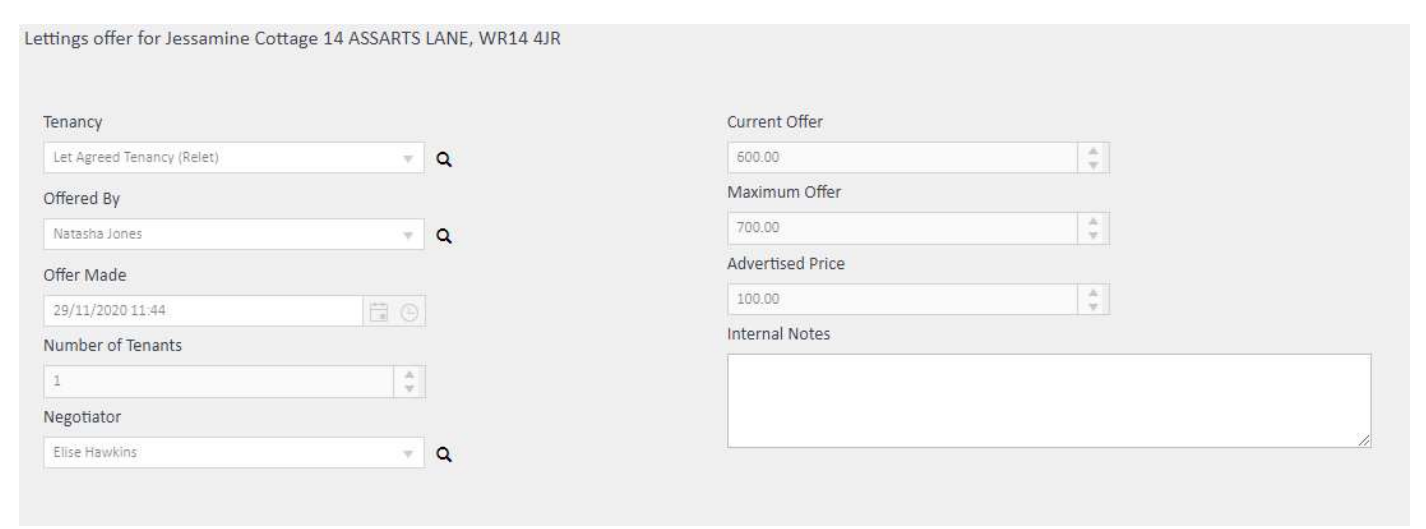
Click anywhere on an offer row to open the full offer record. From here you can view the offer details, add internal notes, and send letters to the landlord or applicant.
- Send a letter to the landlord when an offer is received
- Send a letter to the applicant when their offer is accepted
If you need further assistance, contact support@agentos.com.