
The Self Assessment Statement (SAS) report provides landlords with a summary of all financial activity on their account for a given tax year, which they can use to support their self assessment tax return.
What the report covers
The SAS report runs from 6th April to 5th April for the selected tax year and includes all system-processed transactions during that period, such as maintenance costs, charges and refunds (including management fees, auto charges, and manual charges), rent received, and payments made to the landlord.
⚠️ Important: The SAS report does not include Journal Transfers or Transfers between people. If a landlord believes transactions are missing from their report, check the Accounts section on their profile to review the timing of those transactions. It is likely they either fall outside the tax year cut-off or are recorded as a Journal or Transfer rather than a standard transaction type.
Step 1: Open the landlord profile
Use the quick search bar at the top of your screen to find and open the relevant landlord profile.
Step 2: Select Post SAS Report from Actions
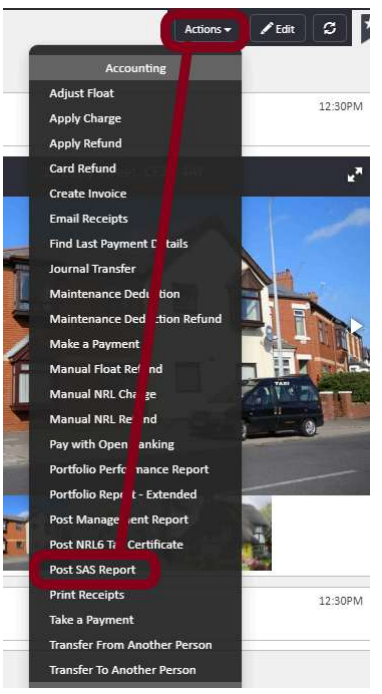
Click the Actions button in the top right corner of the landlord profile. From the dropdown, scroll to the Accounting section and select Post SAS Report.
Step 3: Select the tax year end and send
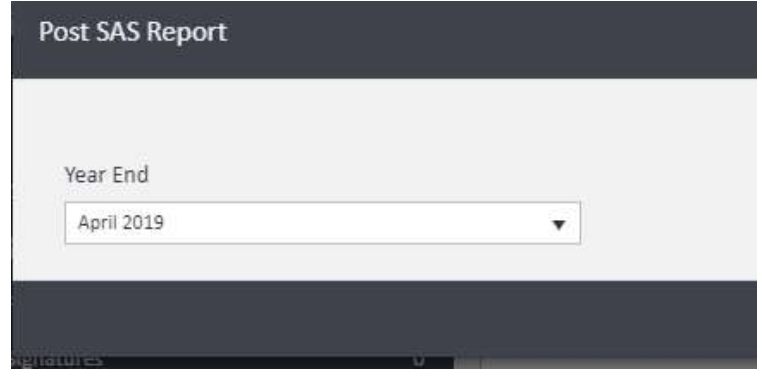
A Post SAS Report form will appear. Use the Year End dropdown to select the relevant tax year end (for example, April 2019). Once selected, click Post SAS Report in the bottom right corner to send the report to the postbag.
The report will be generated and queued in the postbag for sending to the landlord.
If you need further assistance, contact support@agentos.com.