
Deposit deductions are recorded in agentOS after a closing inspection has been carried out. When a claim is successful and closed, the system moves the relevant funds from the tenant's bond held account into the landlord's main account so that maintenance deductions can be processed.
⚠️ Important: You do not need to carry out this process if you register your deposits with the DPS/TDS Custodial Scheme.
Step 1: Find the tenancy
Use the quick search bar at the top of your screen to find and open the relevant tenancy.
Step 2: Navigate to Deposit Deductions
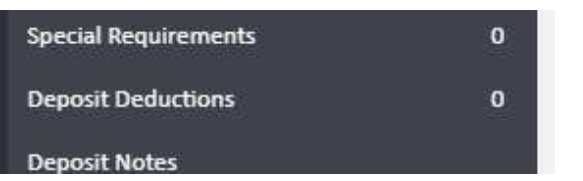
Once inside the tenancy record, click Deposit Deductions in the left-hand navigation ladder.
Step 3: Add a deduction claim
The Deposit Deductions screen will open, showing the entry form at the top and the claims list below.
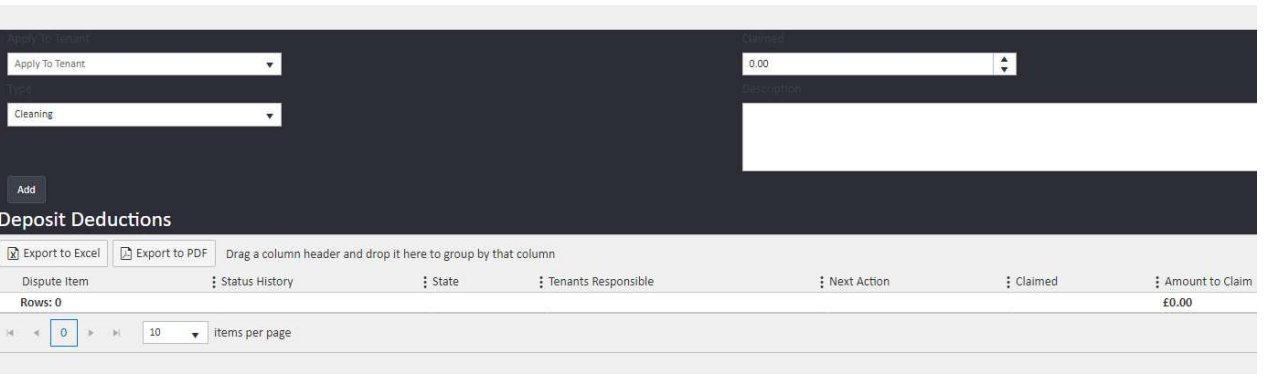
Complete the form as follows:
- Apply To Tenant — select the specific tenant this deduction applies to. If left blank, the claim will be split between all tenants on the tenancy
- Deduction type — select the relevant category from the dropdown (e.g., Cleaning, Damage to Property/Contents)
- Amount — enter the amount you wish to deduct
- Description — enter a description of the claim. This will appear on both the tenant's and landlord's accounts
Once complete, click Add. The claim will be saved and appear in the list below the form. You can add as many deduction claims as needed.
💡 Tip: Add each claim as a separate line item. This way, if the tenant disputes one claim but agrees to another, you can action each one individually.
Step 4: Manage claim outcomes
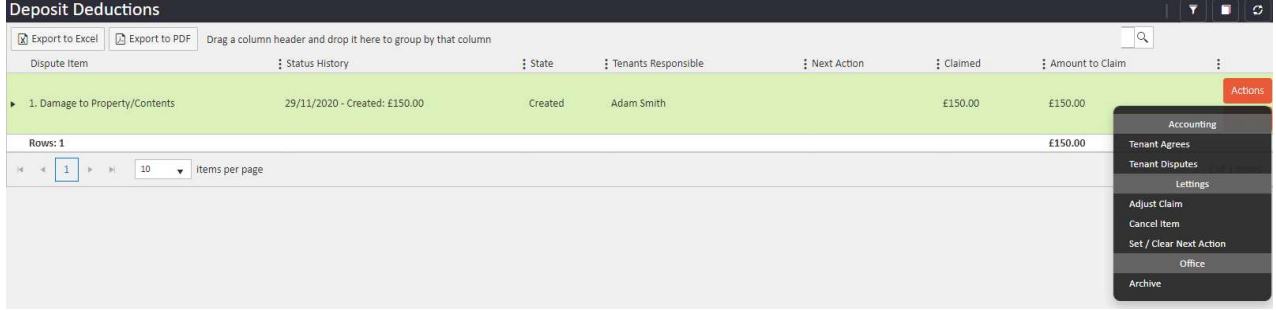
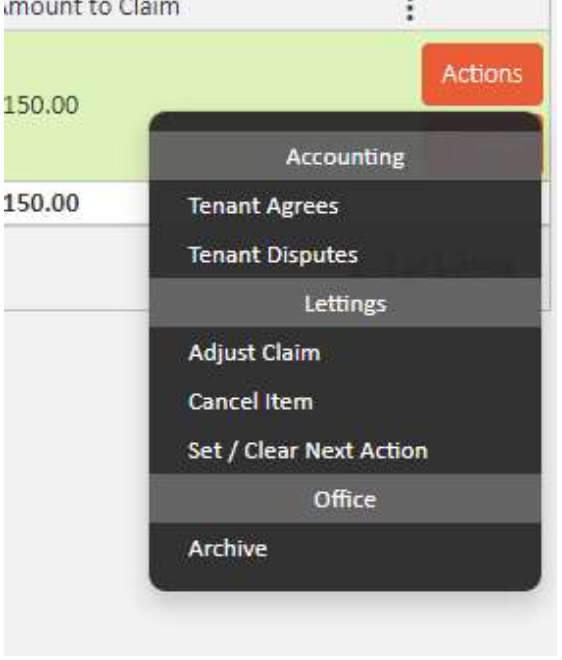
Once a claim has been added, an Actions button will appear on the right-hand side of each entry in the list. The options available at this stage are:
- Tenant Agrees — use this when the tenant accepts the claim
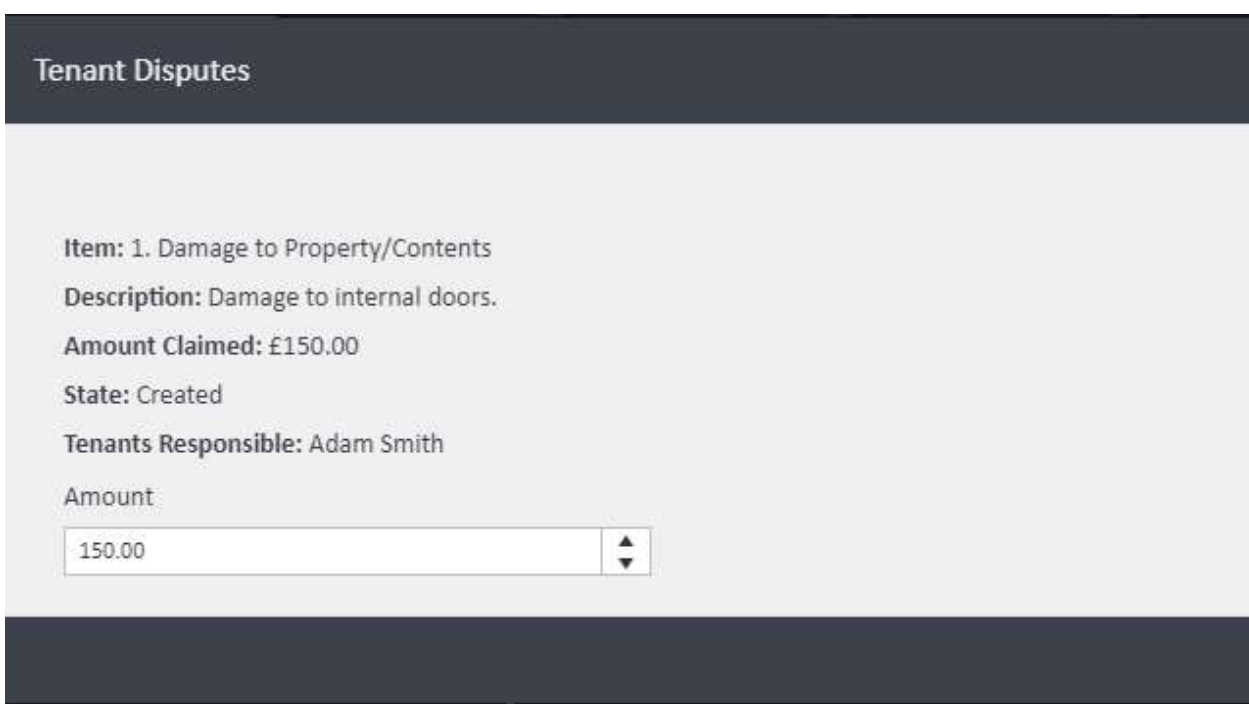
- Tenant Disputes — use this when the tenant contests the claim. The system will prompt you to enter the amount the tenant is disputing
- Adjust Claim — use this to change the amount being claimed
- Set / Clear Next Action — use this to set a follow-up date if you are waiting for a response regarding the deduction
- Cancel Item — use this to cancel the deduction claim entirely
When Tenant Disputes is selected, a Tenant Disputes panel will appear showing the claim details and prompting you to enter the amount the tenant is disputing.
The status history on each claim updates automatically whenever an action is taken. agentOS also applies a date and time stamp to every change for audit purposes.
Step 5: Resolve and close the claim
Once the tenant has agreed or disputed the claim, the Actions dropdown will update to reflect the new state. The options at this stage are:
- Mark as Resolved — use this once the matter has been dealt with and the claim is ready to be completed
- Cancel Item — use this to cancel the deduction claim
- Set / Clear Next Action — as above
- Adjust Claim — use this to adjust the claim amount if needed
Once you have marked the item as resolved, you will need to close it using the Actions button on the claim. If the deduction was accepted by the tenant, the system will move the funds from the tenant's bond account to the landlord's account. If the tenant disputed the claim and no agreement was reached, no funds will be moved and you will need to begin the process again with a revised amount.
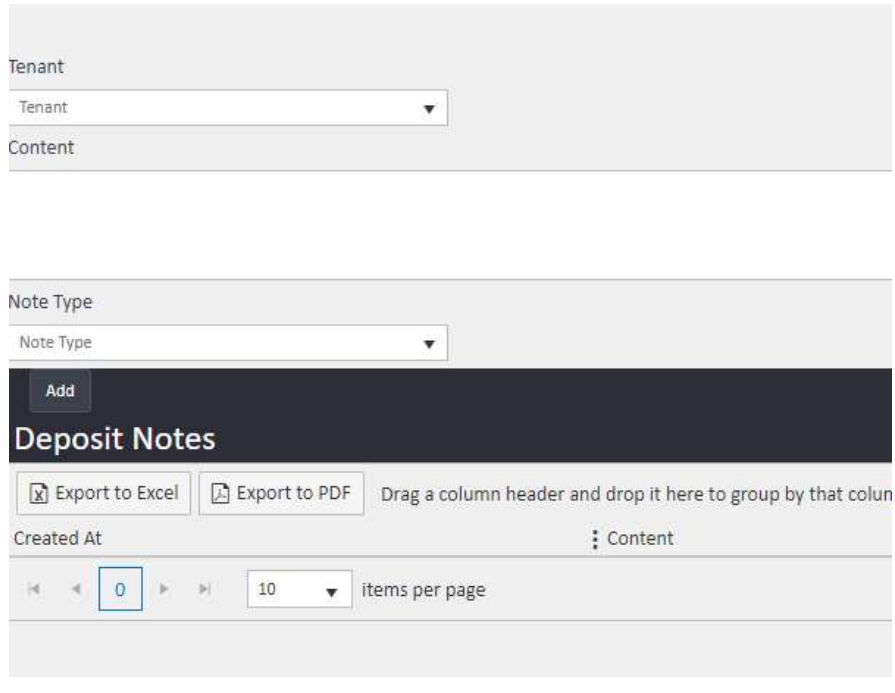
Deposit Notes
Because deposit deductions often involve communication between multiple parties, agentOS includes a Deposit Notes section in the left-hand navigation ladder. You can use this to log any notes or correspondence related to the deposit throughout the process.
If you need further assistance, contact support@agentos.com.