Minimising a Window
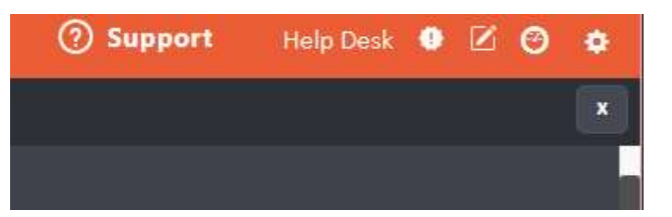
If you are part way through adding or completing something in agentOS and need to move to another area temporarily, you do not need to close the window and lose your progress. Instead, click the minimise button in the top right-hand corner of the window — it sits next to the X (close) button.
Finding a Minimised Window
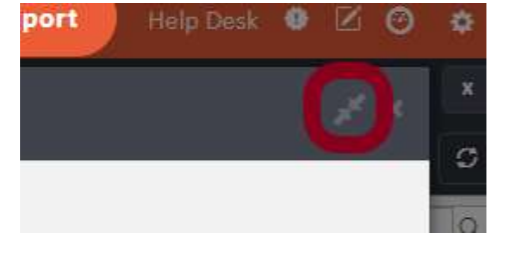
Once minimised, the window will appear as a tab at the top of your agentOS screen, highlighted in red. You can see all currently minimised windows listed across the top of the dashboard.
Maximising (Reopening) a Minimised Window
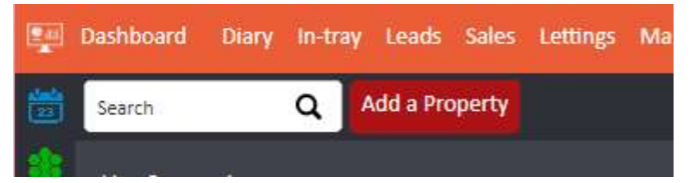
To return to a minimised window, simply click on its tab at the top of the screen. The window will reopen exactly where you left it, with all your progress intact.
Closing Minimised Windows
To close an individual minimised window, click on its tab and then click the X within that window.
To close all minimised windows at once, click the X in the top right-hand corner of the main agentOS dashboard.