
You mark a tenancy as Let Agreed once an applicant has agreed to take a property. At this point the tenancy instruction status changes, and if the property was advertised on portals it will show as Let Agreed there too.
Note: Whether Let Agreed status displays on portals is a setting that can be toggled on or off. Contact support@agentos.com if you need this changed for your account.
Step 1: Find the property
Use the quick search bar at the top of the screen to search for the property by name or address.
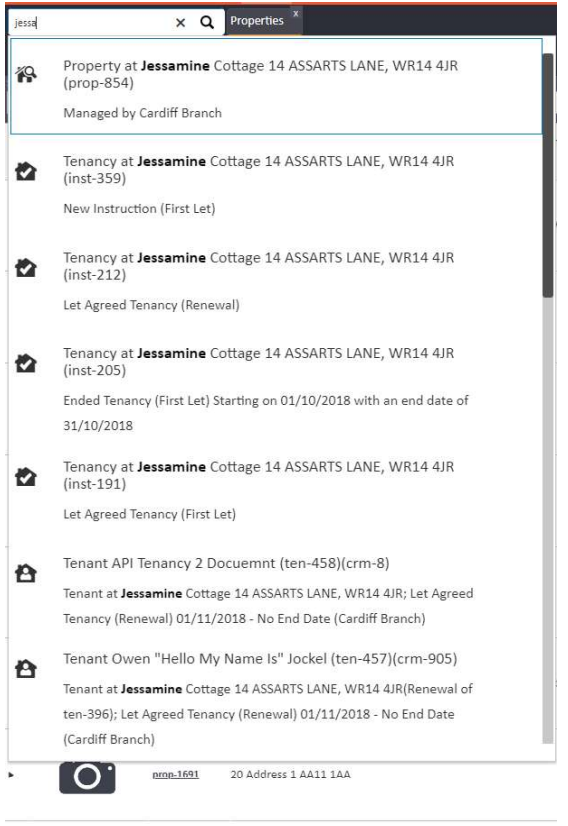
Step 2: Open the Tenancies section
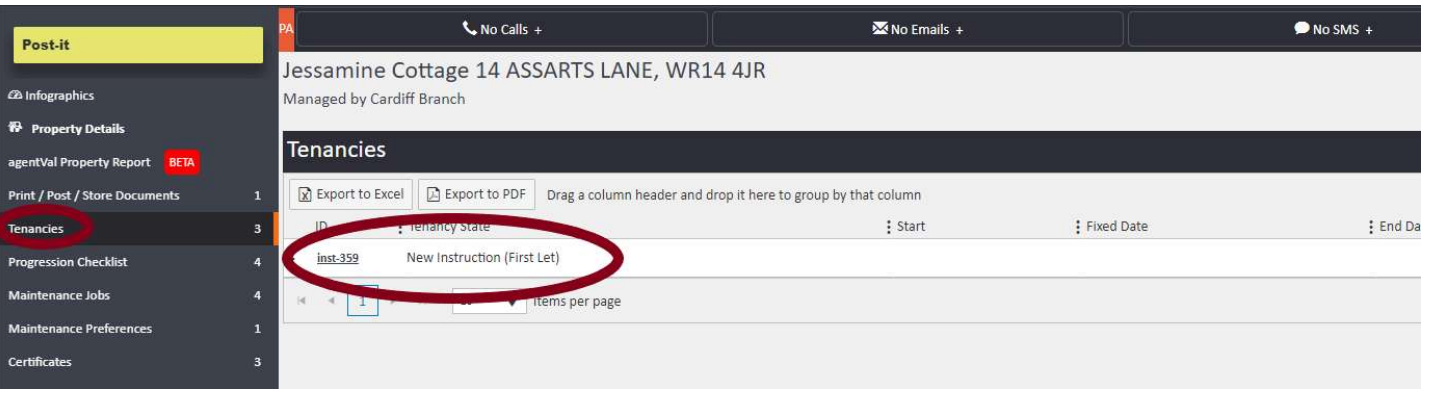
Click on the property to open it. On the left-hand navigation ladder, click Tenancies. The tenancy instructions linked to the property will appear in the centre panel. Click on the instruction you want to mark as Let Agreed.
Step 3: Select Let Agreed from Actions
With the instruction open, click the Actions button in the top right-hand corner and select Let Agreed from the Lettings section of the dropdown menu.
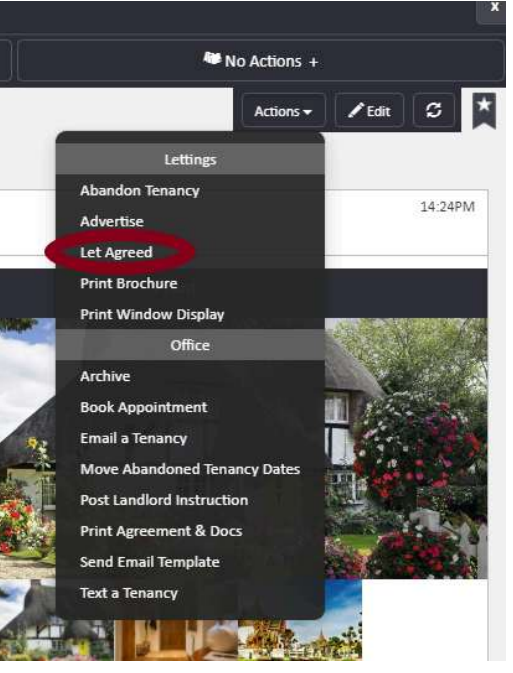
The tenancy status will update to Let Agreed and a Tenants section will appear in the left-hand navigation ladder, ready for you to add the tenant.
If you need any assistance, contact the agentOS support team at support@agentos.com.