
The Inspections section in agentOS gives you a centralised view of inspection activity across all your active tenancies, making it straightforward to identify properties that are due, overdue, or already booked for an inspection.
Accessing the Inspections Section
Navigate to Lettings and select the Inspections icon.
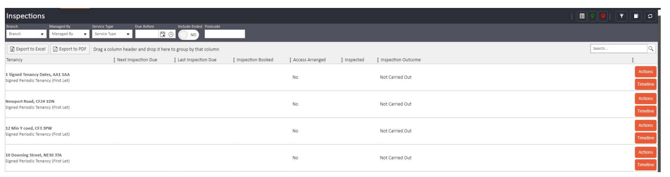
The Inspections grid will load, showing all active tenancies by default.
Understanding the Grid Columns
Each row in the grid represents a tenancy. The columns display the following information:
Tenancy — the property address and tenancy type (e.g., Signed Periodic Tenancy).
Next Inspection Due — pulled from the "Next Inspection Due" field on the tenancy record.
Last Inspection Due — pulled from the "Inspection Date" field within the Interim Inspection section on the tenancy.
Inspection Booked — populated from the diary when a property is linked to an Inspection appointment. When an appointment is booked, the date will appear in this column.
Access Arranged — shows Yes when the "Access Arranged" toggle is ticked on a linked appointment.
Last Inspected — pulled from the "Inspection Date" within the Interim Inspection section when an interim inspection is recorded on the tenancy.
Last Inspection Outcome — displays all text from the "Outcome" field within the Interim Inspection section on the tenancy.
Filtering Inspections
You can filter the grid using the toolbar at the top of the page.

Filters available include:
- Branch and Managed By — narrow results by office or staff member
- Service Type — filter by the type of management service
- Due Before — view all inspections due on or before a specific date
- Include Ended — toggle to include tenancies that have ended
- Postcode — filter by full or partial postcode
Viewing Inspections on a Map
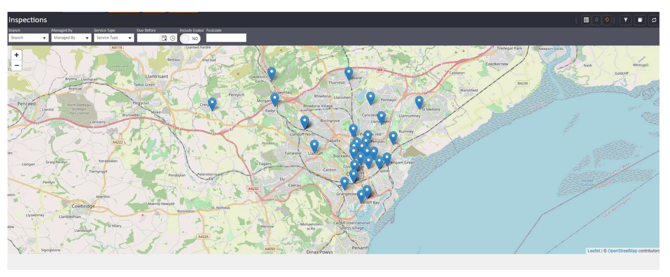
For a geographic overview of upcoming inspections, use the map view buttons in the top right corner of the grid. Two map types are available:
Green pin icon — standard Inspection map, showing individual property pins.
Red pin icon — Inspection Hotspot map, showing concentrations of inspections across an area.
Geographically, which can be useful when planning inspection routes.
Need Help?
If you have any questions about managing inspections in agentOS, contact the support team at support@agentos.com.