
Before you can create a tenancy instruction on a property, you must first link at least one landlord (property owner) to it. agentOS supports multiple owners on a single property and will automatically calculate how much rent each landlord receives based on their ownership share percentage.
Step 1: Open the Property Record
Find the property using the Quick Search bar at the top left of the screen, or navigate to it via the Properties icon in the left-hand navigation.
Step 2: Navigate to the Owners Section
Once you are on the property record, look at the left-hand panel. You will see a section labelled Owners.
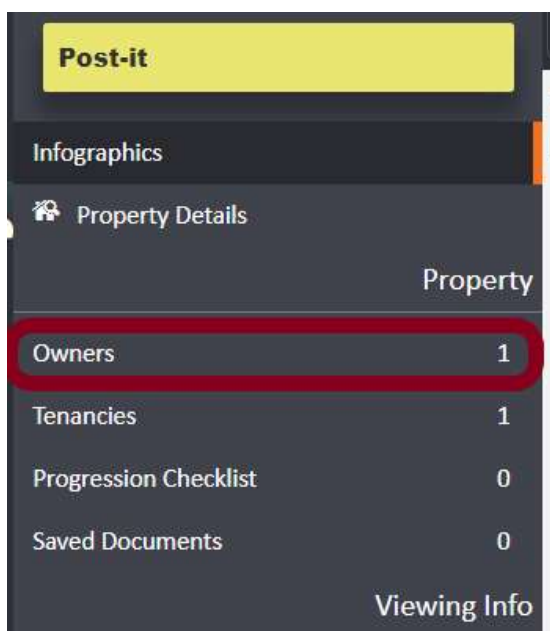
Click on Owners. This will take you to the Owners screen. If any landlords have previously been linked to this property, a history of all applied owners will be displayed in the centre of the page for your audit reference.
Step 3: Open Setup Property Owners
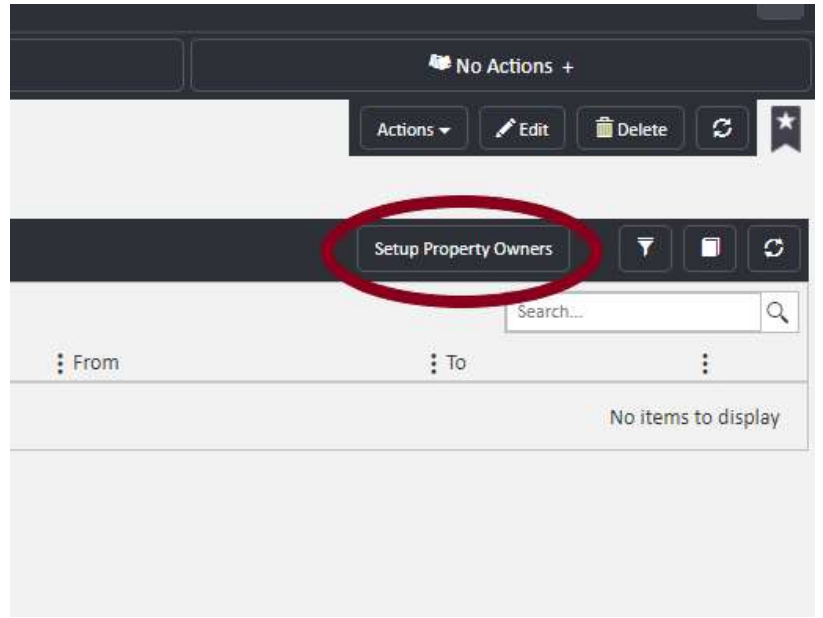
In the top right-hand corner of the Owners screen, click the Setup Property Owners button.
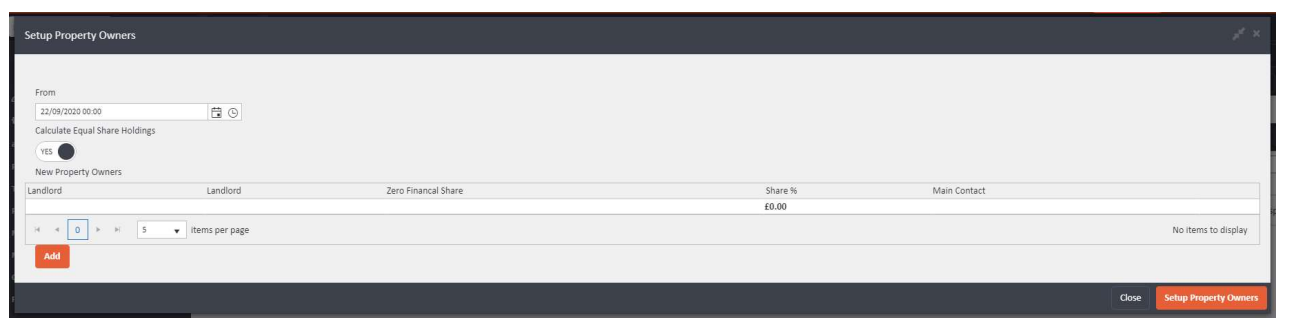
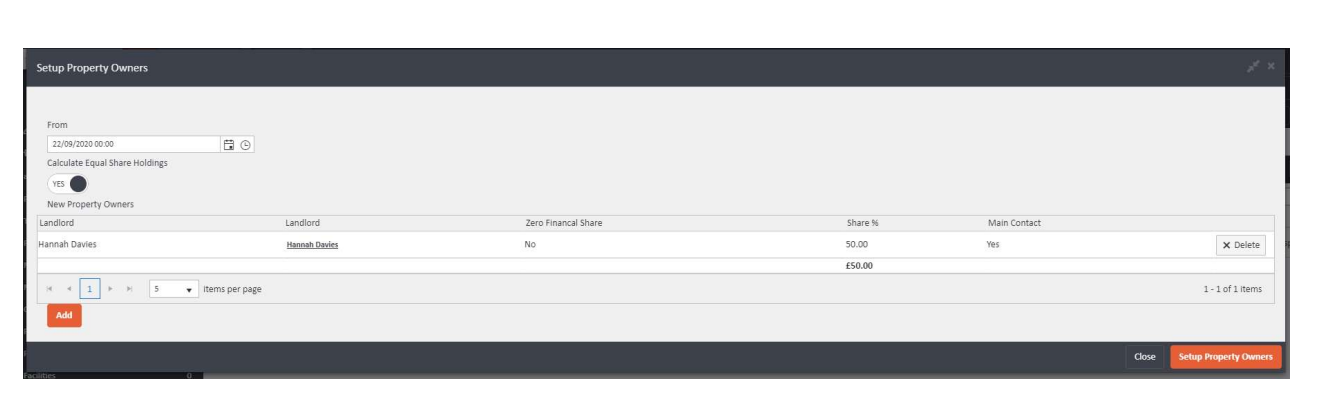
This will open the Setup Property Owners panel, which contains a grid for adding landlords and fields including From date, Calculate Equal Share Holdings toggle, and a list of New Property Owners.
Step 4: Add a Landlord
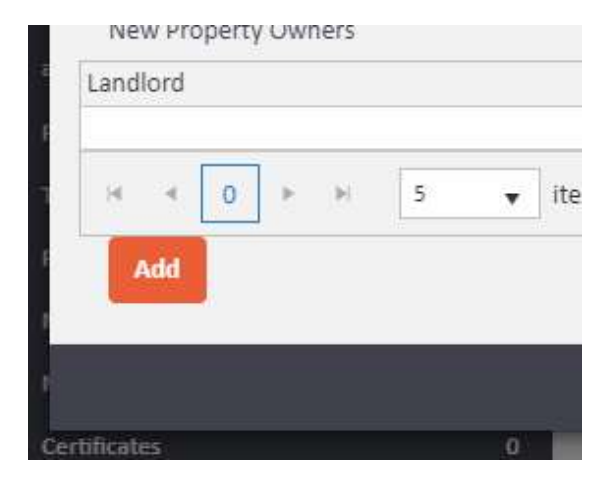
Click the Add button at the bottom left of the panel. This opens the New Property Owners entry form.
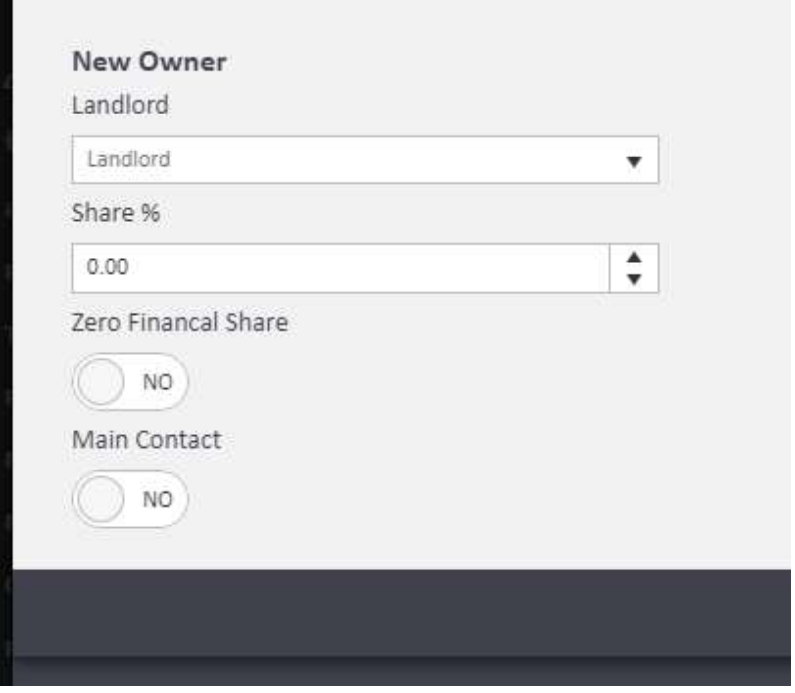
The Add form will appear with the following fields:
- Landlord — search field to find the landlord profile
- Share % — the percentage of rent this landlord will receive
- Zero Financial Share — toggle (default: No)
- Main Contact — toggle (default: No)
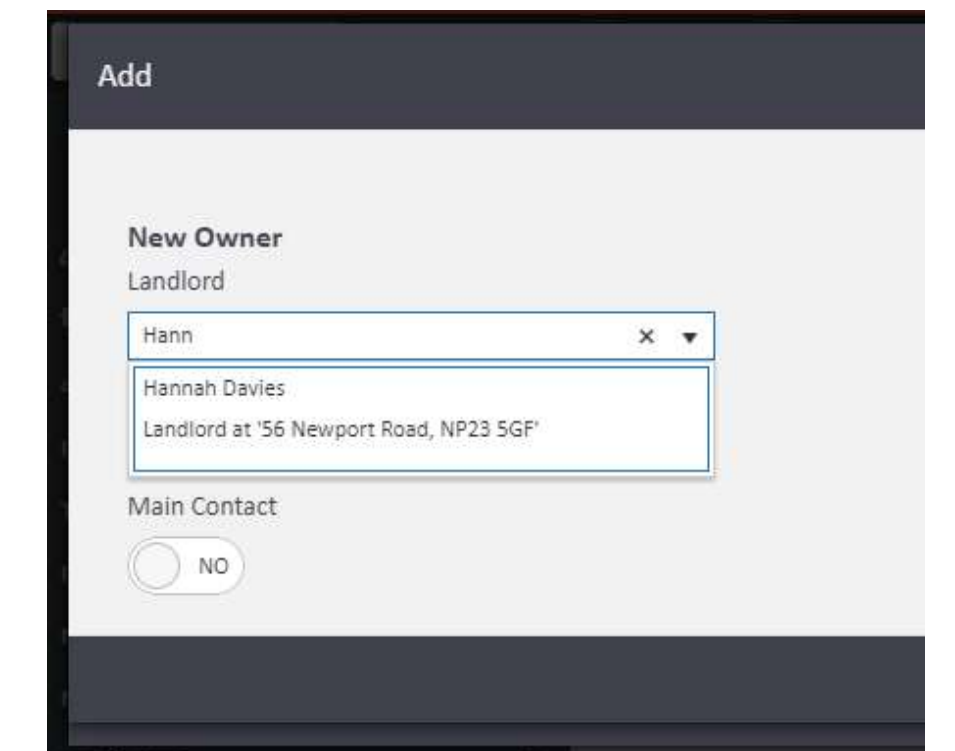
Type the landlord's name into the Landlord field. agentOS will display matching profiles from the system. Click the correct profile to select it.
Step 5: Set the Ownership Share
Enter the landlord's ownership share in the Share % field. This tells agentOS what proportion of the rent collected to allocate to this landlord.
If you are adding more than one landlord, the share percentages must add up correctly across all owners. For example:
- Two equal owners: 50% each
- Majority owner: 60% to one landlord, 40% to the other
- One landlord receives all rent: 100% to that landlord, 0% to any others
Zero Financial Share: If a landlord has no financial entitlement to the rent but still needs to be linked to the property (for example, as a named contact), toggle Zero Financial Share to Yes. A landlord with a zero financial share can still be set as the Main Contact.
Step 6: Set the Main Contact
Regardless of how the ownership share is divided, you must designate one landlord as the Main Contact. This ensures that any correspondence generated by agentOS is automatically directed to the correct person.
Toggle Main Contact to Yes for the appropriate landlord.
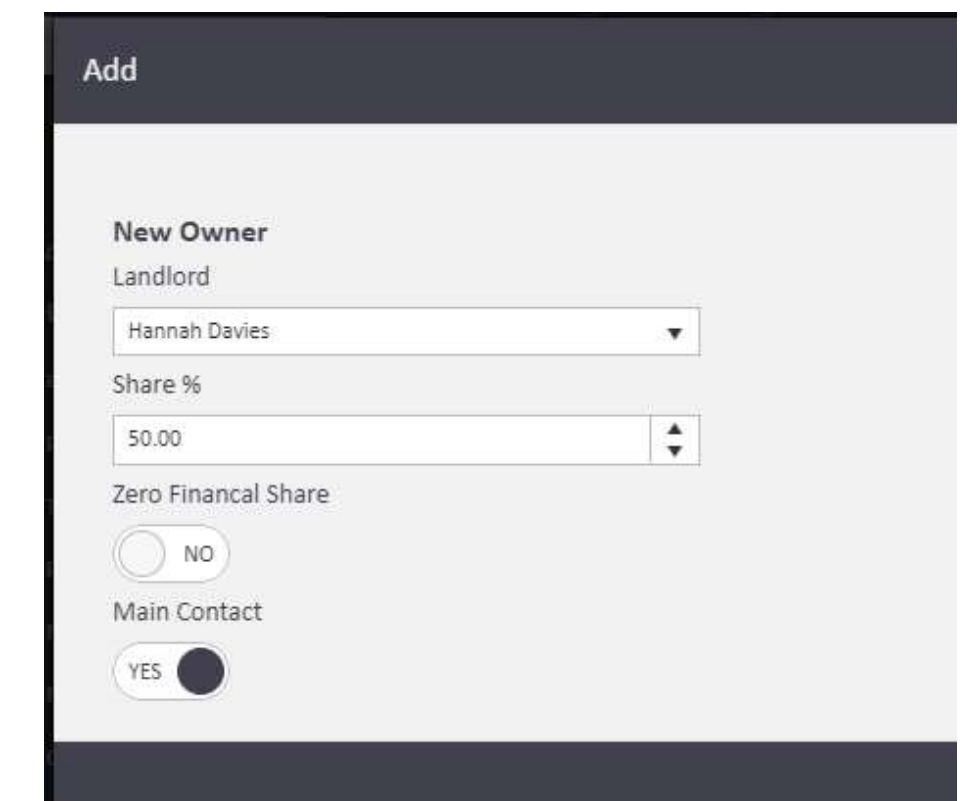
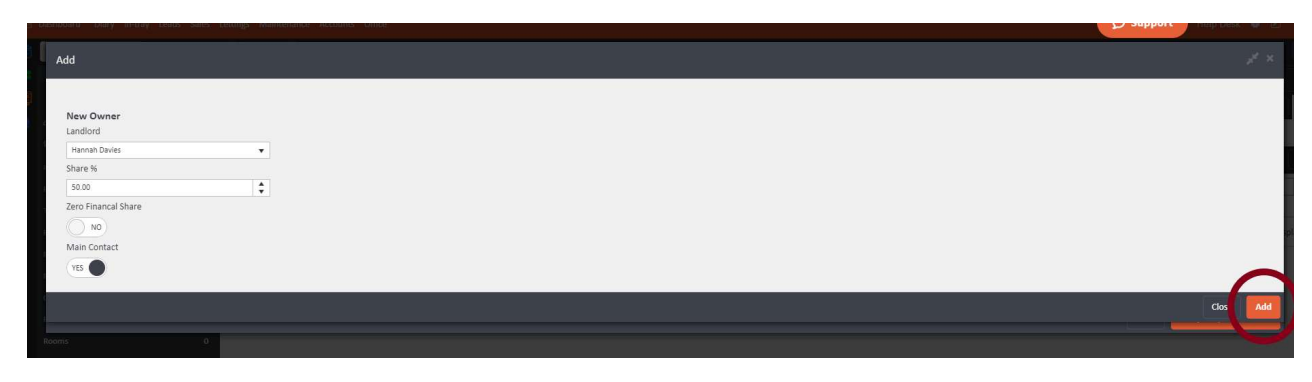
Once all fields are completed, click Add in the bottom right-hand corner of the panel to save this owner.
📸 [Screenshot 8: Add panel showing completed owner details (Hannah Davies, 50%, Main Contact: YES) with the Add button visible in the bottom right corner]
Step 7: Add Additional Owners (if applicable)
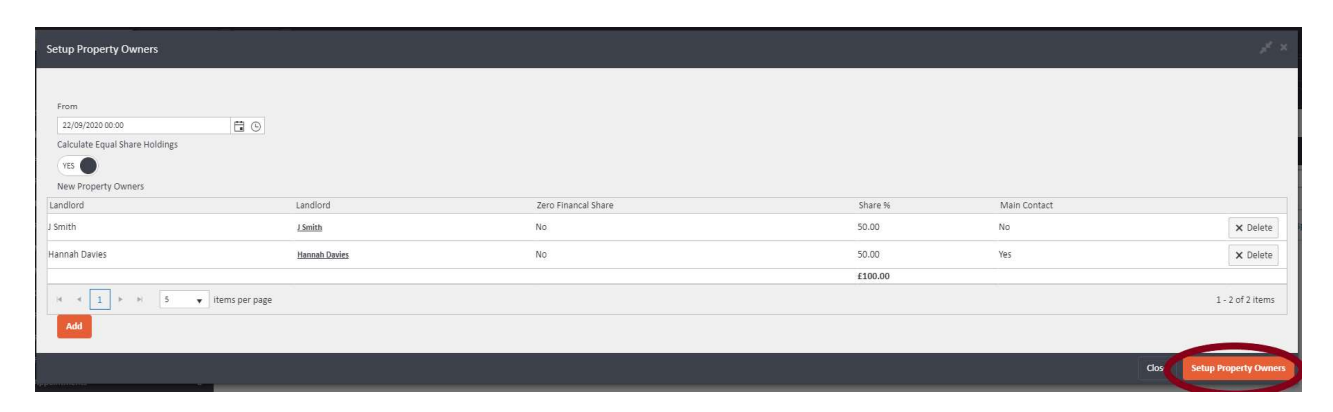
To add another landlord, click Add again and repeat the process, entering the second landlord's name and their respective share percentage.
Step 8: Save the Property Owner Setup
Once you are satisfied with all the owners and their share allocations, click Setup Property Owners in the bottom right-hand corner of the panel to save your changes.
Step 9: Confirm on the Owners Screen
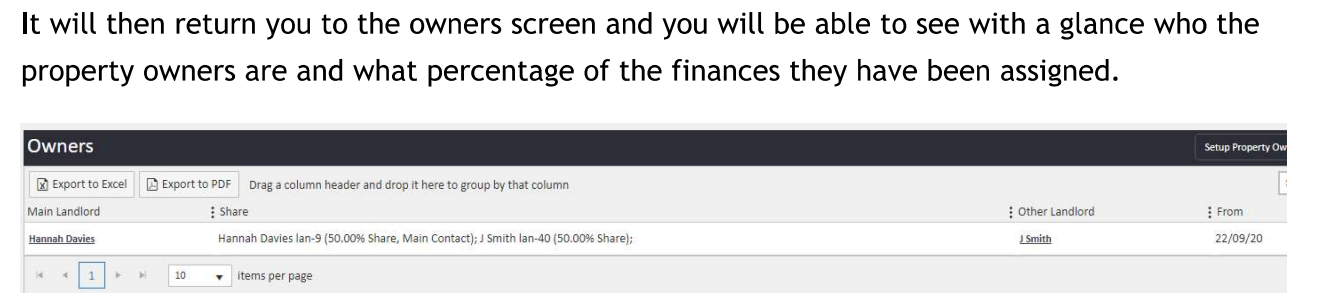
After saving, agentOS will return you to the Owners screen. You will see a summary of the linked owners, their share percentages, and which landlord is designated as the main contact — all visible at a glance.
Need Help?
If you have any questions about linking landlords to properties in agentOS, contact the support team at support@agentos.com.