
Note: This article is intended for internal staff use only and is not intended for clients.
Before You Begin
Before setting up the integration, ensure the client is aware that there is a £25 + VAT per month fee to maintain the integration.
Step 1 — Navigate to the Branch Record
In agentOS, go to Office > Branches and click into the relevant branch.

In the branch pop-up, click the App Settings tab.
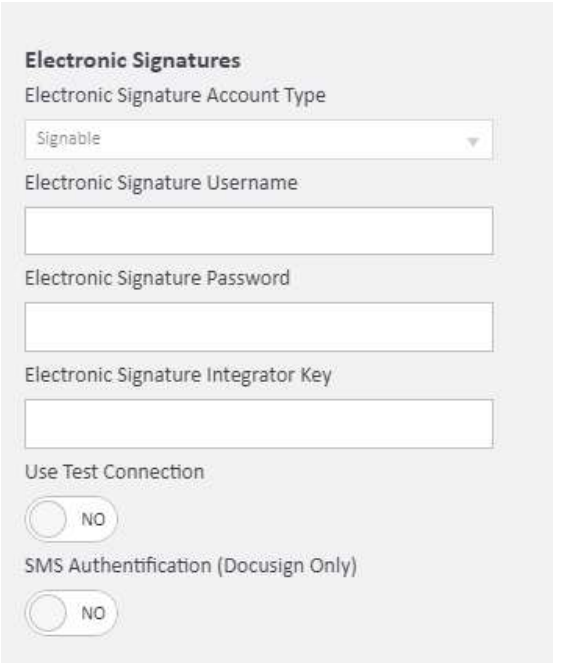
Step 2 — Complete the Electronic Signatures Fields
In the App Settings tab you will see the Electronic Signatures section, which contains the following fields:
- Electronic Signature Account Type — select either Signable or Docusign from the dropdown
- Electronic Signature Username — enter the client's username
- Electronic Signature Password — enter the client's password
- Electronic Signature Integrator Key — enter the relevant integrator key (see below)
- Use Test Connection — leave set to No unless testing
- SMS Authentication (Docusign Only) — toggle to Yes if the client requires SMS authentication on Docusign signatures
Credentials Required by Provider
For Signable: the client must provide their Username, Password, and API Key. The API Key is unique to each client and must be obtained directly from them.
For Docusign: the client must provide their Username and Password only. The Integrator Key is always the same and should be entered as follows:
89c0b35c-9e1b-4c09-adfe-e5f43bb3a13a
Step 3 — Save the Integration
Once all fields are completed, save the record. The integration will be active and ready to use immediately.
Step 4 — Signing Tags on AST Documents
After saving, it is important to note that the system will not automatically create signing tags on the client's AST (Assured Shorthold Tenancy) documents. The client must contact documentation@agentos.com to arrange for signing sections to be added to their agreements.
Without signing tags in place, tenants will not be prompted to sign the document in the usual way — instead they will see a button that marks the document as signed, which some clients do not approve of.
If the Client Does Not Want to Integrate
If the client does not wish to set up the full integration but is happy to use the pay-as-you-go version of the service instead, walk them through the process by providing a guide and being available on hand for their first signing attempt if they need assistance.
Step 5 — Update the Invoicing Spreadsheet
Once the integration is live, update the additional invoicing spreadsheet (via Maria) to record the live date of the integration so that billing can be processed accordingly.
For any questions, contact support@agentos.com.