
Sending large documents as email attachments can sometimes result in them being rejected by the recipient's mail server. agentOS allows you to generate a public URL for any saved document instead, which can then be pasted into an email as a link. This avoids file size issues and gives the recipient a direct download link.
This can be done from the Saved Documents section on any Property, Tenancy, Tenant, or Landlord record.
Step 1: Navigate to Saved Documents
Open the relevant record — this can be a Property, Tenancy, Tenant, or Landlord. Locate the Saved Documents section within that record.
Identify the document you wish to share.

Step 2: Open the Actions menu
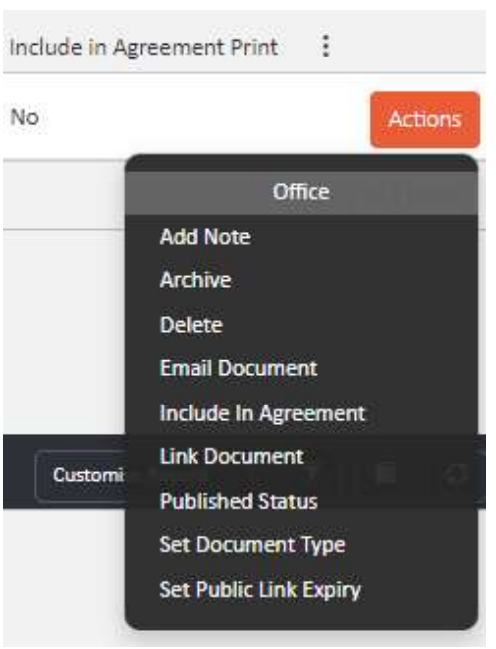
Click the orange Actions button on the right-hand side of the document row. A dropdown menu will appear with the following options: Add Note, Archive, Delete, Email Document, Include In Agreement, Link Document, Published Status, Set Document Type, and Set Public Link Expiry.
Select Published Status.
Step 3: Copy the public URL and publish
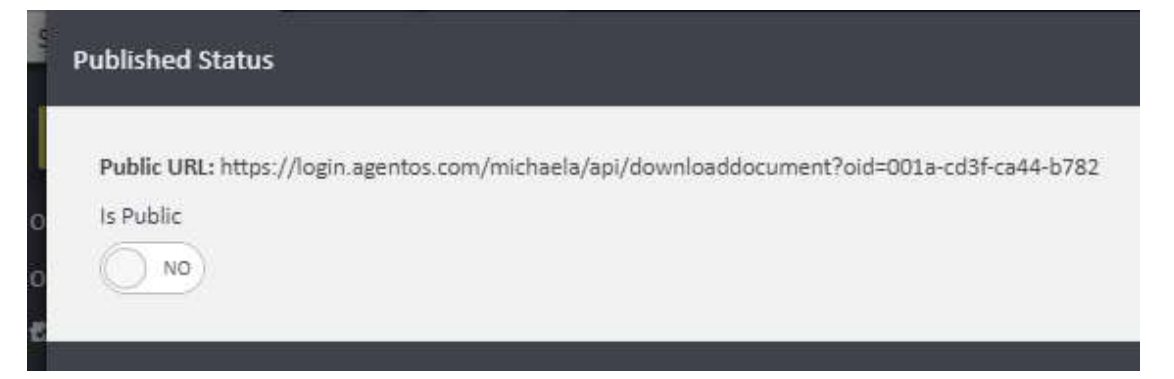
A Published Status pop-up will appear. It will display a Public URL — a direct download link for the document — along with an Is Public toggle, currently set to No.
📸 Screenshot 3 — Published Status pop-up Shows: The Published Status modal displaying a Public URL (https://login.agentos.com/michaela/api/downloaddocument?oid=001a-cd3f-ca44-b782), an "Is Public" label, and a toggle switch set to "NO".
Toggle Is Public to Yes, then copy the URL from the Public URL field. Click the orange Publish Status button to save the change.
Step 4: Share the link
Paste the copied URL into your email in place of a file attachment. The recipient will be able to click the link to download the document directly.
If you need further assistance, contact the agentOS support team at support@agentos.com.