
agentOS can generate a property list based on an applicant's requirements — a useful tool when a potential tenant walks into the agency and asks to see what's available. The list can be handed over in person, posted, or emailed with the document attached.
Step 1: Navigate to Lettings
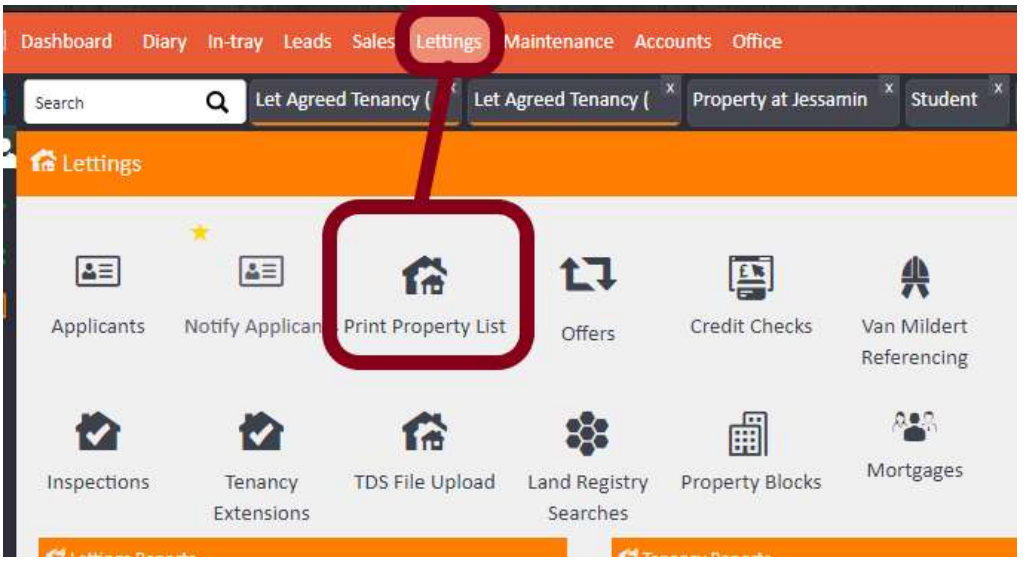
From the main navigation bar at the top of the screen, click Lettings.
Step 2: Select "Print Property List"
Click the Print Property List icon. This will open a search panel where you can enter criteria to filter available properties.
Step 3: Apply your search filters
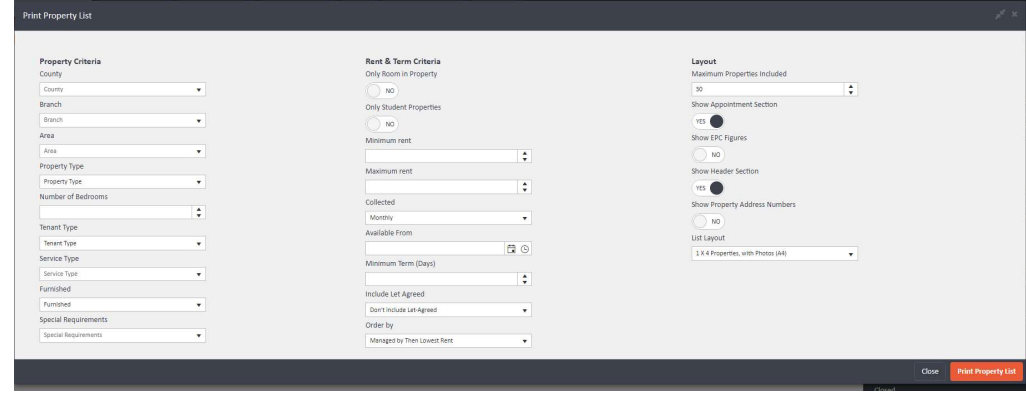
The Print Property List panel is divided into three columns of filters:
Property Criteria (left column) — filter by County, Branch, Area, Property Type, Number of Bedrooms, Tenant Type, Service Type, Furnished status, and Special Requirements.
Rent & Term Criteria (centre column) — filter by whether the property is Only Room in Property, Only Student Properties, Minimum and Maximum Rent, Collection frequency, Available From date, Minimum Term (Days), and whether to Include Let Agreed properties. Results can be ordered by preference (e.g., Managed by Then Lowest Rent).
Layout (right column) — set the Maximum Properties Included, choose whether to Show the Appointment Section, Show EPC Figures, Show Header Section, Show Property Address Numbers, and select the List Layout (e.g., 1 x 4 Properties with Photos A4).
Step 4: Generate the list
Once you have applied your filters, click the Print Property List button in the bottom right corner of the panel. agentOS will generate a document containing all properties that match the criteria you have set.
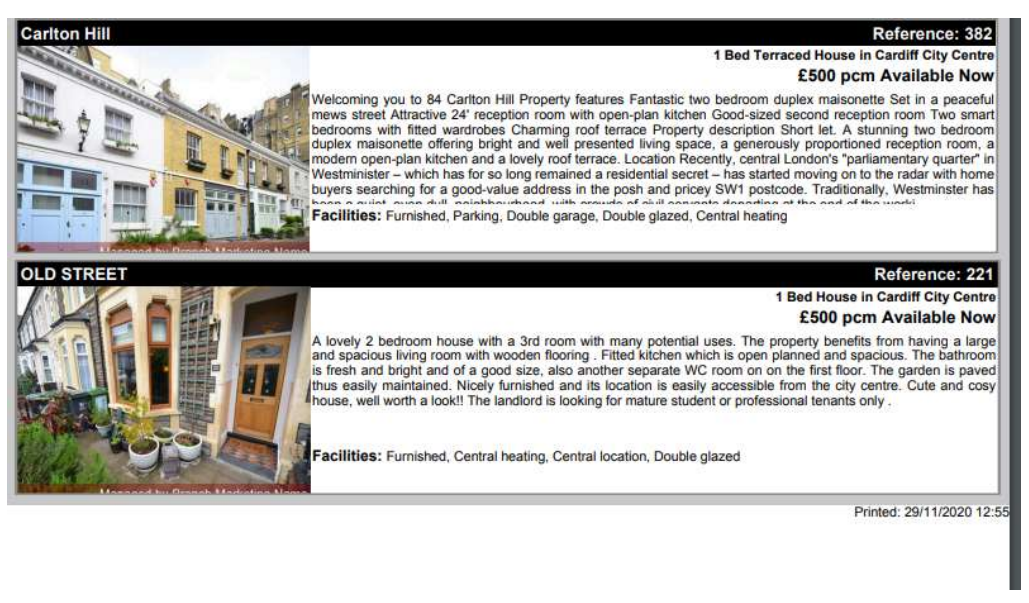
The resulting document can be printed to hand to the applicant, or saved and sent by post or email.
If you need further assistance, contact the agentOS support team at support@agentos.com.