
agentOS allows you to apply an end date to a tenancy and schedule an end notice — such as a Section 21 — directly from the tenancy record. The steps below walk through the full process.
Before you begin: rescinding an existing notice
If the tenancy already has a signed end date in place, you will need to rescind the existing notice before you can apply a new one.
To do this, go to Manage End Notices in the left-hand navigation ladder on the tenancy page, then click Actions to the right of the existing notice and select Rescind.
Step 1: Find the tenancy
Type the property address into the quick search bar at the top of your screen and select the relevant tenancy from the results.
Step 2: Open the End Tenancy form
Click the Actions button on the right-hand side of the tenancy page and select End Tenancy & Schedule Notice.
Step 3: Complete the End Tenancy & Schedule Notice form
The form will display the earliest date the landlord can end the tenancy and the earliest date the tenant can end the tenancy. Note that the tenancy can only be ended earlier than these dates if both the tenant and landlord mutually agree.
⚠️ Tip: If there is a subsequent advertised instruction or tenancy on the property, add any relevant details before authorising any generated notice letters. This ensures the landlord is made aware of the upcoming re-let.
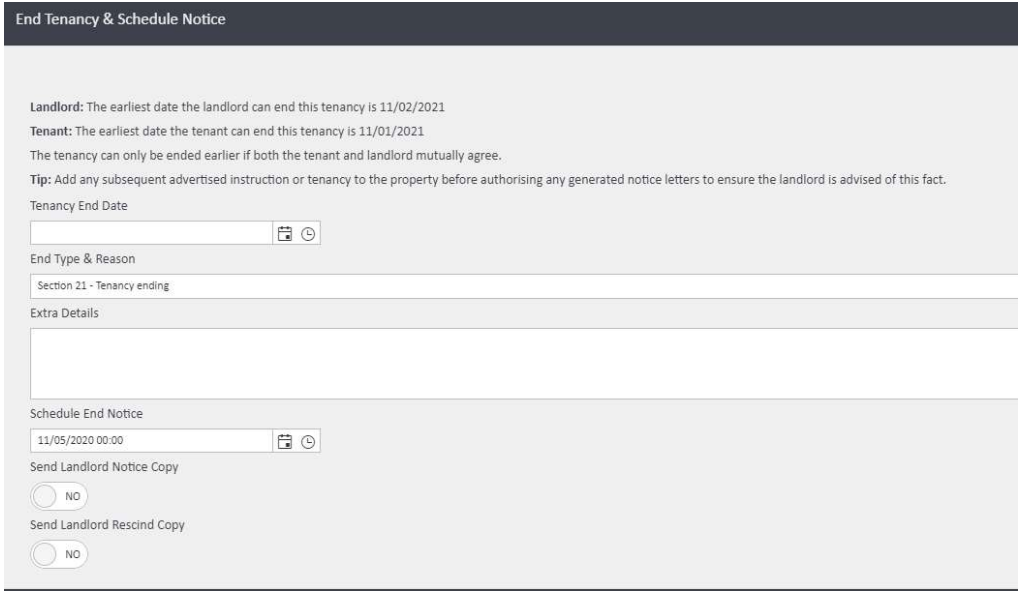
Complete the form as follows:
- Tenancy End Date — enter the date the tenancy will end
- End Type & Reason — select the appropriate notice type from the dropdown (e.g., Section 21 – Tenancy ending)
- Extra Details — add any additional context or notes relevant to this notice
- Schedule End Notice — select the date and time you want the notice to be generated automatically
- Send Landlord Notice Copy — toggle to Yes if you want agentOS to send the landlord a copy of the notice
- Send Landlord Rescind Copy — toggle to Yes if you want agentOS to notify the landlord if the notice is later rescinded
Step 4: Save the notice
Click End Tenancy & Schedule Notice to confirm and save. The notice will be generated automatically on the scheduled date.
Sending the notice manually
If you need to send the notice immediately rather than waiting for the scheduled date, navigate to Manage End Notices in the left-hand navigation ladder on the tenancy page. Click Actions next to the end notice and select Issue to send it to the postbag.
Further options
Renewing a tenancy you have ended
If you have applied an end date but the tenancy is continuing, you can renew it from within the tenancy record. Refer to the How do I renew a tenancy in agentOS? article for full guidance.
If you need further assistance, contact support@agentos.com.