
The Email a Tenancy feature allows you to contact all tenants on a tenancy in a single action, without needing to email each person individually.
Step 1: Open the tenancy profile
Use the quick search bar at the top of your screen to find the property and open the relevant tenancy record.
Step 2: Select Email a Tenancy from Actions
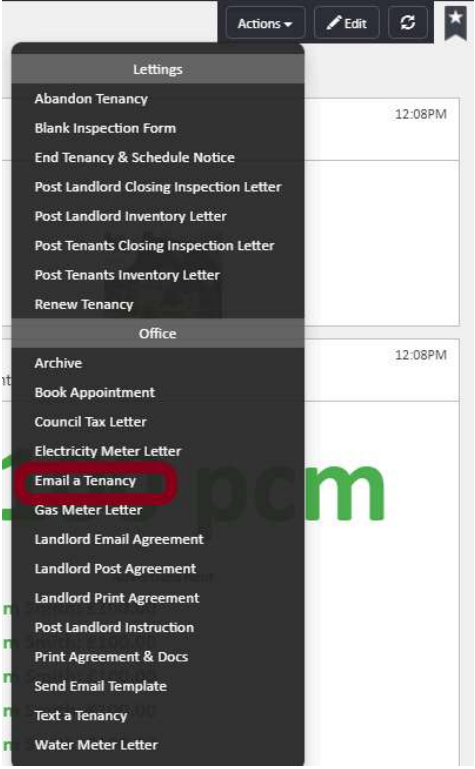
Click the Actions button in the top right corner of the tenancy profile. From the dropdown menu, scroll to the Office section and select Email a Tenancy.
Step 3: Complete the email form
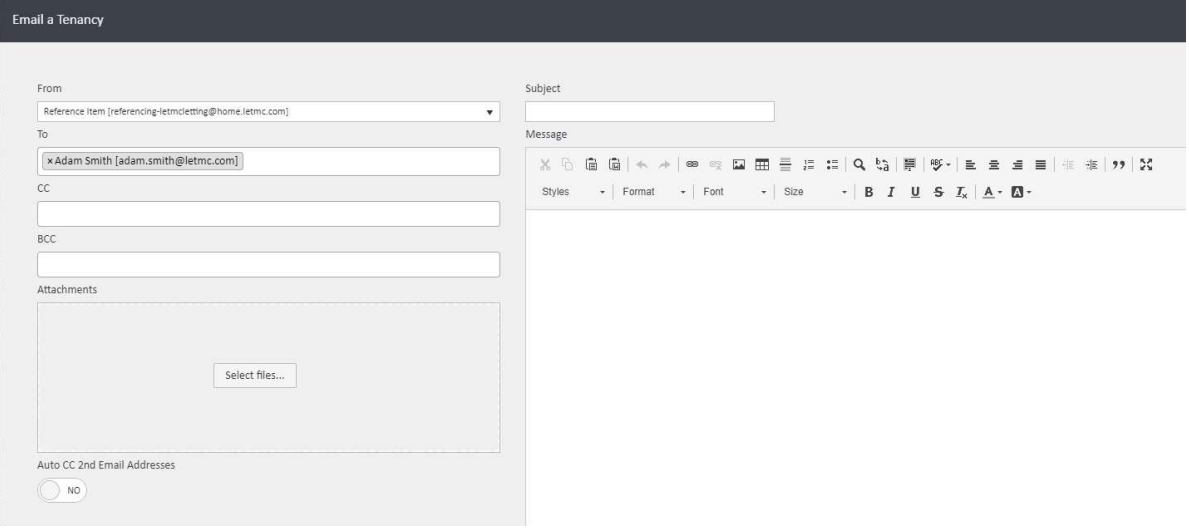
A pop-up window will appear with the following fields:
- From — displays the sending email address. Use the dropdown to select the appropriate sender if more than one is available
- To — agentOS automatically populates this field with the email addresses of all tenants on the tenancy
- CC / BCC — add any additional recipients here, such as a landlord, guarantor, or colleague
- Subject — enter the subject line of your email
- Message — compose your email in the body field using the formatting toolbar provided
- Attachments — click Select files… to attach any documents you wish to include
- Auto CC 2nd Email Addresses — toggle this to Yes if you want agentOS to automatically copy in any secondary email addresses held on the tenant profiles
You can also manually add further recipients to the To field at this stage — for example, a landlord or guarantor who is not automatically included.
Step 4: Send the email
Once you have completed all relevant fields, click Email a Tenancy in the bottom right corner of the window to send.
If you need further assistance, contact support@agentos.com.