
Once an AML check has been completed by your client, a PDF report is available to download directly from the payee's record in Calmony.
Step 1: Open the payee record
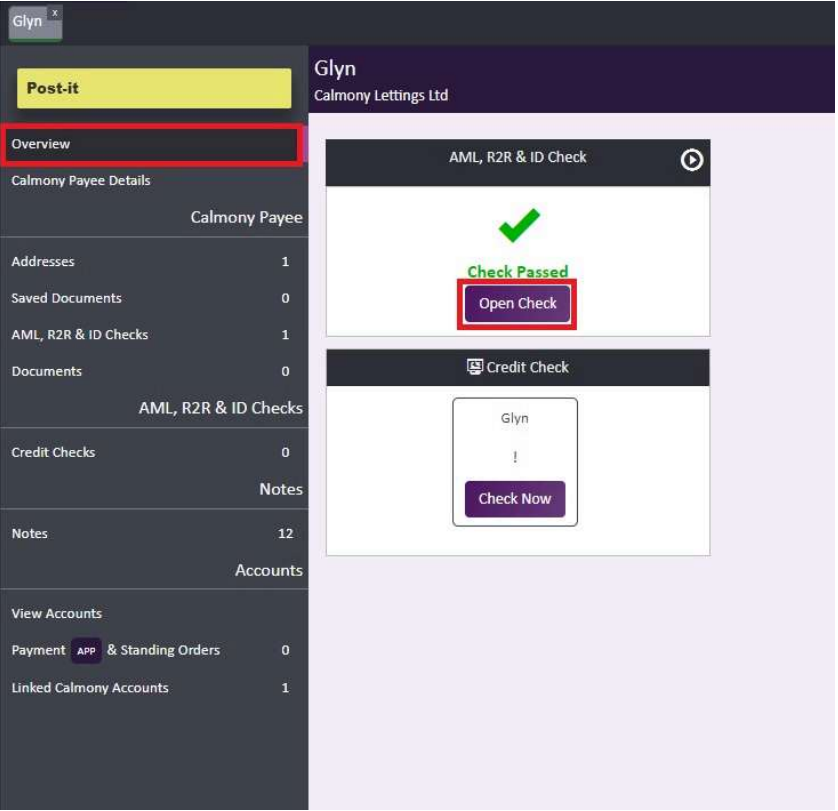
Navigate to the payee you raised the AML check on. From the payee's Overview, locate the AML, R2R & ID Check section and click Open Check.
Step 2: Download the report from the AML check record
The AML check record will open. Click the Actions button in the top-right corner of the check and select Download Report.
⚠️ Please note: The Download Report option is only available for checks with a status of Submitted, Approved, or Declined. It will not appear for checks that are still in progress.
What the report contains
The downloaded PDF includes the supporting documentation and evidence submitted by your client, a breakdown of each selected part of the AML check, and the final conclusion from Credas.
Checks showing a Submitted status
In some cases, the support team may ask you to review a report for a check with a Submitted status. This happens when a decision cannot be made on the check, or when some of the information contained within it requires your input. At that point, you will need to review the report and decide whether to approve or decline the check based on any additional information you have about the client. The support team will then update the status to Approved or Declined based on your decision.
To request this, contact support@calmony.co.
If no report is available yet
There may be occasions when a Submitted check does not have a full report available to download immediately. This can happen when Credas requires additional time to review the submitted documentation. If the check has not updated within 24 hours, contact support@calmony.co for further assistance.
If you need further assistance, contact support@calmony.co.