
Accessing Letter Email Templates
- Click the person icon in the top right-hand corner of agentOS.
- Select Object Types from the dropdown menu.
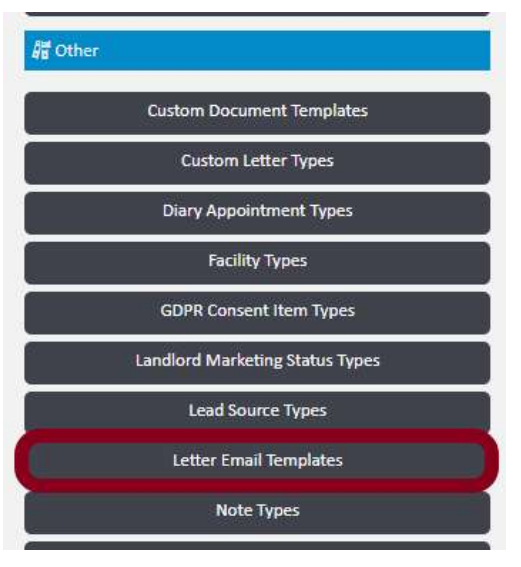
- In the Object Types screen, scroll down to the blue Other section and click Letter Email Templates.
Editing an Existing Template
If a template is already listed — for example, FinanceInvoiceLetter — click on it to open it, then click Edit in the top right-hand corner to make changes.

Creating a New Template
If the template you need is not yet listed, click Add Letter Email Template in the top right-hand corner of the Letter Email Templates screen.
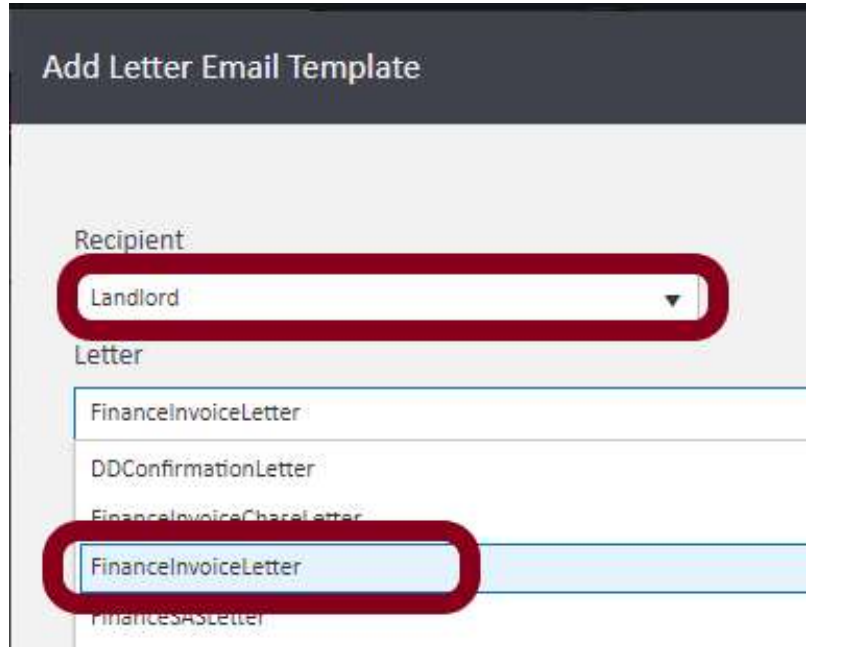
When the Add Letter Email Template screen opens:
- Use the Recipient dropdown to select the person category the template is for — for example, select Landlord if the template will be sent to landlords.
- Use the Letter dropdown to select the letter type you wish to create a template for — for example, FinanceInvoiceLetter.
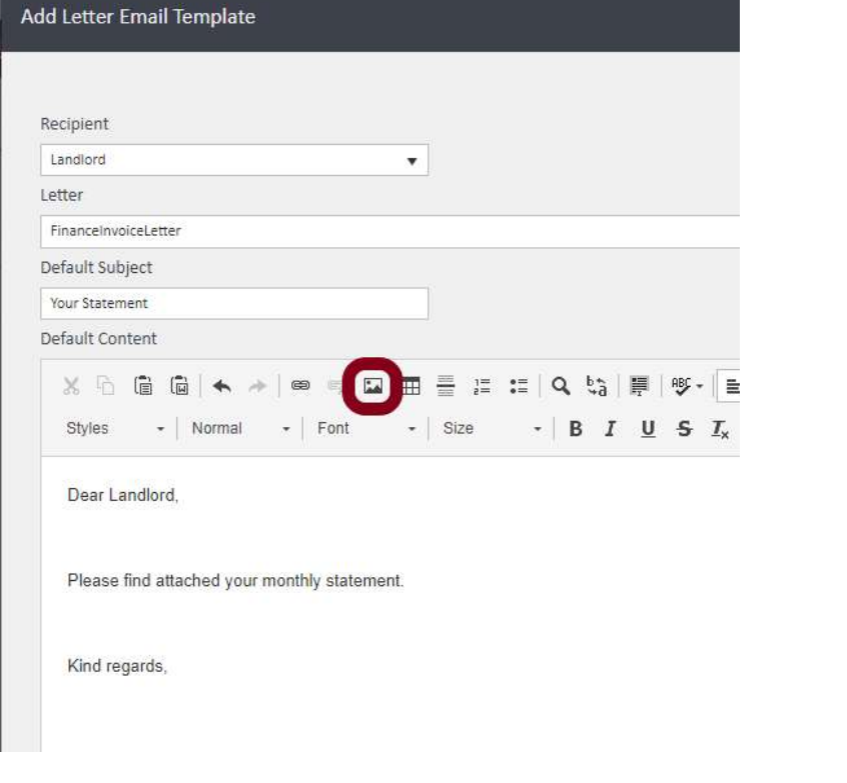
- Enter a Default Subject for the email (e.g. "Your Statement").
- Use the Default Content editor to write the body of your email. You can add as much or as little content as you like and update it at any time — making it useful for sending promotional material, seasonal updates, or advice to landlords or tenants.

Using Tags in Your Template
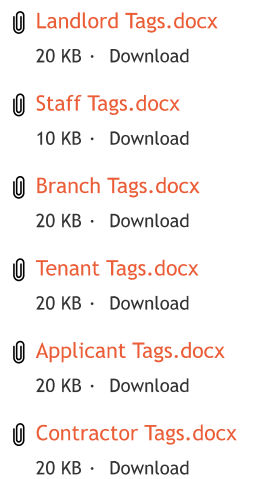
You can use tags within the template body to pull data from the system automatically — for example, staff name, landlord full name, or landlord surname. A full list of available tags is provided in the tag list attachment for this article.
Adding Images or Branding to Your Template
To include images such as a company banner or logo in your template, you will first need to upload the image to obtain a hosted URL.
Click the person icon > Settings > Email Signature Images, then click Upload Signature Image to upload your file. Once uploaded, the image will appear in the list with a generated Image URL.
Copy this URL. Return to your template and click the image icon in the toolbar of the Default Content editor. Paste the copied URL into the image URL field and click OK to insert the image.
If you have already started building your template before uploading the image, you can minimise the template screen without losing your work, complete the image upload, then return to paste the URL in.
Saving Your Template
Once you are satisfied with the content, click Save & Close. The template will now be used automatically when the relevant document type is sent to the selected recipient type.
For any difficulties, contact support@agentos.com.