
agentOS supports custom SMS templates, giving you the ability to create reusable, personalised text messages for common communications such as appointment confirmations and access arrangements. SMS templates work in the same way as Letter and Email templates and are managed from the same location.
Finding and managing SMS templates
SMS templates are found in the Office tab. Here you will find existing system templates with preset wording that you can click into to Edit, as well as the option to Add new templates using the button in the top right-hand corner.
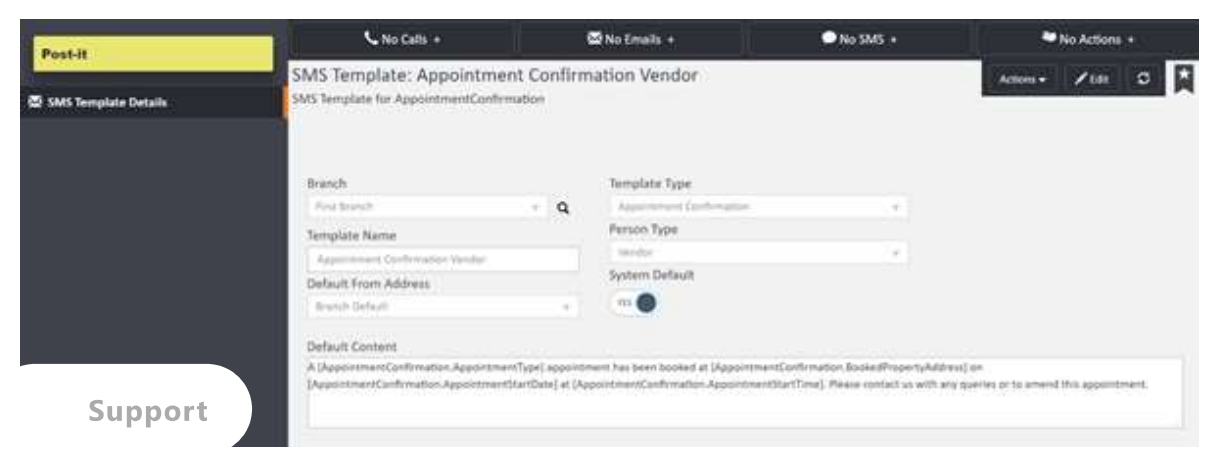
Available data tags
All existing tags used in Email Templates are also compatible with SMS Templates. In addition, the following tags are available specifically for SMS use:
Appointment Confirmations
These tags can be used in templates for confirming diary appointments:
[AppointmentConfirmation.AppointmentType][AppointmentConfirmation.AppointmentStartDate][AppointmentConfirmation.AppointmentEndDate][AppointmentConfirmation.AppointmentStartTime][AppointmentConfirmation.AppointmentEndTime][AppointmentConfirmation.BookedPropertyAddress][AppointmentConfirmation.AppointmentStaff]
Arrange Access
These tags can be used in templates for notifying tenants of property access:
[ArrangeAccess.AppointmentType][ArrangeAccess.AppointmentStartDate][ArrangeAccess.AppointmentEndDate][ArrangeAccess.AppointmentStartTime][ArrangeAccess.AppointmentEndTime][ArrangeAccess.DisplayPropertyAddress][ArrangeAccess.AppointmentStaff]
Branch Marketing Name
[Branch.MarketingName]
Sending an SMS template
To send an SMS template from a person's record, click the Actions button and select Send SMS Template from the dropdown menu.
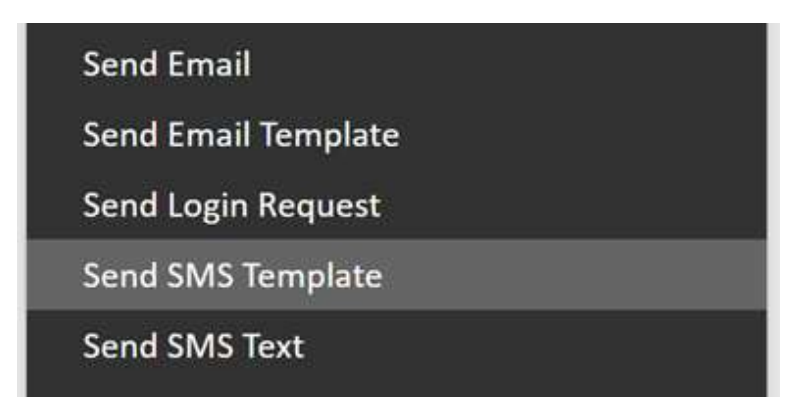
From here, you can select from the templates you have created that are valid for that person type. Once selected, you have the option to review and edit the content before sending.
📸 [Screenshot: The Send SMS Template window showing a From field (pre-populated with a phone number), a To field showing "First M. Applicant [07000100100]", a Message field pre-filled with "Hello First, here is a template SMS message. Thanks, Staff Member.", a character count of "66 of 612", and a Send SMS Template button in the bottom right]
If you need any assistance with SMS templates, contact the agentOS support team at support@agentos.com.