
Tenancy agreements are generated directly from the tenant screen in agentOS. You can print, email, or post the agreement, and include additional documents at the same time.
💡 Tip: Agreements can also be sent digitally and returned with e-signatures from all parties. If you'd like more information about e-signatures through agentOS, please contact support@agentos.com.
Step 1: Find the tenant record
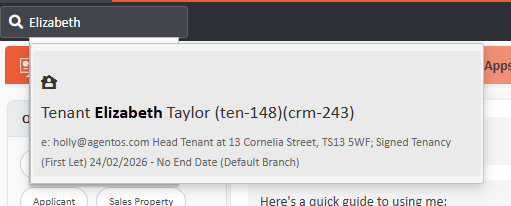
Using the search bar at the top of the screen, type the tenant's name or property address. The system will display matching results — select the correct tenant from the list to open their record.
Step 2: Open the Actions menu
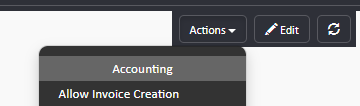
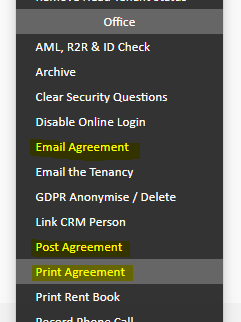
From the tenant record, click the Actions button. From the dropdown, select one of the following depending on how you wish to send the agreement:
- Print Agreement — to print a physical copy
- Email Agreement — to send the agreement by email
- Post Agreement — to send the agreement by post
Step 3: Select additional documents to include
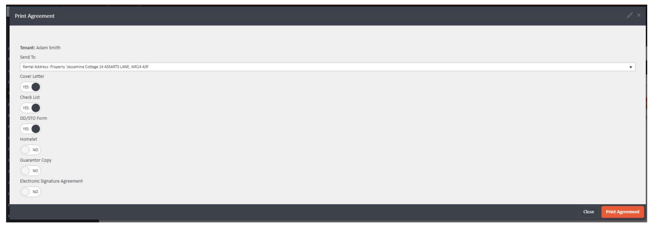
A Print Agreement window will appear. Here you can choose any additional documents to include alongside the tenancy agreement, such as:
- Cover Letter
- Check List
- DD/SO Form
- Homelet
- Guarantor Copy
- Electronic Signature Agreement
Toggle each option to Yes or No as required, then click Print Agreement in the bottom right-hand corner.
Emailing or posting the agreement
The same process applies if you wish to email or post the agreement rather than print it. Simply search "email agreement" or "post agreement" in the quick search bar instead of "print agreement", then follow the same steps to select your additional documents and confirm.
If you need any assistance, contact the agentOS support team at support@agentos.com.