
agentOS provides comprehensive maintenance job management, allowing you to create, track, and complete maintenance work efficiently whilst maintaining complete visibility of all jobs across your portfolio.
Note: If you use Fixflo for maintenance reporting, please see our Fixflo Integration guide for information about how Fixflo-specific workflows integrate with agentOS job management.
Creating a Maintenance Job
There are two methods for creating maintenance jobs in agentOS:
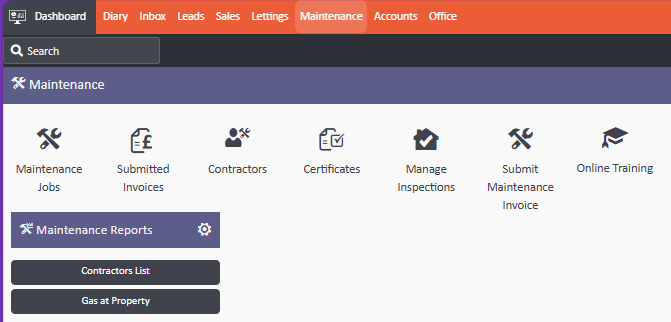
Method 1: Through the Maintenance tab
- Click the Maintenance tab in the main navigation
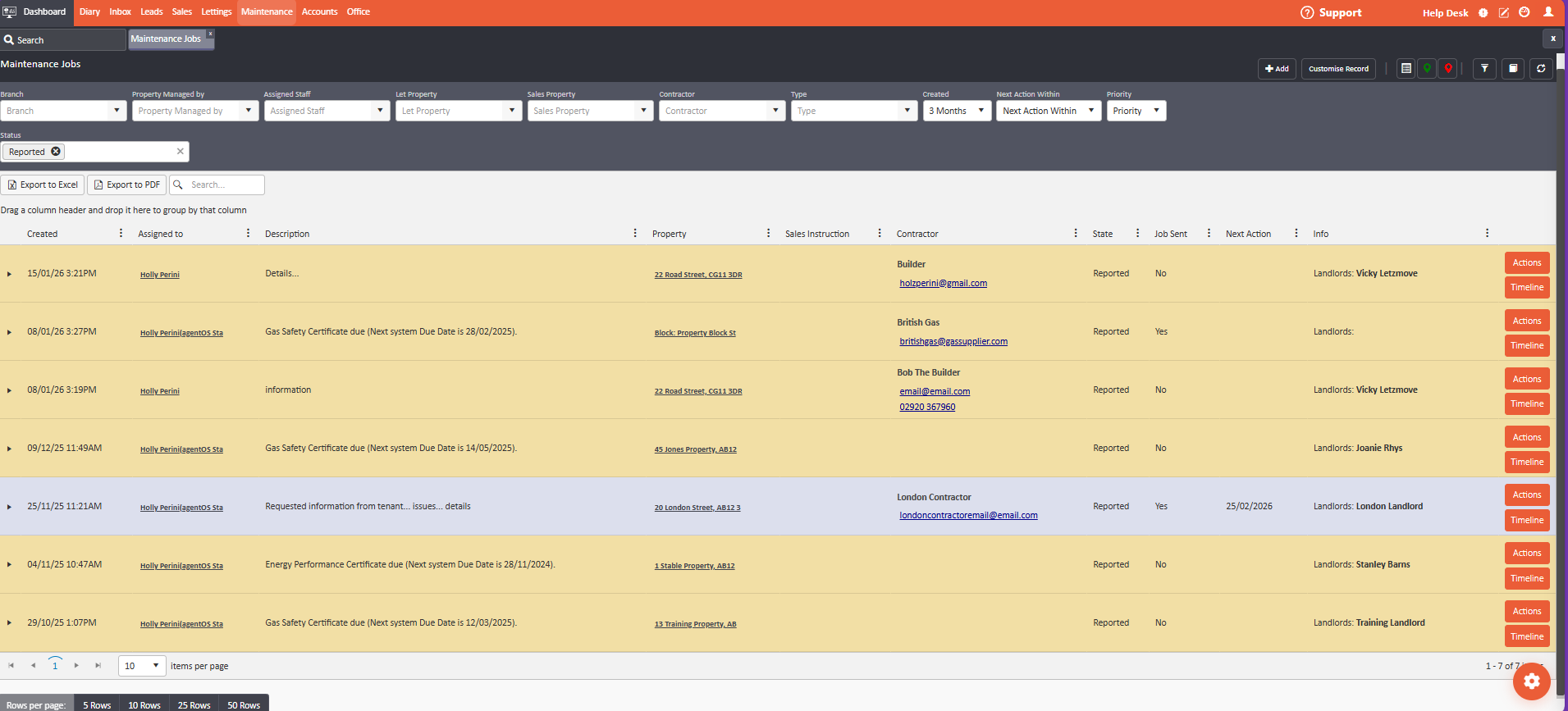
- Select Maintenance Jobs
- Click +Add to create a new job
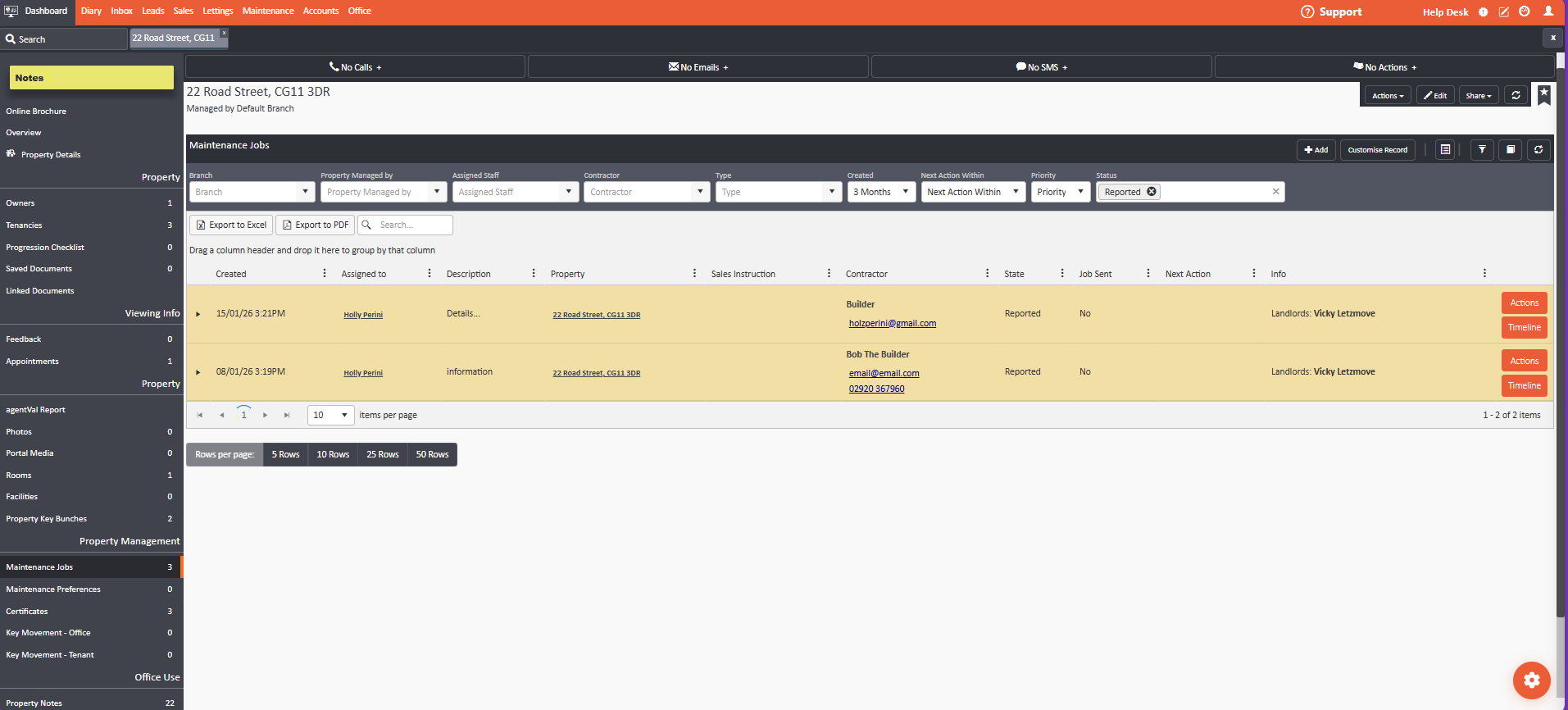
Method 2: Directly from the property
- Navigate to the property the job relates to
- Select Maintenance jobs from the left-hand ladder
- Click +Add in the top right
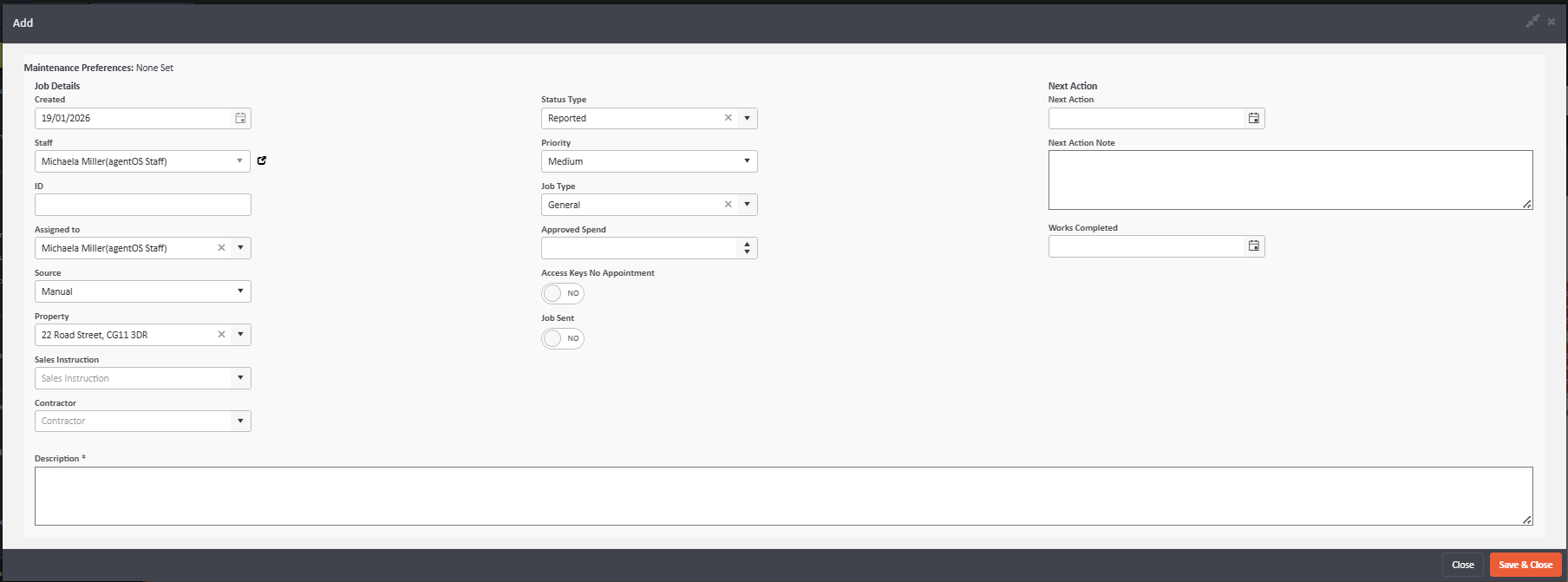
Both methods open the same job creation form.
Entering Job Details
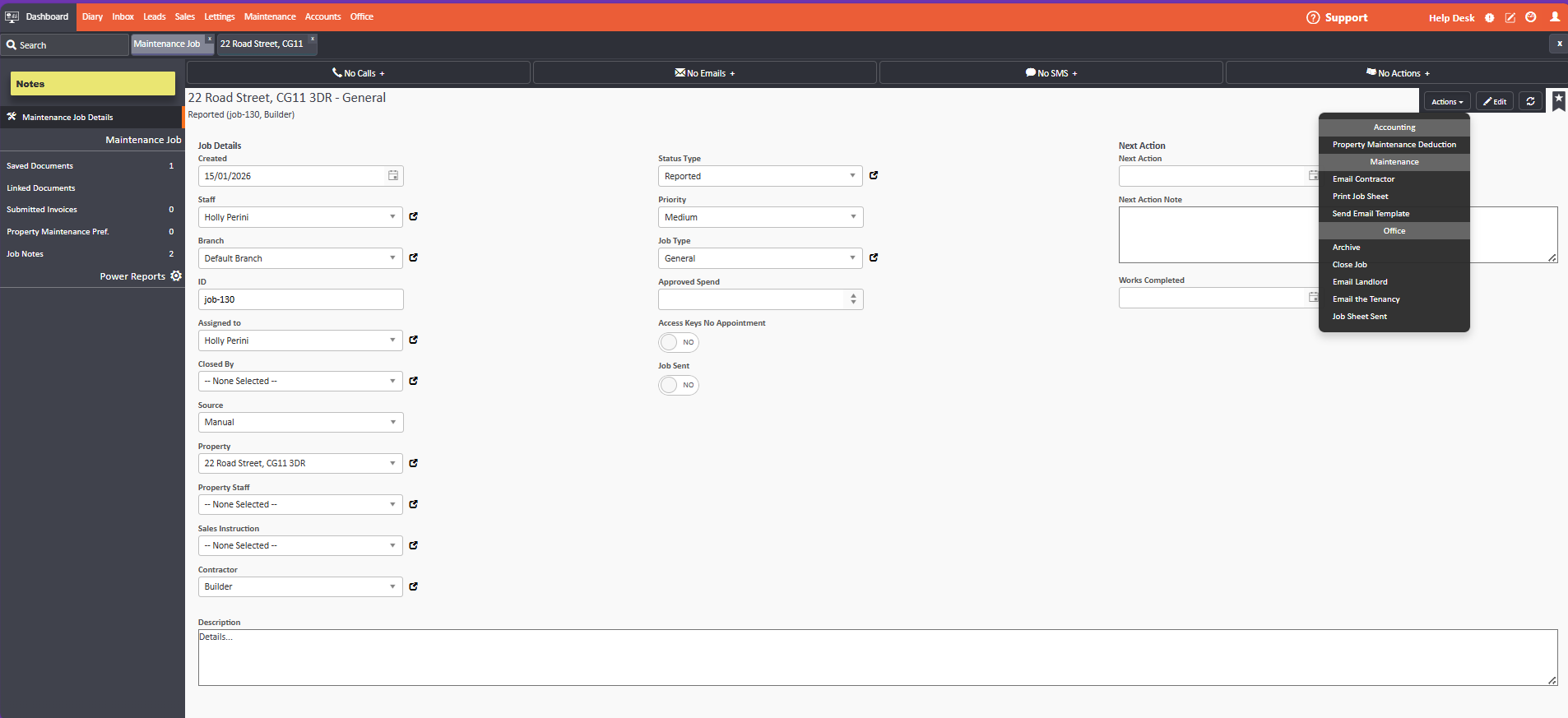
When creating a job, complete all provided fields with as much detail as possible. The information you enter generates the job sheet that contractors receive, so comprehensive details are essential.
Key fields to complete:
- Property and tenancy - Link the job to the correct property and tenancy
- Contractor - Assign to a specific contractor (or leave blank to assign later)
- Priority - Set urgency level (Medium, High, etc.)
- Status Type - Initial status (typically 'Reported')
- Job Type - Category of work (Plumbing, Electrical, General, etc.)
- Description - Comprehensive problem description
Writing effective job descriptions:
Your description should include:
- Specific problem details - "Kitchen tap dripping constantly" rather than "tap issue"
- Location within property - "Main bathroom, sink under window"
- When noticed/reported - "Tenant noticed yesterday evening"
- Any tenant observations - "Water pooling under sink"
- Access requirements - "Tenant works from home, available weekdays"
- Urgency context - "No water shutoff, but wastage concern"
The more detailed your description, the better equipped your contractor will be to bring the right tools, parts, and expertise for first-time completion.
Sending Job Sheets to Contractors
Once you've entered the job details:
- Click Save and Close
- The job is now created in your system
- To send the job sheet to the contractor:
- Click the Actions button (top right)
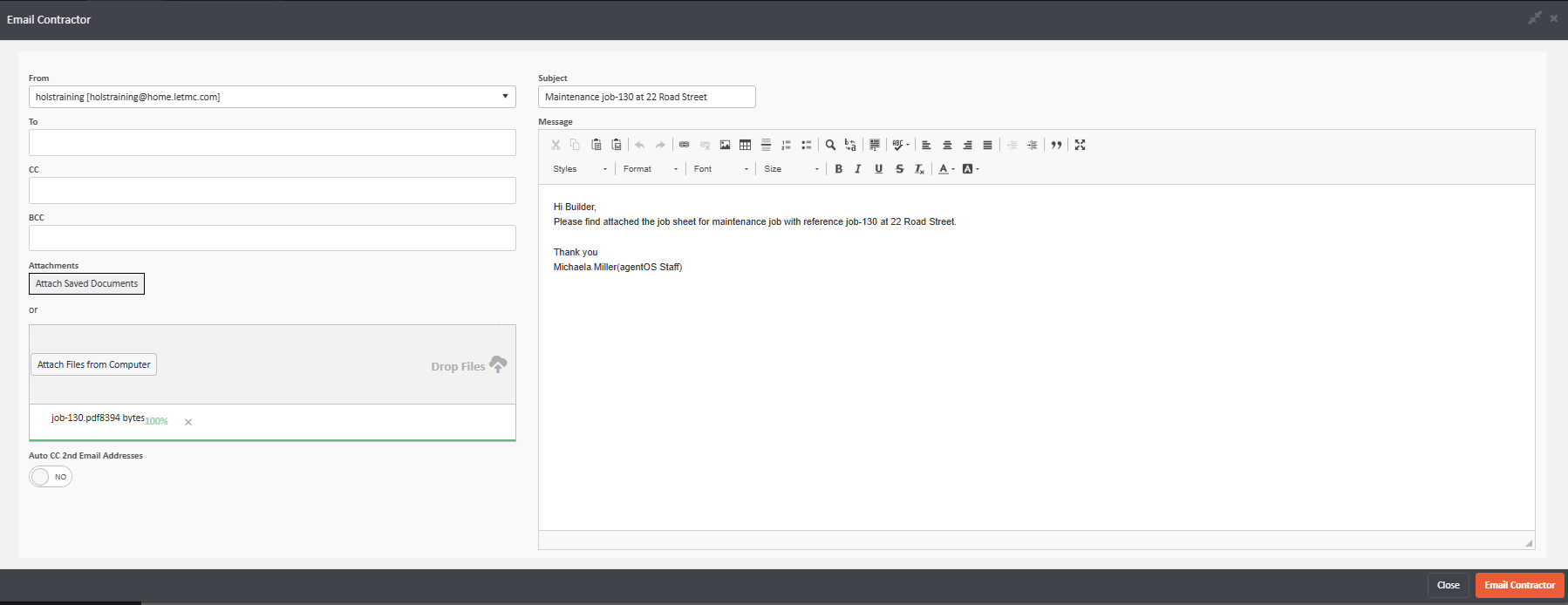
- Select Email Contractor to send by email, or
- Select Print Job Sheet to print a physical copy
The job sheet includes all the information you entered, formatted professionally for the contractor.
Managing and Tracking Jobs
agentOS provides powerful filtering and search capabilities to help you manage multiple jobs efficiently.
Accessing your jobs list
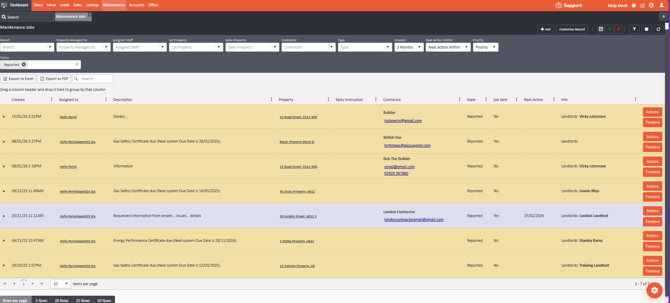
Navigate to Maintenance > Maintenance Jobs to see your complete jobs list.
Filtering jobs
Use the filters to find specific jobs:
Filter by Property: Select a specific property to see only jobs for that location.
Filter by Contractor: View all jobs assigned to a particular contractor.
Filter by Status: Select one or multiple status types to create custom views.
Available status types:
- Reported - Newly reported, awaiting action
- Actioned - Work has commenced
- Closed - Job completed
- On Hold - Temporarily paused
- On Hold - Rent - Waiting for rent payment
- Dispute - Issue under dispute
You can select multiple status types simultaneously. For example, selecting both 'Reported' and 'Actioned' shows all active jobs requiring attention.
Viewing all jobs: If you don't select any filters, the system displays all jobs regardless of status, property, or contractor.
Viewing and Editing Job Details
To view job details:
Click on any job from your list to open the full job record.
To edit job details:
- Open the job
- Click EDIT in the top right-hand corner
- Modify any fields as needed
- Click Save to apply changes
Changing job status:
From the job detail screen, you can change the status to reflect current progress. Update the status as work progresses to maintain accurate tracking:
- Change to 'Actioned' when the contractor begins work
- Change to 'Closed' when work is complete
- Use 'On Hold' statuses for jobs awaiting information or payment
Uploading Documents
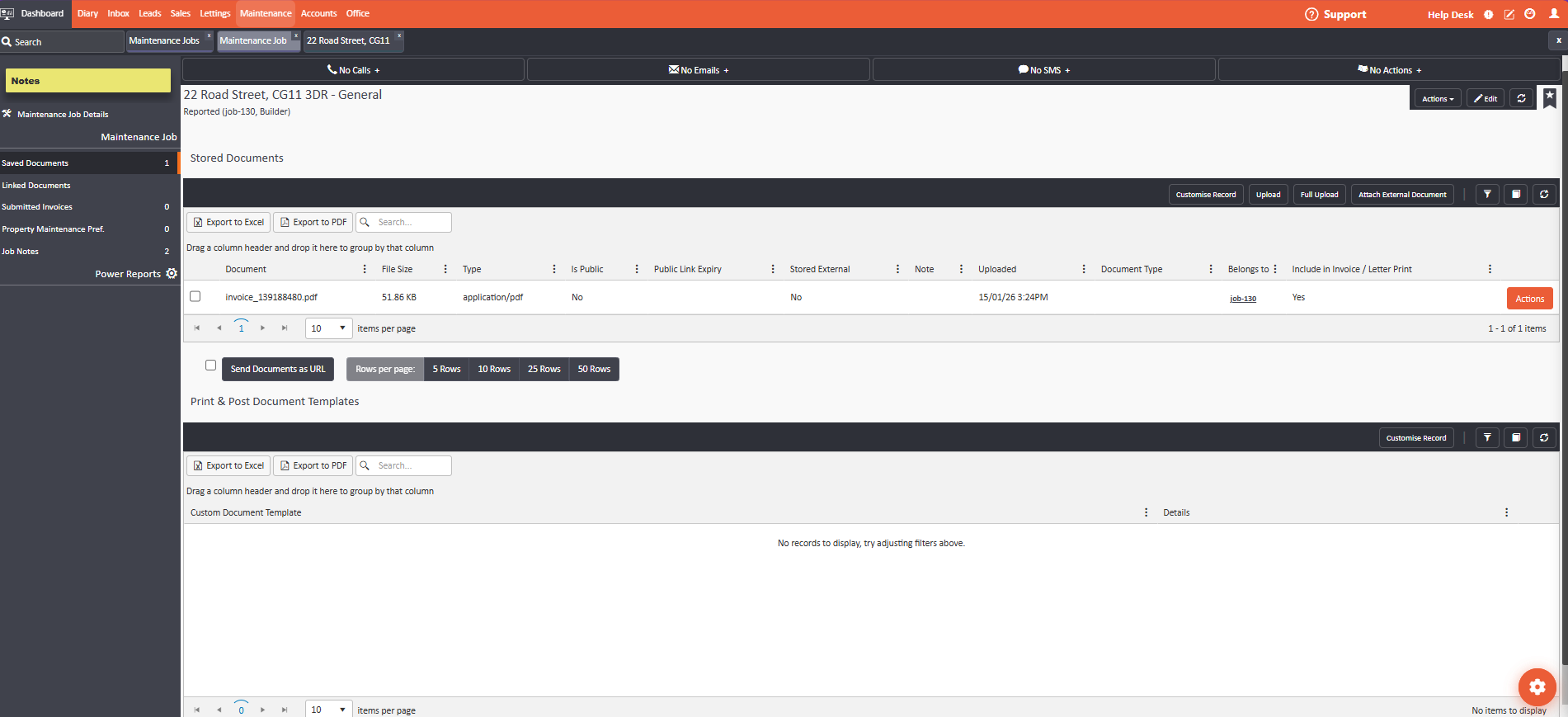
The left-hand ladder of the job screen provides document management:
To upload documents:
- Open the job
- Click Saved Documents in the left-hand ladder
- Click +Add or drag and drop files
- Upload supporting documents such as:
- Quotes from contractors
- Photos of the problem
- Completion certificates
- Invoices
- Communication records
This centralises all job-related documentation in one accessible location.
Job Actions Menu
The Actions button provides comprehensive job management options:
Accounting
- Property Maintenance Deduction - Process payments through maintenance deductions
Maintenance Management
- Maintenance - Access additional job management options
- Email Contractor - Send updates or queries directly to contractor
- SMS Contractor - Quick text updates to contractor
- Print Job Sheet - Generate physical job sheet
- Job Sheet Sent - Mark job sheet as sent for tracking
Communication
- Email Landlord - Update property owner on progress
- Email the Tenancy - Send updates to tenants
- Text the Tenancy - Quick SMS to tenants
Job Lifecycle
- Archive - Move completed jobs to archive
- Close Job - Mark job as fully complete
Administrative
- Office - Access office-related functions
Use these actions to manage the entire job lifecycle from creation through completion.
Best Practices for Job Management
Create detailed descriptions The time spent writing comprehensive job descriptions saves multiple back-and-forth communications and improves first-time fix rates.
Update statuses regularly Keep job statuses current so your team has accurate visibility of all active work.
Upload documentation promptly Add quotes, invoices, and completion certificates as you receive them to maintain complete records.
Use filters strategically Create saved filter combinations for common views (e.g., "all reported jobs by priority").
Communicate proactively Use the Actions menu to keep landlords and tenants informed of progress.
Archive completed jobs Regularly archive closed jobs to keep your active jobs list manageable whilst maintaining historical records.
Need Help?
For assistance with maintenance job management or workflow questions, contact support@agentos.com.