
Adding applicants to agentOS allows the system to match them against available properties and keep them informed. Applicants can also be converted into tenants when you are ready to link them to a tenancy.
Method 1: Via the Dashboard Quick Add menu
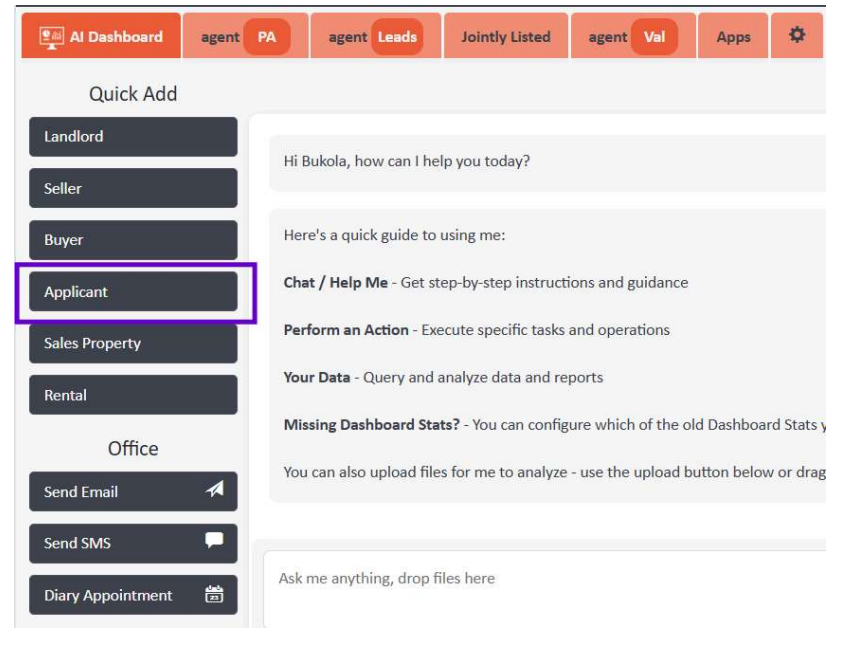
From the Dashboard, click Quick Add on the left-hand side and select Applicant from the list.
Method 2: Via the Lettings bar
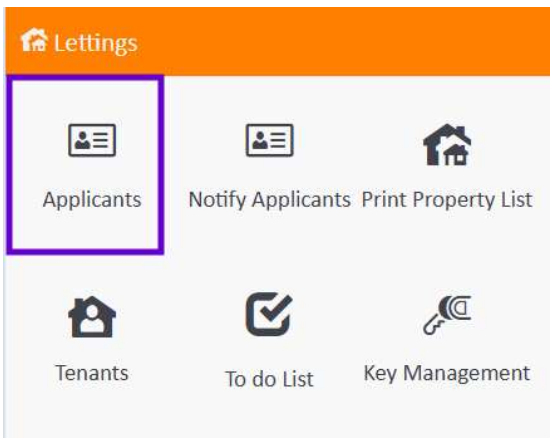
From the main navigation bar, click Lettings.

Then click Applicants from the Lettings menu.
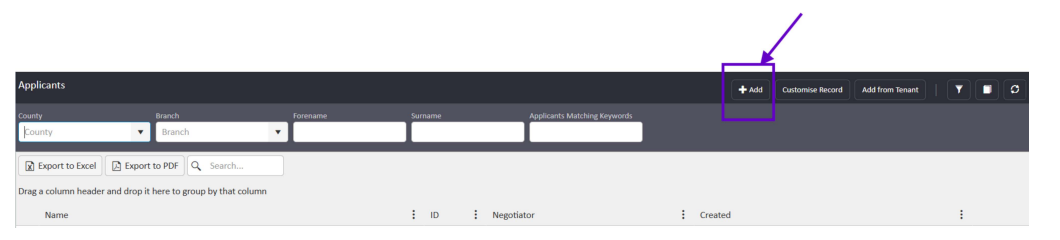
On the Applicants page, click + Add in the top right-hand corner.
Step 3: Enter the applicant's details
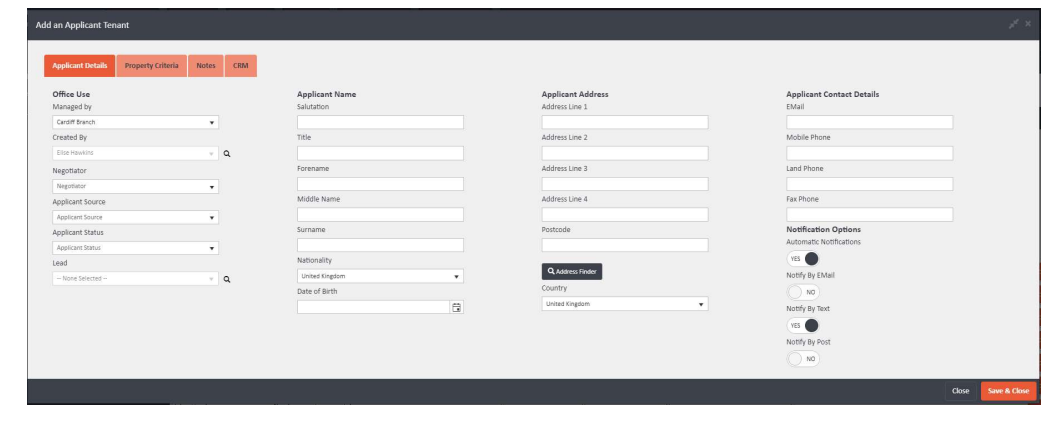
You will be taken to the Add an Applicant Tenant screen. This is where you enter all of their relevant information across four tabs: Applicant Details, Property Criteria, Notes, and CRM.
Important: Notification Options
In the bottom right-hand corner of the Applicant Details tab, you will see a Notification Options section. This controls how and whether the applicant is notified when a new matching property is advertised.
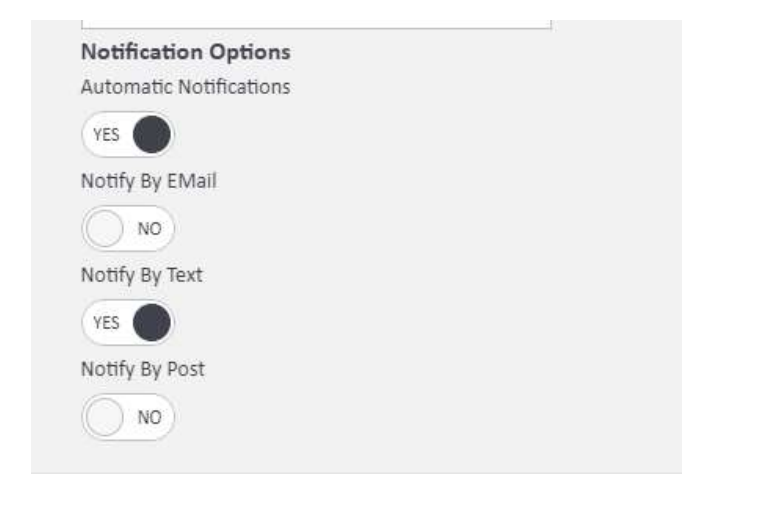
- Automatic Notifications — set this to Yes if you want the system to notify the applicant automatically when a matching property is advertised. Set to No to disable all automatic notifications.
- Notify By Email — toggle on to include email notifications.
- Notify By Text — toggle on to include SMS notifications.
- Notify By Post — toggle on to include postal notifications.
⚠️ If you do not want the applicant to receive automatic notifications, make sure the Automatic Notifications toggle is set to No.
Step 4: Set the Property Criteria
Click the Property Criteria tab at the top of the form. This is where you define what the applicant is looking for, including rent range, number of bedrooms, room type, tenant type, furnished preference, and latest move-in date.

The system matches on an accurate basis — the more general the criteria, the more properties will be returned. The more specific the criteria, the more tailored the results.
The Tenant Type tags in the Property Criteria must align with the tags applied to the tenancy instruction itself. For example, if the instruction does not include the 'unemployed' tag but the applicant profile marks them as unemployed, they will not match to that property.

Step 5: Save the record
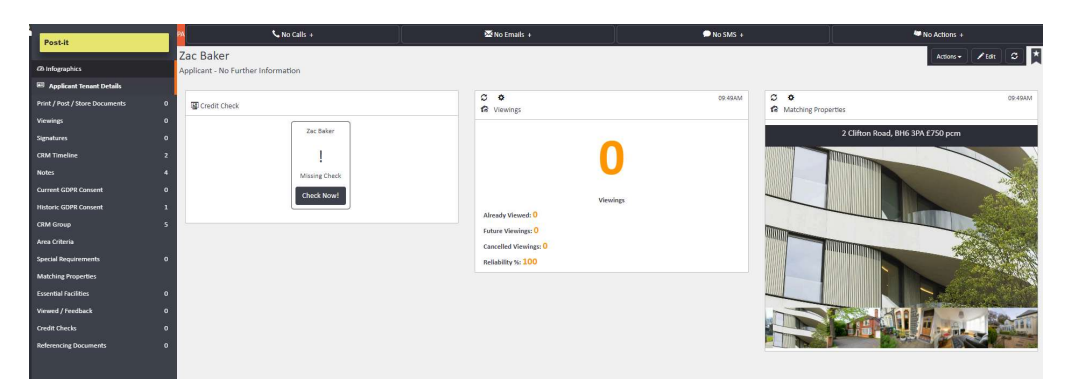
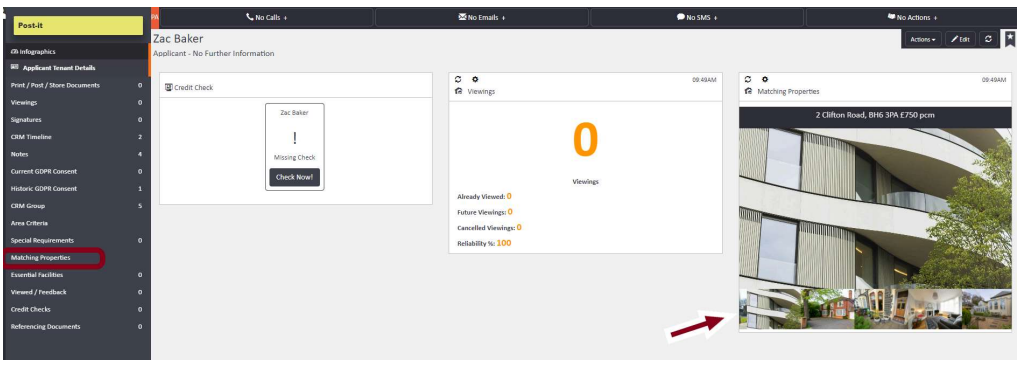
Once you have completed the relevant fields, click Save & Close. You will be taken to the Applicant card, which shows general information on the front screen including any matching properties on the right-hand side and in the left-hand ladder.

If you need any assistance, contact the agentOS support team at support@agentos.com.