
A tenancy instruction is the base record you create before advertising or letting a property. It holds all the key information about the tenancy — including the rental amount, service type, availability dates, and contract terms — and this information feeds through to portal listings and both the landlord and tenant contracts.
Step 1: Find the property
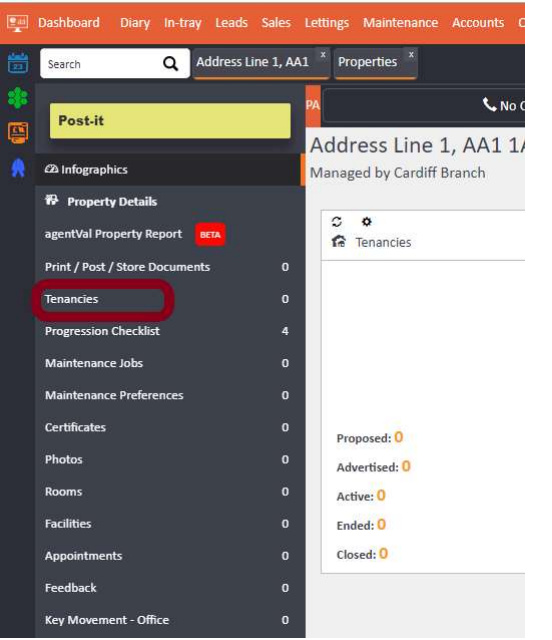
Use the quick search bar at the top of your screen to locate the property. Once open, click on Tenancies in the left-hand navigation ladder.
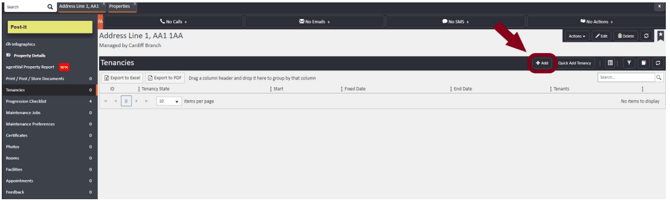
Click Add in the top right corner of the Tenancies screen.
Step 2: Marketing Details tab
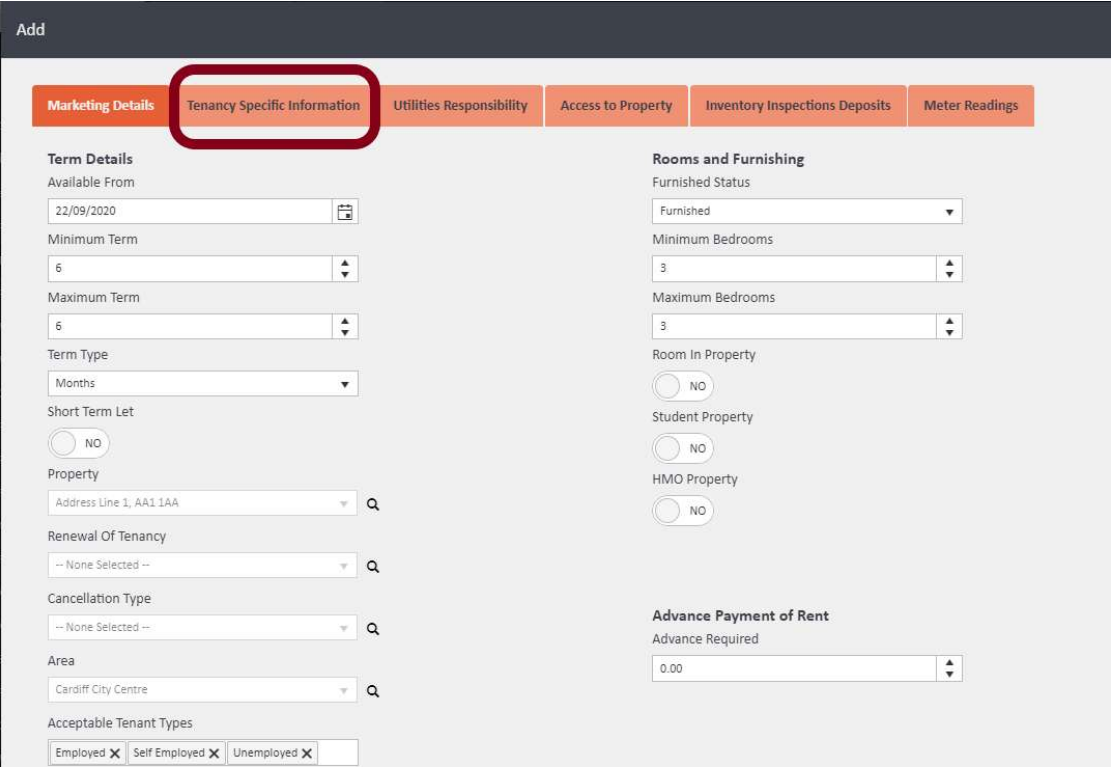
This is the first tab you will see. Here you can enter:
- Available From date and Minimum/Maximum Term — these appear on portals and in the Landlord Instruction Letter
- Term Type (e.g., Months)
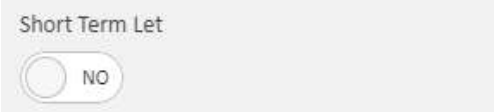
- Short Term Let toggle — set this to Yes if the property is being advertised as a short term let. The Minimum and Maximum Term fields remain available for use in brochures and window displays
- Furnished Status and bedroom details
- Advertised Rent and Minimum Rent
- Rent Recurrence and Rent Schedule (e.g., Monthly)
- Bond Details — including whether a bond is required and the amount
- Acceptable Tenant Types, Area, Branch, and Negotiator
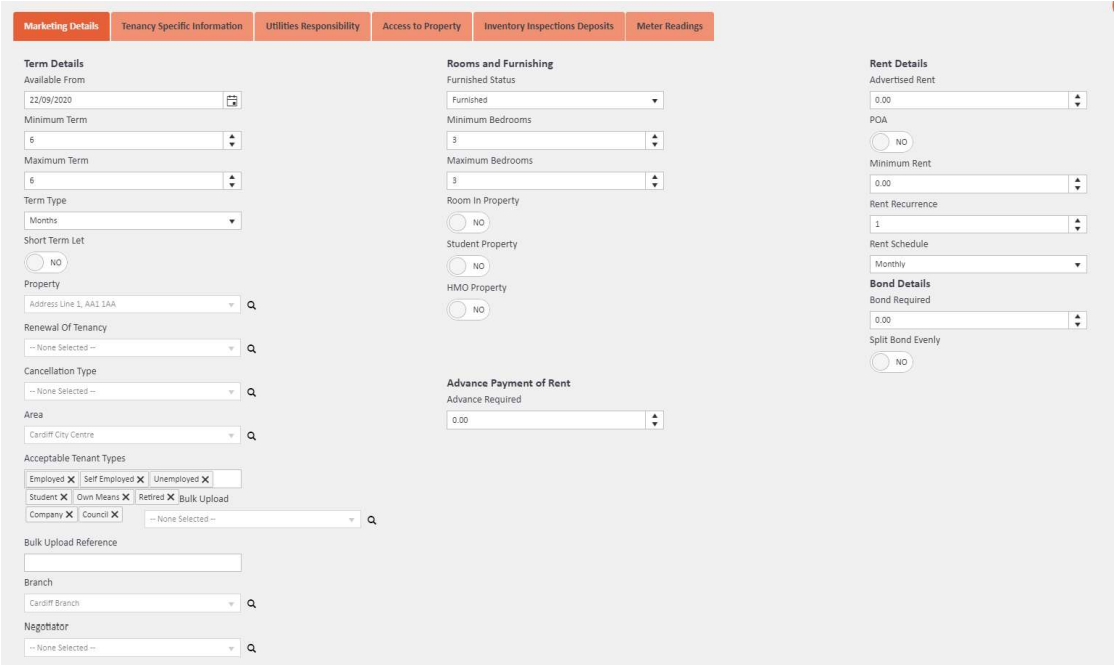
⚠️ Important: Do not enter anything into the Advance Required field unless the property is Let Only or Unmanaged, and you will only be taking an initial rent payment.
Step 3: Tenancy Specific Information tab
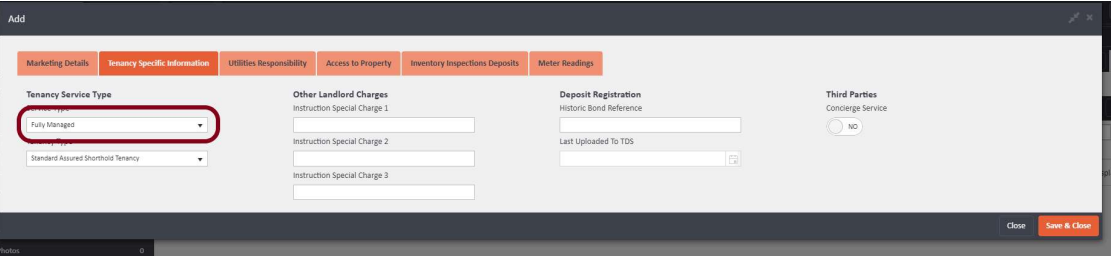
This tab is where you set the Tenancy Service Type (e.g., Let Only, Fully Managed, or any other service type you have configured). This is a critical setting — service types are customised to your charges, bond management, and rent management rules. The selection here determines whether rent is deducted and paid to the landlord (managed) or not taken at all (unmanaged), preventing errors.
You can also add Other Landlord Charges, Deposit Registration details, and Third Party/Concierge Service settings on this tab.
Step 4: Utilities Responsibility tab
Use this tab to assign responsibility for utilities — either to the landlord, tenant, or agent.
Step 5: Access to Property tab
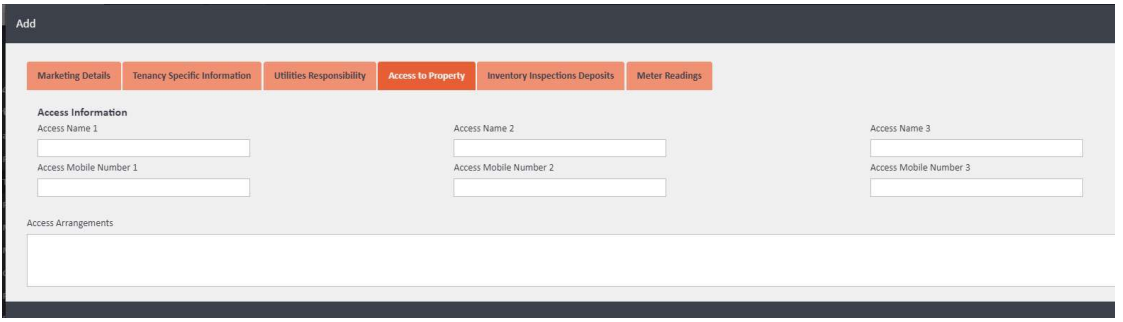
Record up to three access contacts with names and mobile numbers, plus any access arrangements.
Step 6: Inventory Inspections Deposits tab
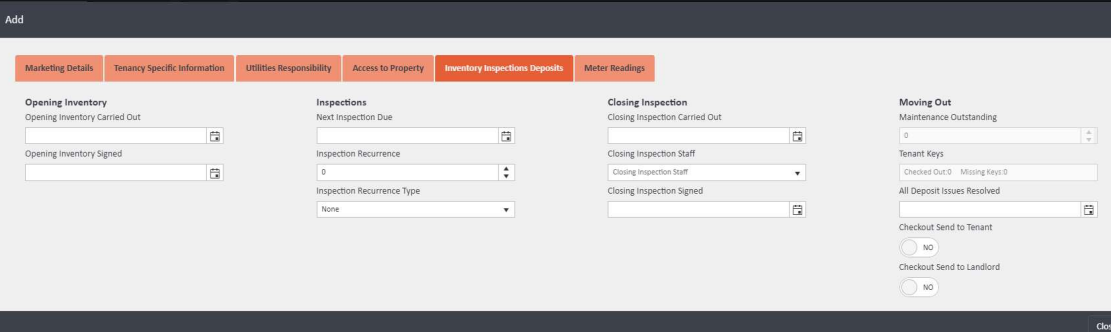
Enter dates and details for the opening inventory, ongoing inspections (including recurrence type), and closing inspection. The Moving Out section also captures tenant keys, checkout documents, and whether these are sent to the tenant and landlord.
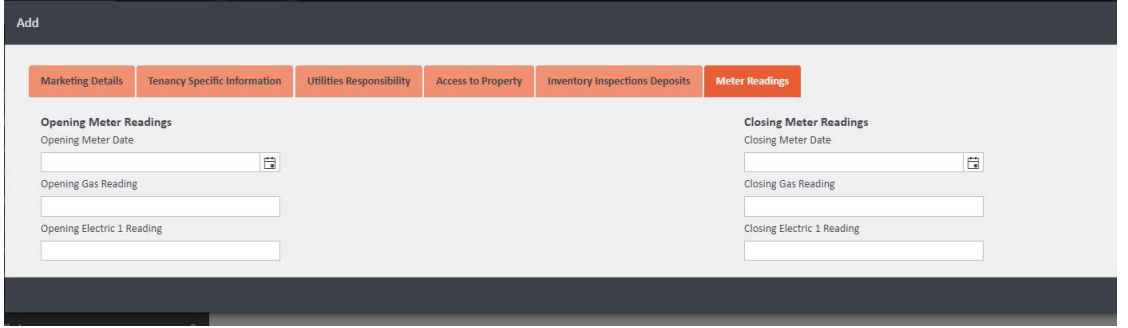
Step 7: Meter Readings tab
Record opening and closing meter readings for gas and electricity.
Step 8: Save
Once you have completed all relevant tabs, click Save and Close.
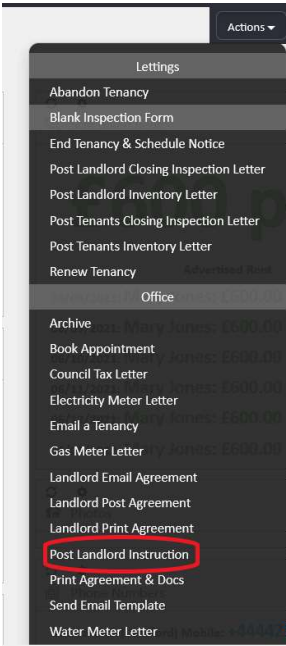
To send the landlord their terms of business, click the Actions button on the instruction and select Post Landlord Instruction. This will generate the letter in the postbag.
If you need further assistance, contact support@agentos.com.