
Properties must be added to agentOS before you can create an instruction or tenancy against them. The property record also holds key information used for portal advertising — including images, room descriptions, and facility types — which appear on portals such as Rightmove and on your website. Appointments linked to the property will also appear on the left-hand side of the property page once created.
Step 1: Navigate to Properties
From the main navigation bar, click Lettings.
Then click Properties from the Lettings menu icons.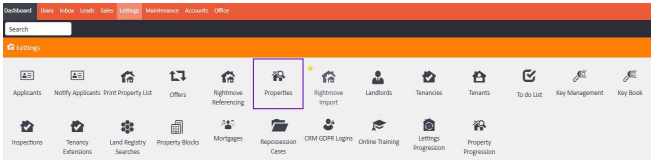
Step 2: Add a New Property
On the Properties screen, click the + Add button in the top right-hand corner.
This will open a new window where you can begin entering the property details.
Step 3: Complete the Property Details Tab
The first tab — Property Details — is where you enter the address and key office information.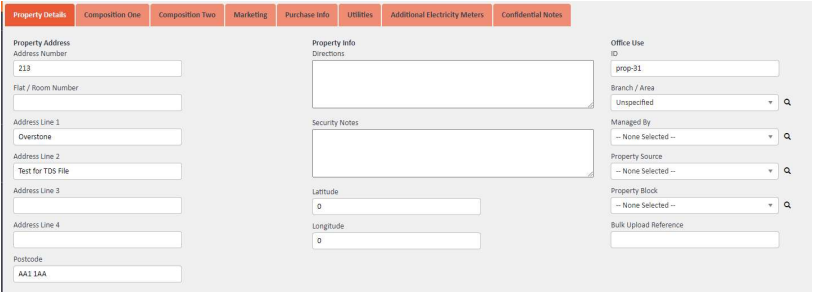
Fill in the address fields carefully and use them correctly. Entering the address incorrectly risks sharing the full property address on your portals when advertising. The fields available include:
- Address Number
- Flat / Room Number
- Address Lines 1–4
- Postcode
- Directions and Security Notes
- Branch / Area
- Managed By
- Property Source
- Property Block
- Latitude / Longitude (for mapping)
⚠️ Important: Take care when entering the address. Incorrect use of address fields may result in the full address being published on advertising portals unintentionally.
Step 4: Complete the Marketing Tab
To add your property summary and description for portals, click the Marketing tab.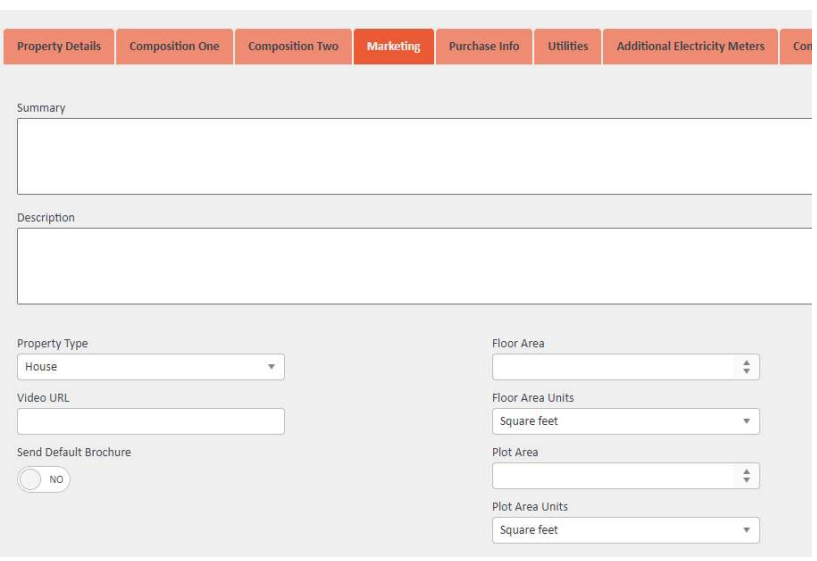
From here you can:
- Enter a Summary and Description that will appear on Rightmove, Zoopla, and other portals
- Select the Property Type (e.g. House, Flat)
- Add a Video URL
- Choose whether to send the system default brochure to portals
- Enter Floor Area and Plot Area details
You can return to this section at any time to update it. After saving and closing the property, simply click Edit in the top right-hand corner of the property page.
Step 5: Other Tabs (Optional for Lettings)
The property record includes several tabs across the top of the window:
For lettings properties, it is not compulsory to complete the Composition or Purchase Info tabs unless you need to document that data. However, the following are worth considering:
- Utilities — Record the utilities available at the property
- Confidential Notes — Add internal notes such as alarm codes or access instructions that are useful for staff but not shared externally
Step 6: Save and View the Property Card
Once you have entered the relevant information, click Save & Close. This will open the property card.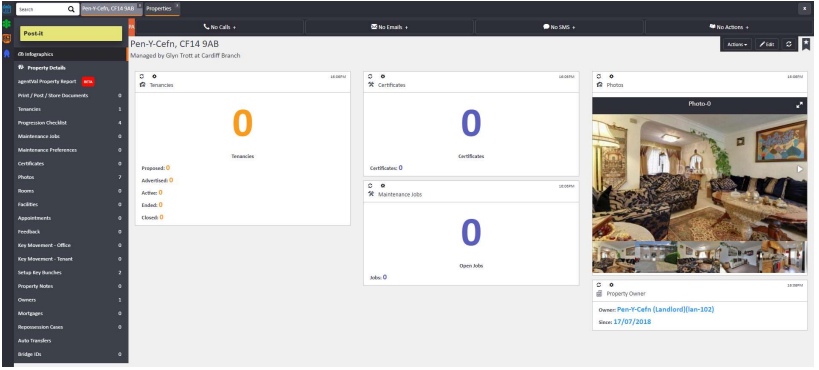
Down the left-hand side of the screen you will see property-related sections including:
- Tenancies
- Progression Checklist
- Maintenance Jobs & Maintenance Preferences
- Certificates
- Photos
- Rooms
- Facilities
- Appointments
- Feedback
- Key Movement (Office and Tenant)
- Setup Key Bunches
- Property Notes
- Owners
- Mortgages
- Repossession Cases
- Auto Transfers
- Bridge IDs
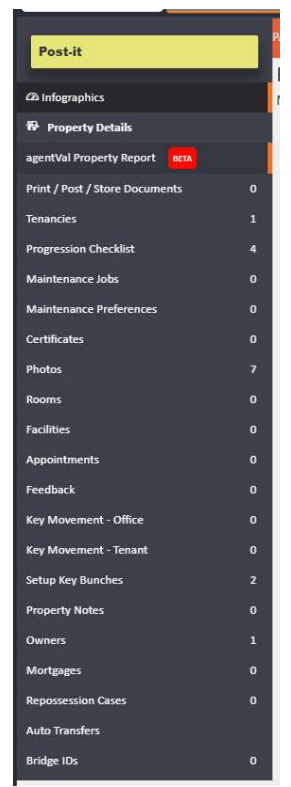
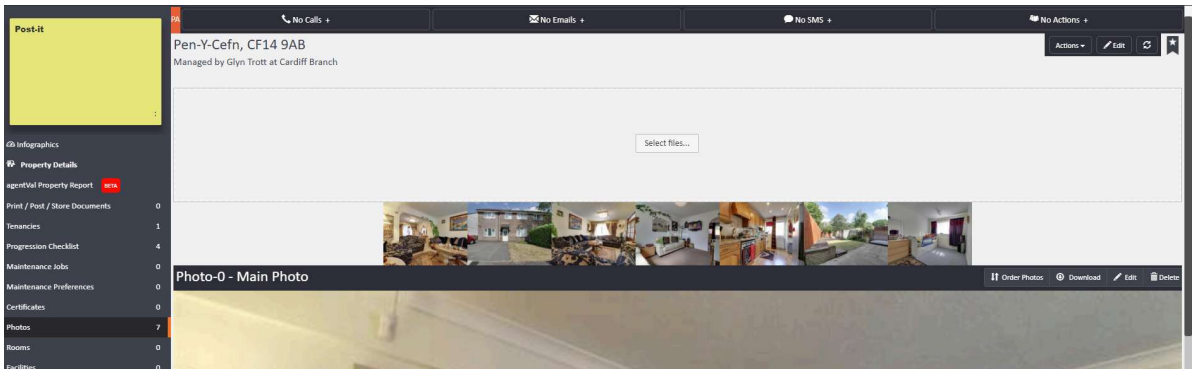
Clicking on any of these sections allows you to view, edit, or manage data for your daily processes. For example, clicking Photos and then Select Files allows you to drag and drop images into the property record. You can return at any time to edit or download images as required.
Need Help?
If you have any questions about adding properties in agentOS, contact us at support@agentos.com.