
Closing a tenancy is the final step in the tenancy lifecycle in agentOS, moving its status from Ended to Closed. This action is only available once a tenancy has already been ended — if the tenancy has not yet been ended, you will need to complete the end tenancy process first before you can close it.
Steps to Close a Tenancy
- Open the relevant property page in agentOS.
- Ensure the tenancy you wish to close has a status of Ended. The Close Tenancy option will not appear for tenancies in any other status.
- Click the Actions button and scroll down to the Lettings section of the menu.
- Select Close Tenancy.
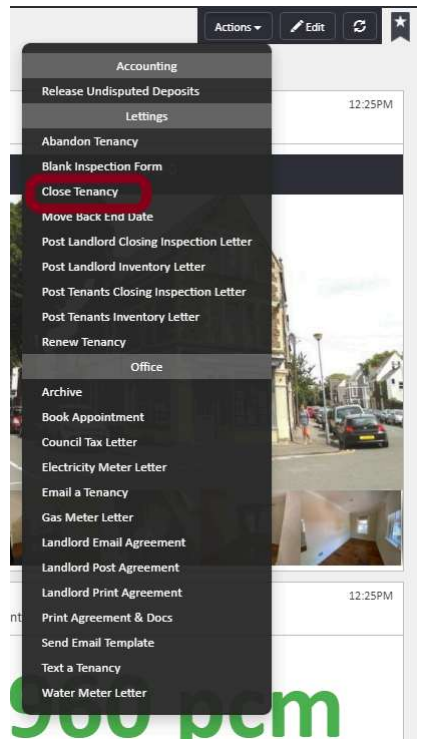
- A confirmation window will appear, summarising the actions that will be taken. This includes:
- Whether any bond held is to be returned to the tenant(s)
- The date on which the tenancy is being closed (which will be recorded in the system's audit reports)
- Review the details carefully, then click Close Tenancy in the bottom right-hand corner to confirm.
Once confirmed, the property profile will refresh and the tenancy status will change from Ended to Closed.
Note: If you need to end a tenancy before closing it, please refer to the end tenancy guide first.
If you need any assistance, contact the agentOS support team at support@agentos.com.