
Changing a rent collection date in agentOS follows a similar process to changing a rental amount. The most important thing to remember is that all changes must be set to take effect in the future — the dates need to be passed through the system correctly to trigger as expected.
In the example used throughout this guide, the rent collection date is currently the 15th of the month and is being changed to the 1st of the month, with the change being made on the 7th.
Step 1: Open the Rent Schedule
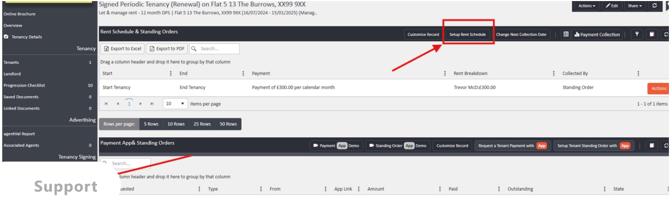
Navigate to the tenancy page and locate the Rent Schedule & Standing Orders section in the left-hand panel. Select Setup Rent Schedule.
Step 2: Delete the existing schedule line
You will see the current rent schedule line listed. Delete this line using the X Delete button on the right-hand side.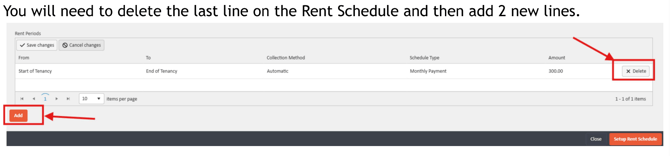
Step 3: Add the first new line (historic period)
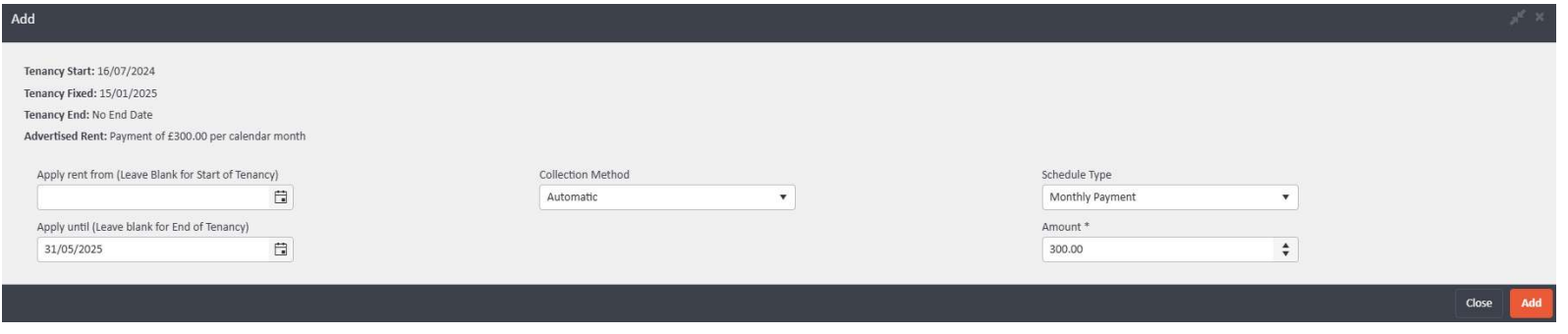
Click Add to create the first new schedule line. This line covers the period from the start of the tenancy (or the day after the last schedule line) up to — and including — the day before the new payment date.
In this example, the end date for this line is 31st May.
Set the collection method, schedule type, and amount to match the previous schedule, then select Add.
Step 4: Add the second new line (new collection date onwards)
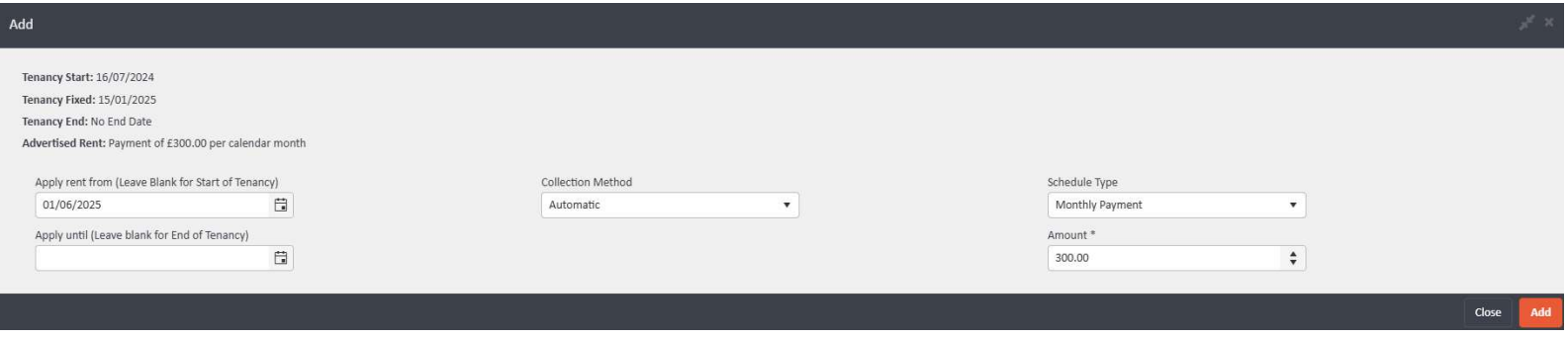
Click Add again to create the second line. This line starts on the new rent payment date (1st June in this example) and the end date should be left blank to run to the end of the tenancy.
Set the collection type, rental frequency, and rental amount as required, then select Add.
You can then select Setup Rent Breakdown if you need to review or configure the rent breakdown.
Step 5: Change the next collection date (if needed)
If this change is taking place before the next rent call date, you will also need to update the immediate upcoming payment. On the Rent Schedule & Standing Orders page, select Change Next Collection Date and set it to the same date as the start of the second schedule line — in this example, 1st June.

Making rent due manually
If any rent needs to be manually triggered following the date change, this can be done from the tenant's record using the Make Rent Due option in their action drop-down.
Note: Always ensure date changes are set in the future. Changes cannot trigger correctly if the dates have already passed.
If you need assistance with rent schedule changes, contact the agentOS support team at support@agentos.com.
HubSpot Metadata
Category > Subcategory: agentOS > Lettings
Tags: Rent Collection Date, Rent Schedule, Standing Order, Lettings Management, Rent Changes, Payment Schedule
Meta description: Learn how to change the rent collection date on a tenancy in agentOS. This step-by-step guide covers updating the rent schedule, adding new lines, and changing the next collection date to ensure payments trigger correctly.