
Changing an end date can be done on both signed (active) and ended tenancies in agentOS. However, if you are changing the end date on an ended tenancy, the new date must be earlier than the current end date — you cannot use this method to extend a tenancy that has already ended.
Step 1: Open the tenancy
Use the quick search bar to find the property by address, then click Tenancies in the left-hand navigation ladder and open the relevant tenancy.
Step 2: Go to Manage End Notices
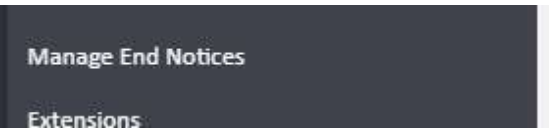
In the left-hand navigation ladder, click Manage End Notices.
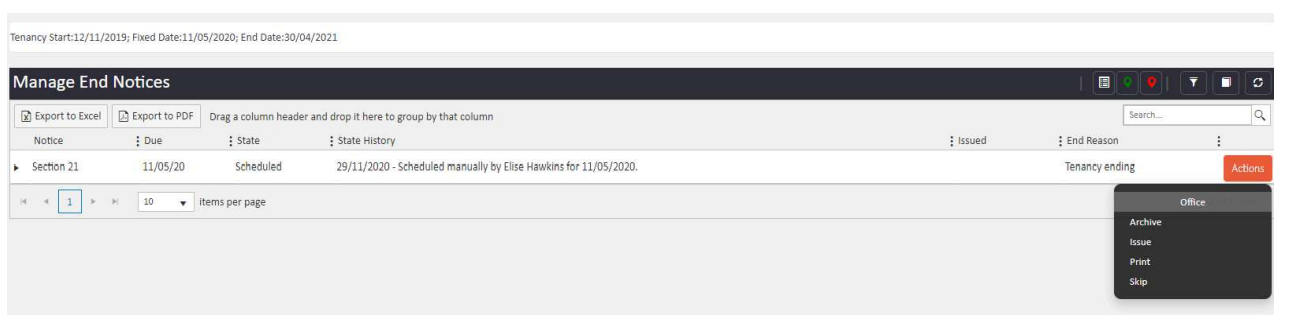
Step 3: Skip or rescind any active notices
If there are any active and issued notices listed here, you must deal with them before the end date can be changed. Click the Actions button on the relevant notice and select either Skip or Rescind as appropriate.
Step 4: End Tenancy & Schedule Notice
Once any existing notices have been dealt with, go back to the Tenancies section under the property. Click Actions against the tenancy and select End Tenancy & Schedule Notice.

This will allow you to schedule a new end notice with the updated end date.
⚠️ Important: If you are amending the end date on an ended tenancy, the new date must be before the current end date. This process cannot be used to push the end date forward on a tenancy that has already ended.
If you need further assistance, contact the agentOS support team at support@agentos.com.