Arranging access to a property in AgentOS is done through the diary section and takes just a few steps to complete.
Step 1: Book a diary appointment
Navigate to the diary section and create an appointment for the property visit.
You can do this using the "Quick Add Appointment" function for speed, or create one the standard way if you need to add more detail.
Fill in the relevant appointment details (start time, end time, appointment type, assigned staff member, etc.) and save it.
Step 2: Open the appointment and link the property
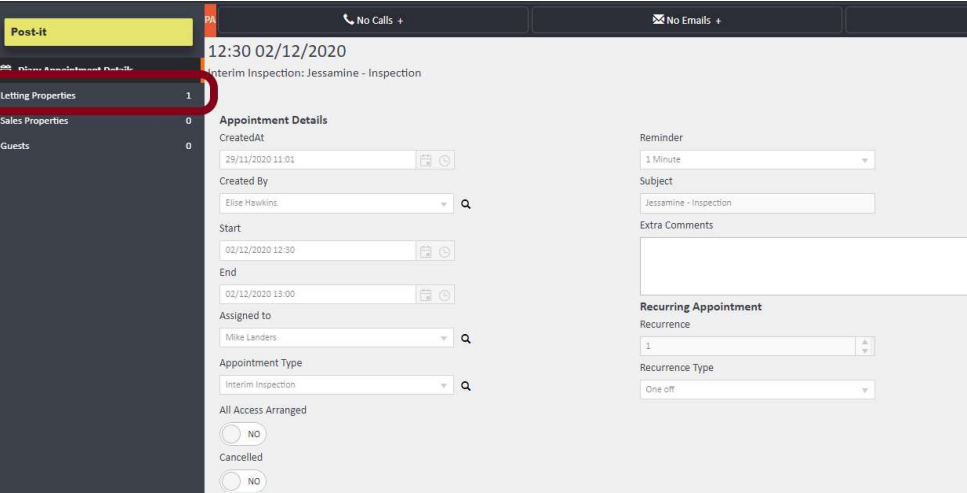
Once saved, double-click the appointment to open the full details panel, which will appear on the left-hand side of the page.
You will see three sections listed: Lettings Properties, Sales Properties, and Guests.
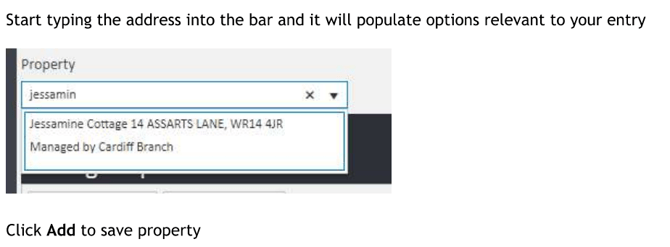
Click on the relevant section — for example, "Lettings Properties" — then start typing the property address into the search bar.
AgentOS will populate matching options as you type.
Select the correct property from the list and click Add to link it to the appointment.
Step 3: Arrange access
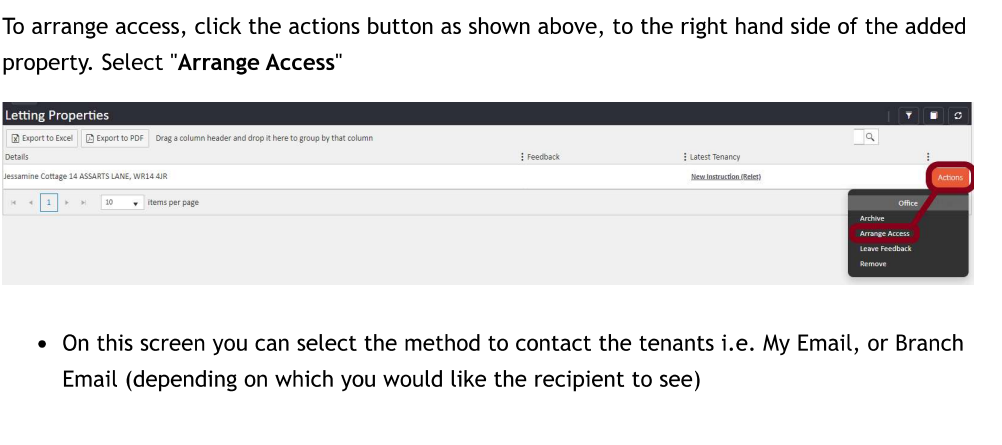
With the property linked, click the Actions button to the right of the property entry.
From the dropdown menu, select Arrange Access.
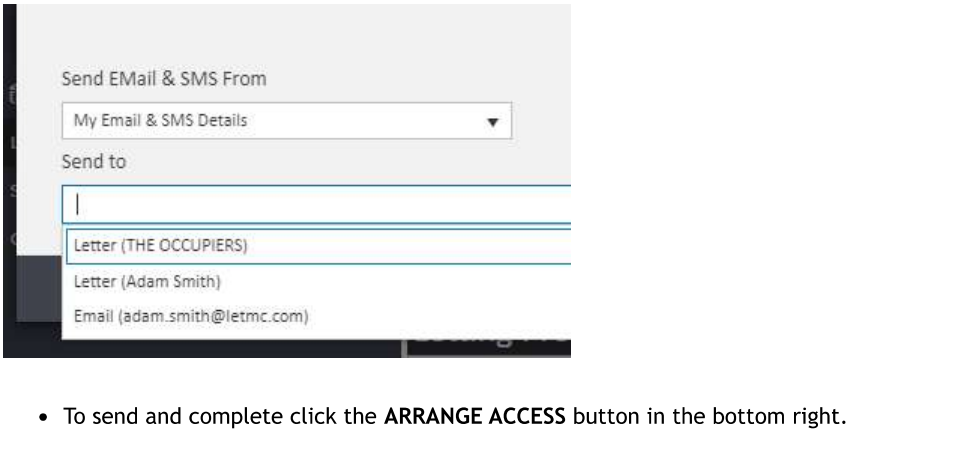
This will open the access notification screen where you can:
- Choose how to send the notification — select either "My Email & SMS Details" or your branch email address, depending on which sender address you want the tenant to see.
- Select who to send it to — options will include the occupiers, named tenants, and their associated email addresses.
Once you have made your selections, click the ARRANGE ACCESS button in the bottom right to send the notification and complete the process.