
Facility types are the highlighted, bulleted items that appear on your portal feeds — for example, Central Heating, Double Glazed, or Conservatory. They are applied at the property level, but must first be set up in your system's Object Types before they become available to select.
Part 1: Add a facility type to the system
Before a facility type can be applied to any property, it must exist in your Object Types list.
Step 1: Open the Control Panel
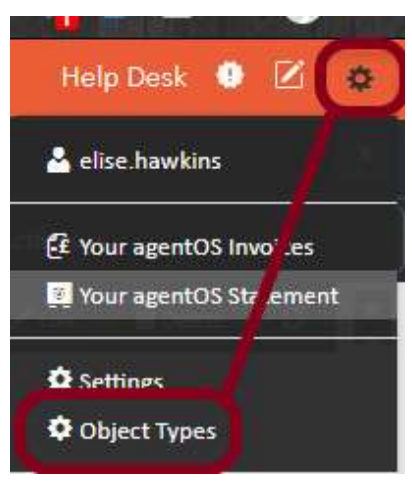
Click the Control Panel icon (the cog icon) in the top right corner of the screen. From the dropdown menu, select Object Types.
Step 2: Select Facility Types
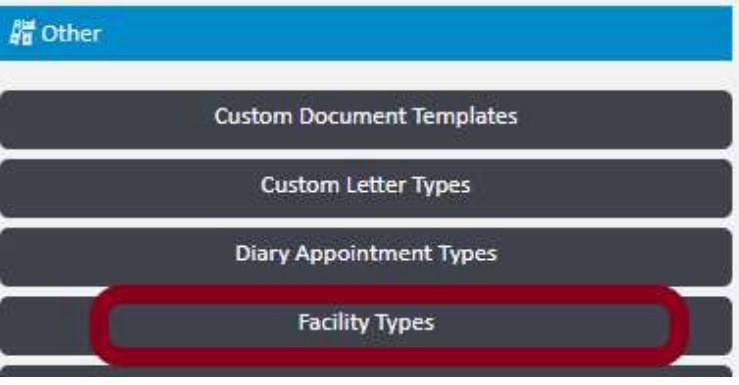
Within Object Types, scroll to the Other section and click Facility Types.
Step 3: Add the new facility type
Type the name of the facility type into the text field and click Add. The new type will be saved to the system and will now appear as an option in the dropdown when applying facilities to a property.

Part 2: Add a facility type to a property
Once the facility type exists in the system, you can apply it to any property.
Step 1: Open the property and navigate to Facilities
Use the quick search bar to find and open the relevant property record. Click Facilities in the left-hand navigation ladder.
Step 2: Select the facility type and add it
Click the dropdown arrow in the Name field to expand the list of available facility types. Select the relevant type and click the Add button below the dropdown to apply it to the property.
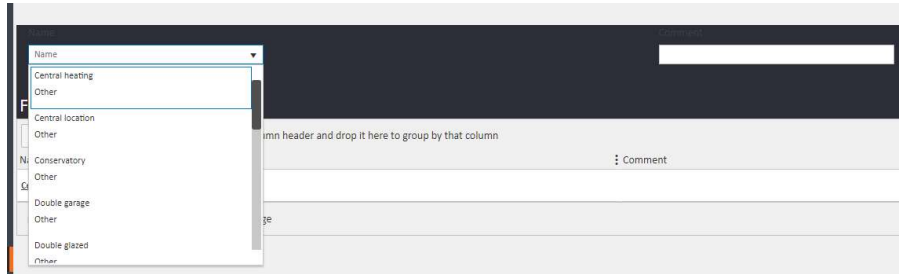
The selected facility type will be saved to the property and will appear in the Facilities grid below, as well as on your portal feeds for that property.
Part 3: Remove a facility type from a property
To remove a facility type that has already been applied to a property:
Step 1: Open the Facilities section on the property
Navigate to the property and click Facilities in the left-hand navigation ladder. In the Facilities grid below the entry form, you will see all facility types currently applied to the property.
Step 2: Open the facility record
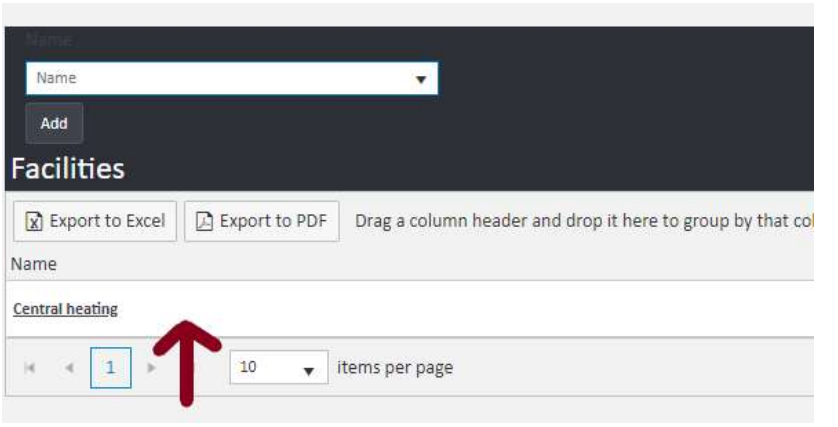
Click on the name link of the facility type you wish to remove — click the text link itself, not the boxed facility tag. This opens the individual Property Facility Details record.
Step 3: Delete the facility
The Property Facility Details record will open, showing the facility name and a Comment field. Click the Delete button in the top right corner of the record to remove it from the property.

If you need further assistance, contact support@agentos.com.