
Contact details can be added to any person's profile in agentOS — including tenants and landlords. This covers a range of contact types such as permanent addresses, pre-tenancy addresses, guarantors, next of kin, referees, employers, and accountants.
Step 1: Find the person's profile
Use the quick search bar at the top of your screen to search for the person, or navigate via Lettings > Tenants (or Landlords) and locate the relevant record.
Step 2: Click Addresses
Once the profile is open, click Addresses in the left-hand navigation ladder.
Step 3: Click Add Contact
On the right-hand side of the Addresses screen, click Add Contact.
Step 4: Choose a contact type
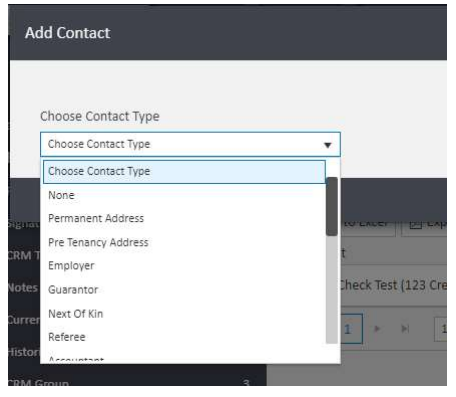
A pop-up window will appear with a Choose Contact Type dropdown. Select the appropriate type from the list:
- None
- Permanent Address
- Pre-Tenancy Address
- Employer
- Guarantor
- Next of Kin
- Referee
- Accountant
Step 5: Complete the contact details
Once you have selected the contact type, the pop-up will update to show the relevant fields. Complete the address and contact details as required, including:
- Address 1–4 and Postcode
- Country
- Valid From / Valid To dates
- Landline and Fax
- Notes
Use the Address Finder button to search for and populate an address automatically if preferred.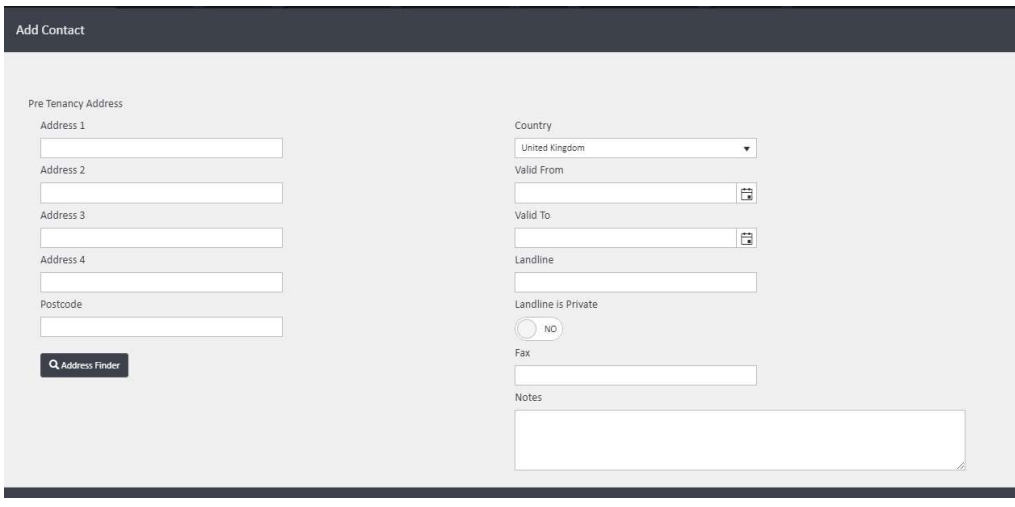
⚠️ Please note: For contact types such as pre-tenancy, post-tenancy, or permanent addresses, personal details such as name, email, and phone number are not required.
Step 6: Save
Click Add Contact in the bottom right corner of the pop-up to save the entry. It will then appear in the Addresses list on the person's profile.
If you need further assistance, contact support@agentos.com.