
Areas in agentOS are applied against property records to indicate the location of a property and link it to the correct branch. If you operate from multiple branches, areas allow you to divide your properties between them so each branch manages only the relevant records. You can add as many areas as needed.
Step 1: Navigate to Branches
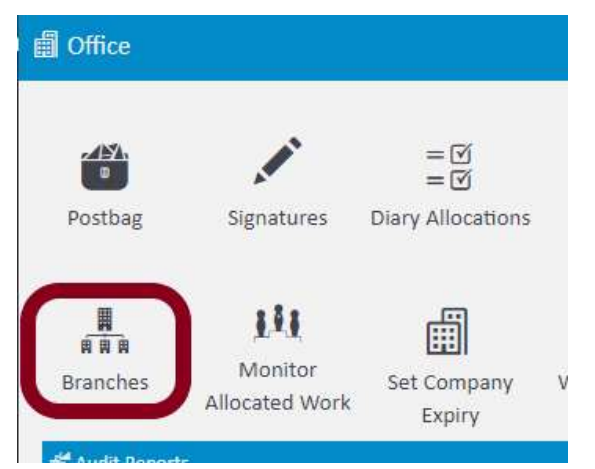
From the main navigation bar, click Office, then select Branches.
Step 2: Open the relevant branch
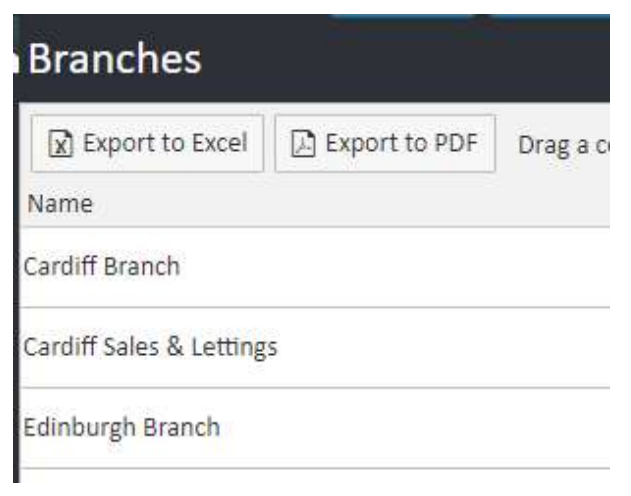
The Branches screen will display a list of all branches on your account. Click the name of the branch you want to add areas to.
Step 3: Click Areas in the left-hand navigation ladder
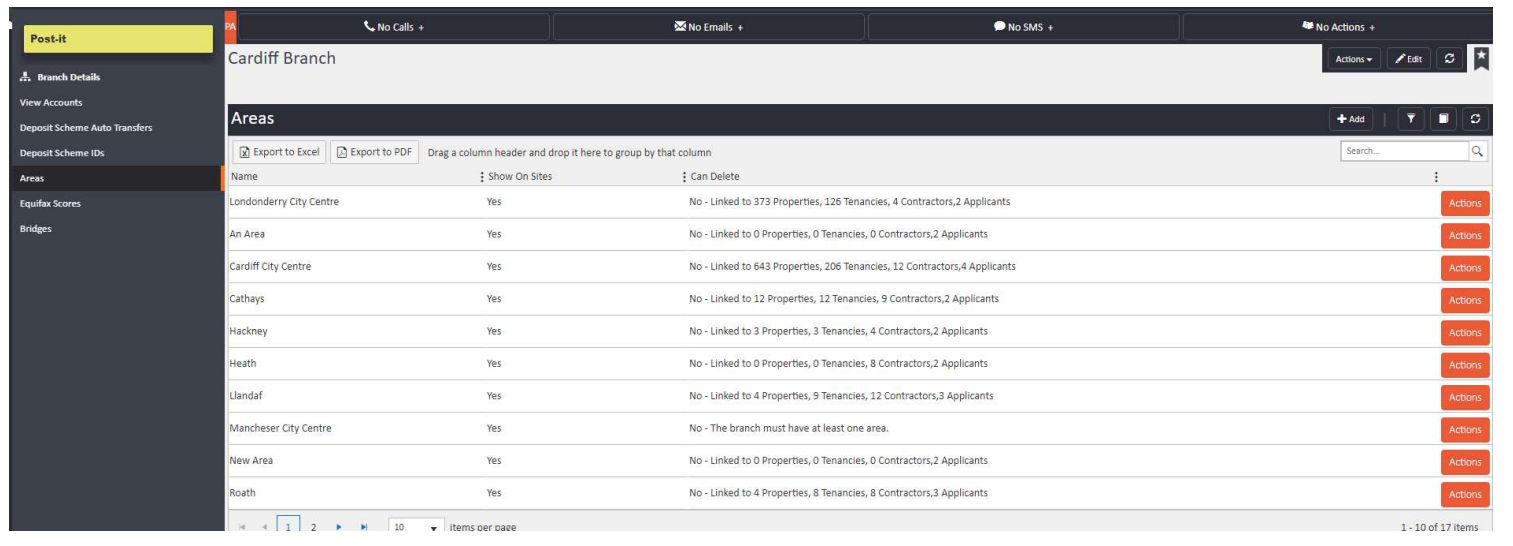
Once inside the branch record, click Areas in the left-hand navigation ladder. The centre panel will display all existing areas linked to this branch, showing how many properties, tenancies, contractors, and applicants are associated with each one. The +Add button is in the top right corner.
Step 4: Add the new area
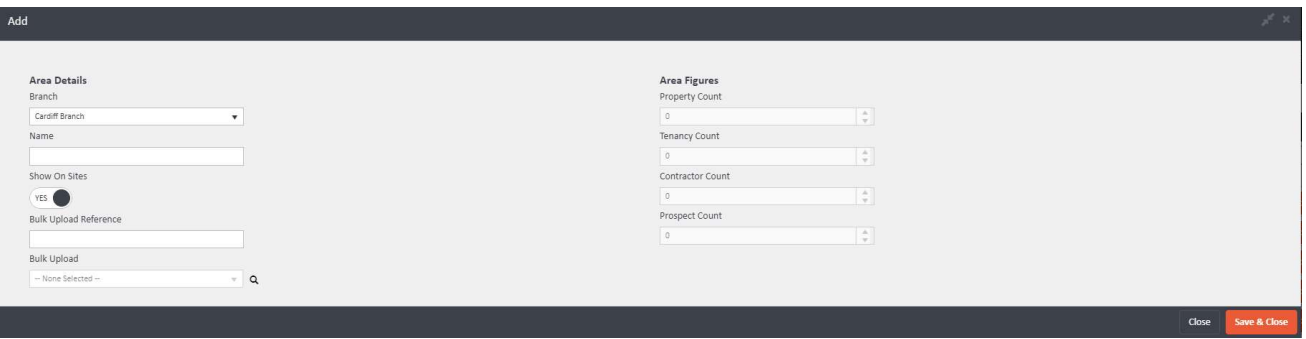
Click +Add. A form will appear with the following fields:
- Branch — pre-populated with the branch you are in. Change this if the area should be linked to a different branch
- Name — enter the name of the area (e.g., Cardiff City Centre)
- Show On Sites — toggle to control whether this area appears on your connected portals
- Bulk Upload Reference — for use when bulk uploading data
- Bulk Upload — select a file if applicable
The right-hand side of the form displays Area Figures (Property Count, Tenancy Count, Contractor Count, Prospect Count), which will populate automatically as records are linked to the area.
Once you have completed the details, click Save & Close. The area will now be available to select when adding or editing a property record.
If you need further assistance, contact support@agentos.com.