
Keys are managed at property level in agentOS. You can record key bunches for office and tenant sets, assign reference numbers, check keys in and out, and maintain a full movement history — all from within the property profile.
Step 1: Open the property profile
Use the quick search bar at the top of your screen to search for the property address, or navigate via Lettings > Properties.
Step 2: Navigate to Key Bunches
In the left-hand navigation ladder, click Key Bunches.
You will see the existing key bunches listed, typically showing an Office set and a Tenant set.
Step 3: Set your office reference number
Click the Actions button on the Office row and select the edit option to set your in-house office bunch number.
Repeat the same process for the Tenant set to assign your own reference number to that bunch as well.
Step 4: Add duplicate key bunches (if applicable)
If the property has duplicate key bunches — for example, multiple sets of office keys — click the Add button in the top right corner of the Key Bunches screen to create additional entries.
Checking keys out
To check a set of keys out, click the Actions button on the relevant key bunch. You will see the following options: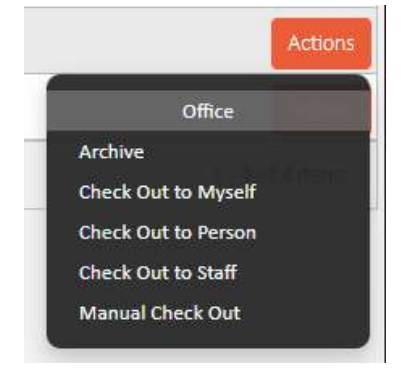
- Check Out to Myself — records you (as the logged-in staff member) as holding the keys
- Check Out to Person — assigns the keys to someone on the system, such as another staff member, contractor, tenant, or landlord
- Manual Check Out — allows you to manually enter the details of the person taking the keys
⚠️ Once keys have been checked out, they cannot be checked out again until they have been checked back in.
Checking keys back in / reporting as missing
To check keys back in, navigate to the Key Bunches screen and click on the relevant key bunch. You will see a Key Bunch Movement option in the left-hand ladder, which shows a full history of check-ins and check-outs for that bunch.
To update the status, click the Actions button on the movement entry and select the option that applies: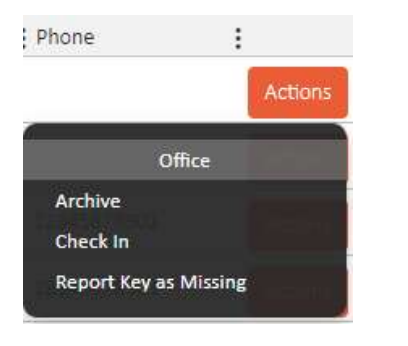
- Check In — records the keys as returned to the office
- Report Key as Missing — flags the key bunch as lost or unaccounted for
If you need further assistance, contact support@agentos.com.