
agentOS allows you to carry out and record your own in-house inventories directly on a tenancy. If you use Touchright for inventories, this integrates with agentOS — refer to the Useful Plugins article for more information.
Step 1: Open the tenancy
Search for the property using the search bar and open the tenancy. In the left-hand navigation ladder, scroll to the Property Management subheading. Click Inventory.
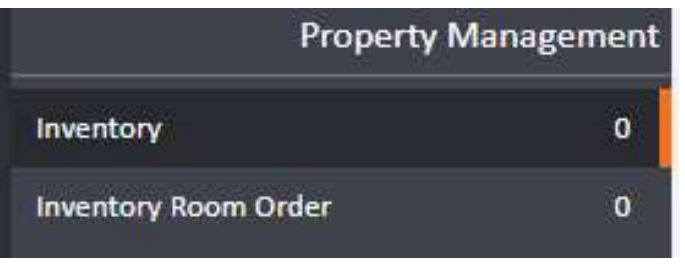
Step 2: Add inventory items
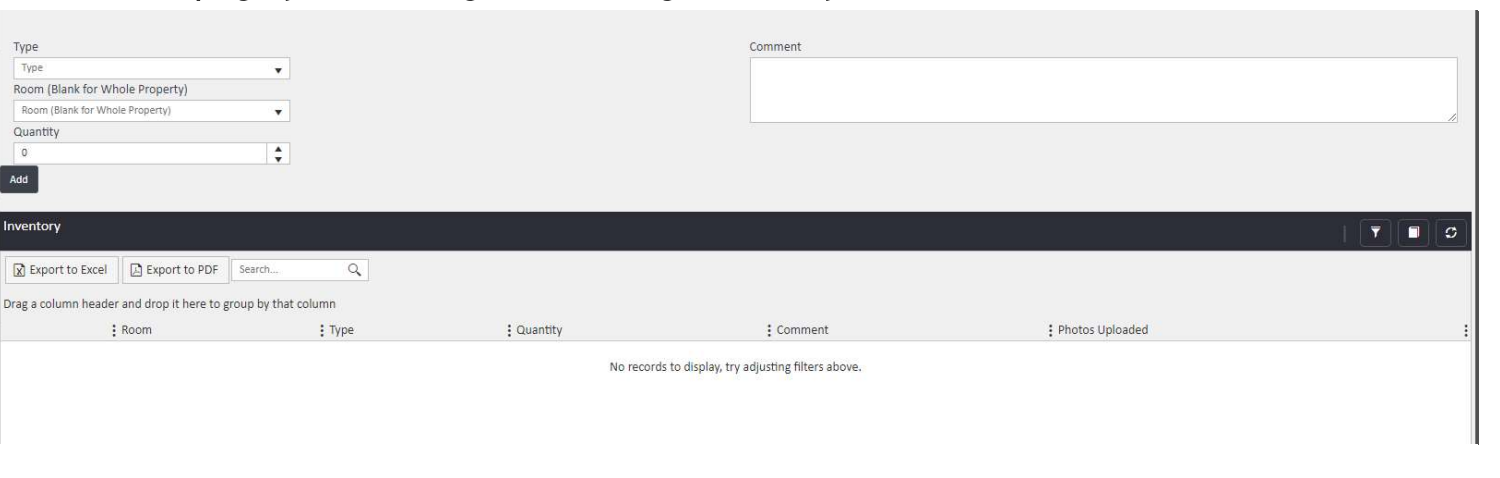
At the top of the Inventory section you will see an Add form. Complete the following fields for each item:
- Type — the inventory item, e.g. Bed
- Room (Blank for Whole Property) — link the item to a specific room, or leave blank if it applies to the whole property
- Quantity — how many of that item are in the room
- Comment — the condition of the item, including any marks or notes
Click Add to save the entry. It will appear in the inventory list at the bottom of the page. Repeat for each item you wish to record.
Step 3: Add photos to an item
To attach photos to a specific inventory item, click on that item's row in the inventory list. The item will open and a Photos option will appear in the left-hand navigation. Drag and drop your images into the photos area to upload them.
If you need further assistance, contact support@agentos.com.