
Step 1 — Upload Your Signature Image (if applicable)
If your signature includes an image such as a company logo or banner, you will need to upload it first to generate a hosted URL.
Click the person icon in the top right-hand corner of agentOS, then go to Settings. From the Settings screen, click Email Signature Images.
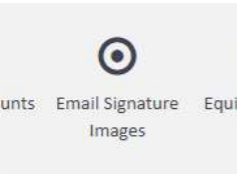
On the Email Signature Images screen, click Upload Signature Image in the top right-hand corner.
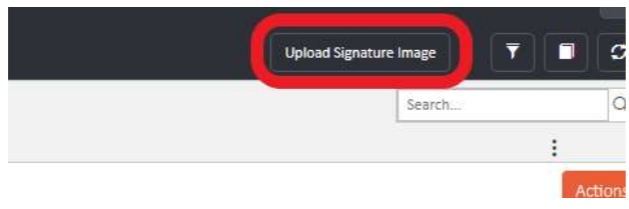
Once the image has been uploaded, it will appear in the list with a corresponding Image URL. Right-click the URL and copy it — you will need to paste this into your signature in the next steps.

Step 2 — Set the Signature on Your Email Account
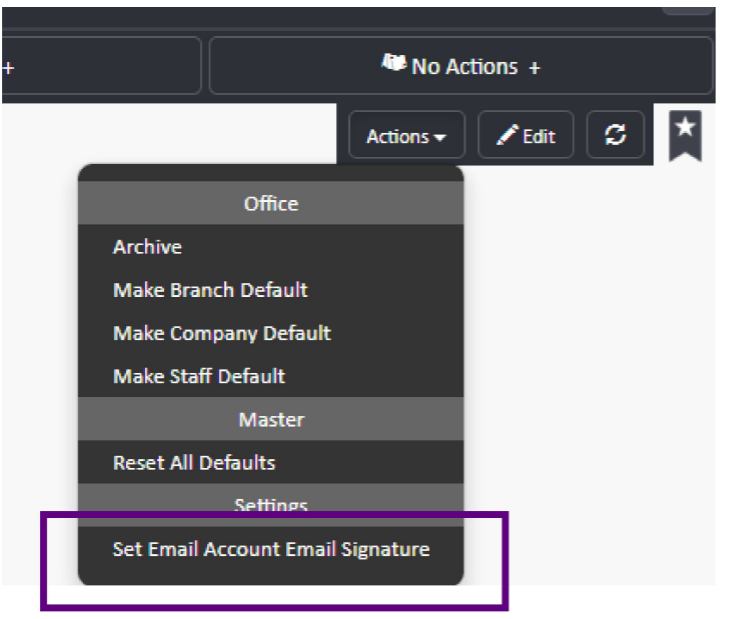
Go back to Settings and select Email Accounts. Click on your email account to open it, then click Actions and select Set Email Account Email Signature.
The email signature editor will open on the EMail Signature tab. To insert your image, click the image icon in the toolbar (circled in the source). A pop-up will appear — paste the copied image URL into the URL field and click OK.
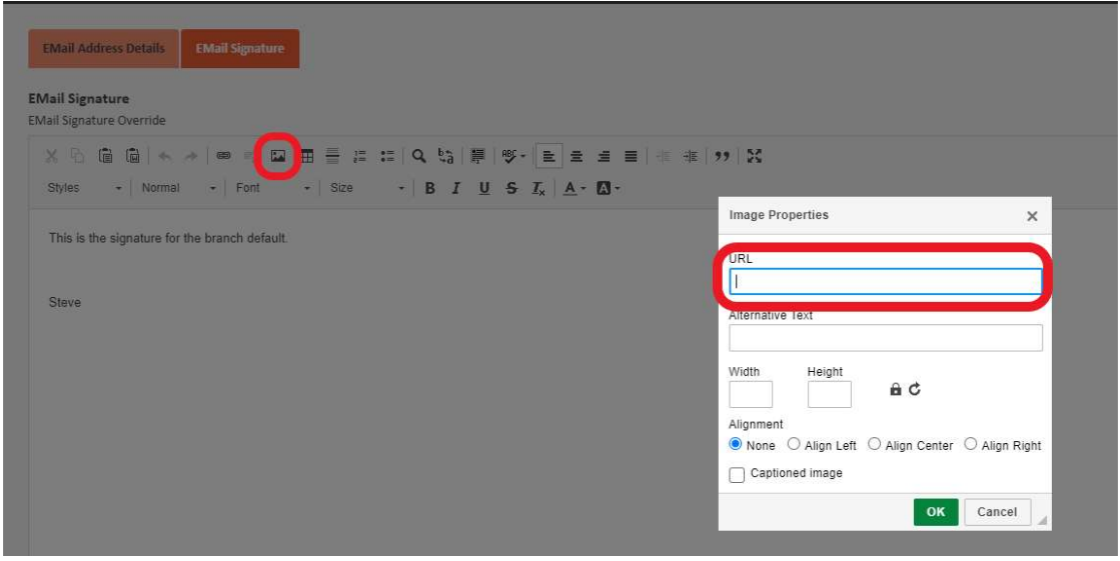
For any text content in your signature, simply type or paste it directly into the white space of the signature editor.
Once you are happy with your signature, click Save & Close.
Step 3 — Alternative Method: Set via Your Staff Profile
You can also set your email signature directly from your staff profile rather than through Email Accounts.
Search for your name in the search bar and open your staff profile. Click Actions and select Set Staff Email Signature.
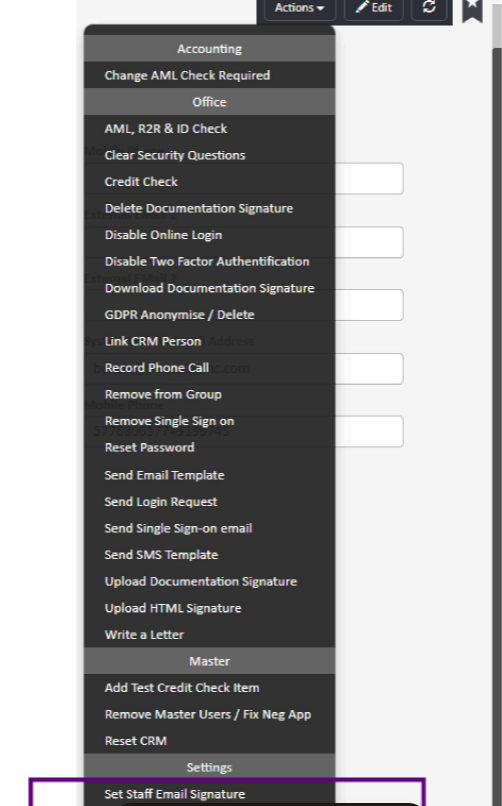
Follow the same process as above to insert your image URL and any text content, then save and close.
Important Notes
- The Email Signature Images area is used solely for hosting images so they can be embedded in signatures via a URL. It is not where the signature itself is written.
- If your signature includes both an image and text, add the image via the image icon in the toolbar, then type your text content directly into the signature editor body.
- Signatures can be set at branch level, company level, or staff level using the Make Branch Default, Make Company Default, and Make Staff Default options in the Actions menu of an email account.
For any difficulties, contact support@agentos.com.