
Virtual tour URLs can be added directly to a property record in agentOS so they appear on your advertised portal listings. This is done via the Marketing tab on the property record.
Step 1: Open the property and click Edit
Search for the property using the quick search bar and open the property record. Click Edit in the top right-hand corner.
Step 2: Go to the Marketing tab
In the edit view, click the Marketing tab across the top of the form.
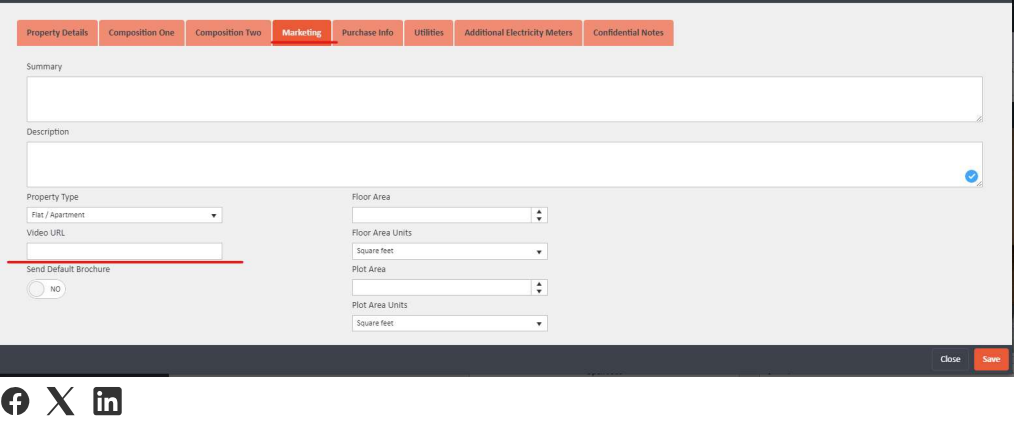
Step 3: Enter the virtual tour URL
Paste your virtual tour URL into the Video URL field.
Step 4: Save
Click Save in the bottom right-hand corner. The listing will update on your connected portals, though the time taken for changes to appear may vary.
💡 Also worth knowing: Virtual tours can also be added as a Portal Media item, which provides an alternative way to include them in your portal feed. See the article What is Portal Media and how does it work in agentOS? for more information.
Need Help?
If you have any questions about adding virtual tours in agentOS, contact the support team at support@agentos.com.