
Pre-flight check complete — no existing article on video URLs for portal marketing. No duplicate. All pages are visible in the context window. I note the source article includes a link to an external help resource (letmc.zendesk.com) for Portal Media — this will be preserved in the article body as written, but flagged as a potentially outdated link for your review.
Question (Title):
How do I add a video to a property listing in agentOS?
Subtitle (Quick Answer):
You can embed a property viewing video into your portal listings by adding a YouTube video link to the Video URL field on the Marketing tab of the property profile. This is included as standard at no additional cost.
Detailed Answer:
Overview
agentOS allows you to embed property viewing videos within your portal listings, enhancing the experience for potential tenants and giving your adverts a more professional appearance. The video must be hosted on YouTube before it can be added.
How to Add a Video URL
- Open the relevant property profile in agentOS.
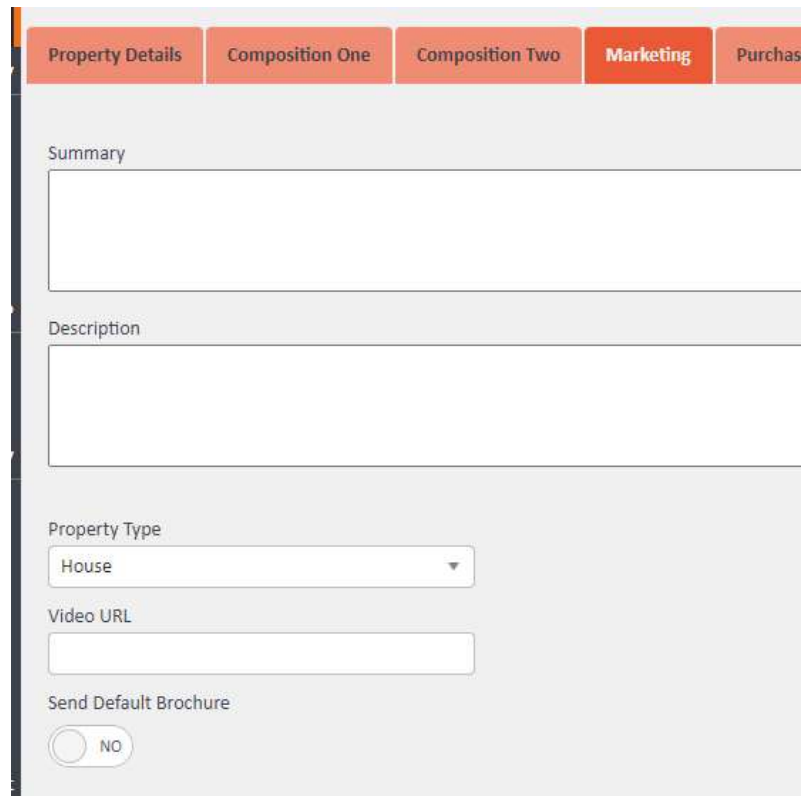
- Navigate to the Marketing tab.
- Locate the Video URL field.
- Paste the YouTube video link into the field.
The video will then be included in your portal listing automatically.
Important Notes
- The video must be hosted on YouTube — other video platforms are not supported.
- Adding a video URL is free to use.
Adding Other Media to Portal Listings
To add additional links and other media items to a property advertisement, please refer to the Portal Media guide. Contact support@agentos.com for further assistance.
⚠️ Link note: The source article references the following external URL for Portal Media guidance: https://letmc.zendesk.com/hc/en-us/articles/8708752545821-Portal-Media. Please check whether this link is still active and replace it with the equivalent HubSpot article URL if one exists before publishing.