
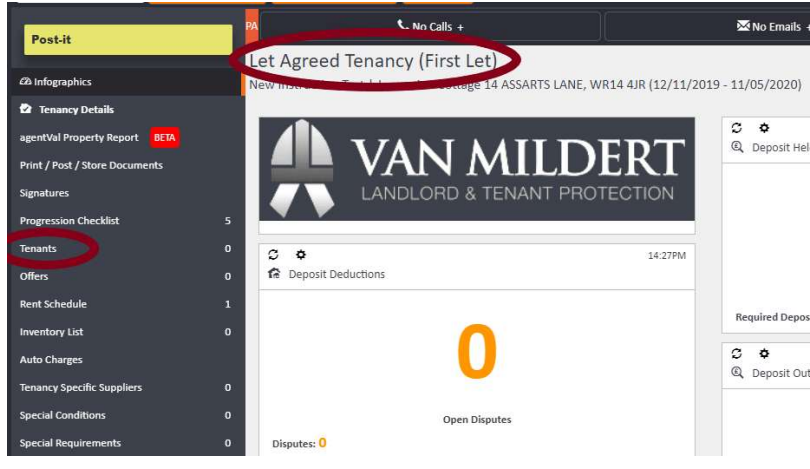
After marking a tenancy as Let Agreed, a Tenants section will appear in the left-hand navigation ladder of the tenancy. This is where you link the tenant to the tenancy.
Step 1: Open the Tenants section
Click Tenants in the left-hand ladder. The Tenants panel will open in the centre of the screen.
Step 2: Choose how to add the tenant
Along the top of the Tenants panel, you will see four options:
- Add Tenant — adds a brand new person who has not previously been recorded on agentOS
- Add from Tenant — links an existing tenant already in the system
- Add from Applicant — converts an existing applicant record into a tenant on this tenancy
- Add from Online Applicant — adds a tenant from an online applicant submission
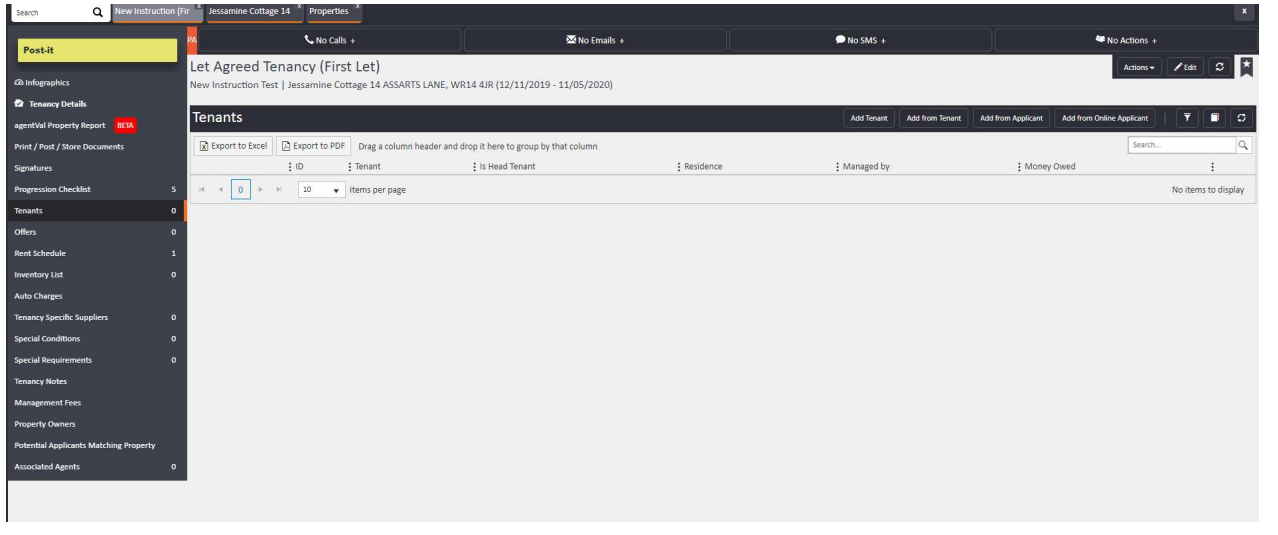
If you have already added the person as an applicant — which is the most common scenario — select Add from Applicant. A search field will appear. Type the applicant's name, select the correct record from the results, and click Add from Applicant to confirm.
Once added, agentOS will take you directly to the tenant's record where you can carry out further steps such as credit checking and referencing.
If you need any assistance, contact the agentOS support team at support@agentos.com.