
Question (Title):
How do I add a new user or staff member in agentOS?
Subtitle (Quick Answer):
New users and staff members are added through the Settings area in agentOS. Once created, you will need to set a temporary password for them so they can log in and set their own.
Detailed Answer:
Adding a New Staff Member
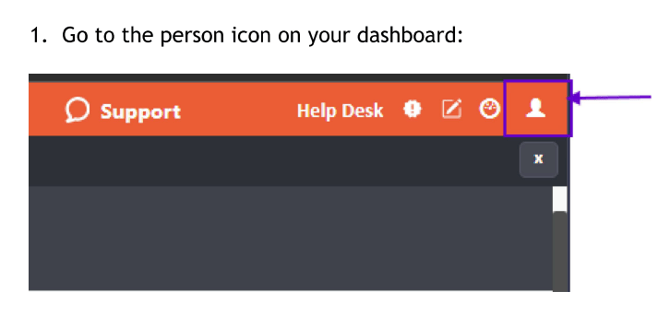
- From the dropdown menu, click Settings.
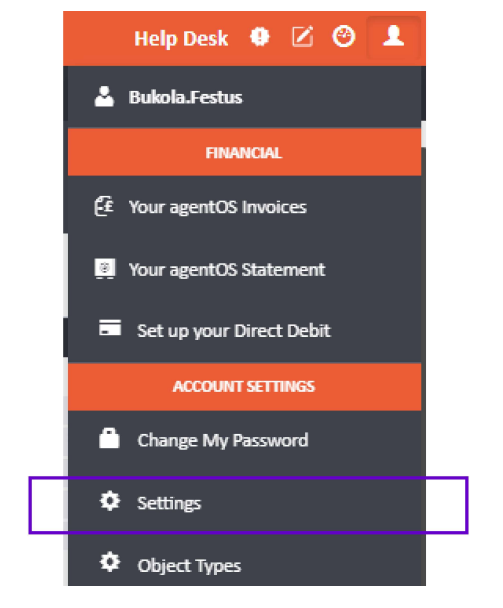
- In the Settings area, click Staff.
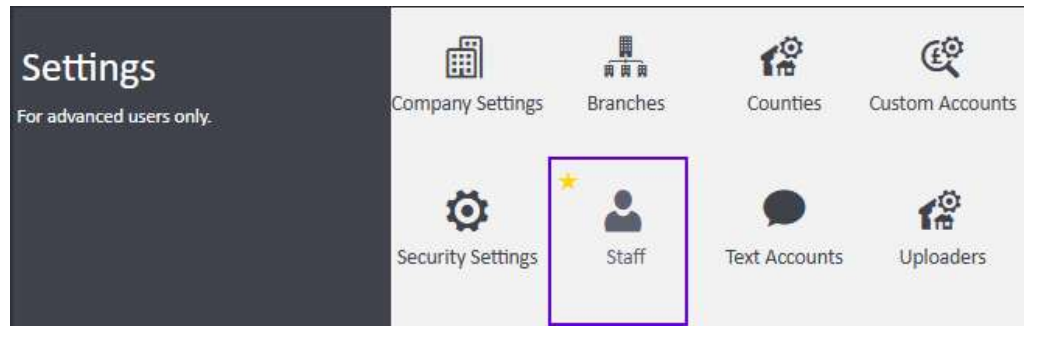
- Click the + Add button in the top right-hand corner of the Staff screen.

- Fill in the details for the new staff member in the fields provided.
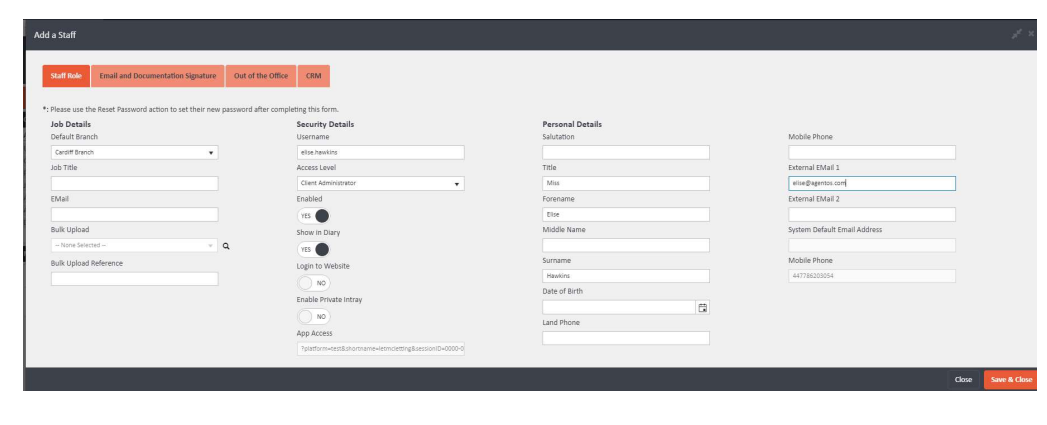
When completing the form, note the following:
- Username — format this as forename.surname. There is no need to add the company name to the end, as the system will assign this automatically.
- Access Level — choose the access level appropriate for the staff member's role. If you are unsure, copy the access level of someone in a similar role, or set it as low as possible and raise it if needed.
- Enabled — ensure this is set to Yes.
- Show in Diary — set to Yes if this staff member should appear in the diary.
- Click Save & Close.
Setting a Password
Once the staff member has been saved, you will need to set a temporary password for them so they can log in for the first time.
To do this, locate the staff member in the Staff list, click Actions to the right of their record, and select Reset Password.
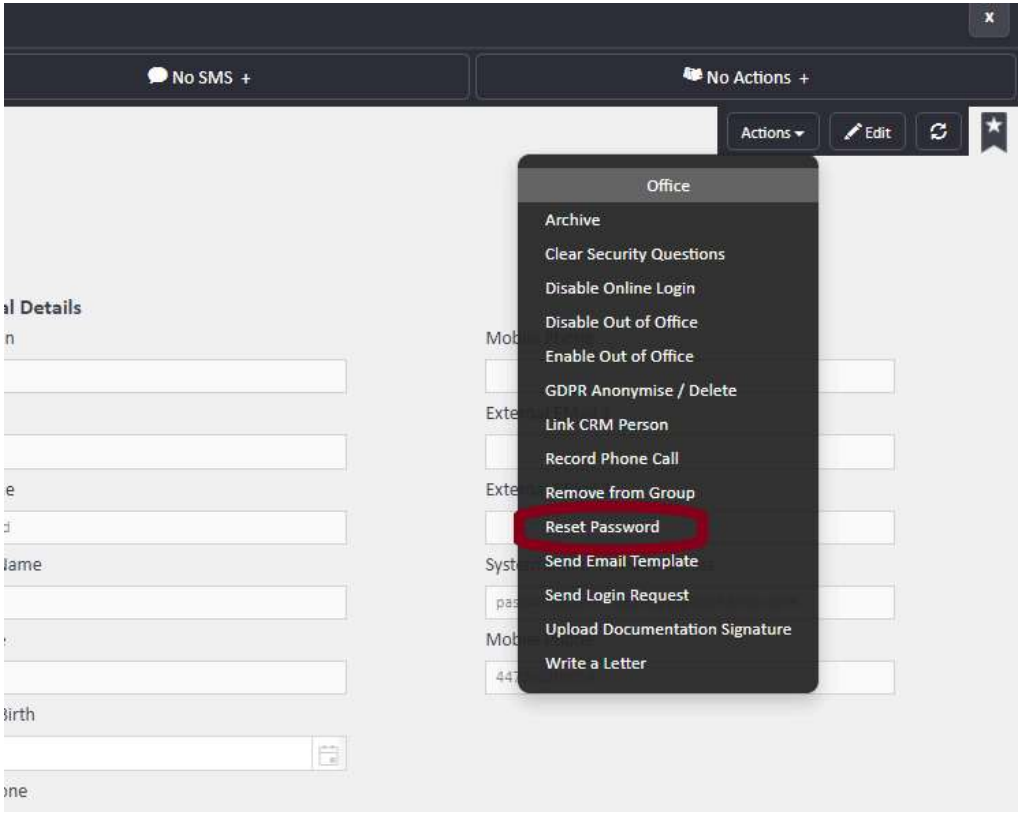
Set a generic temporary password such as Password.1 — the staff member will be prompted to set their own password when they first log in.
Username Format for Logging In
When logging in to agentOS, the full username format is:
forename.surname-companyshortname
The company short name can be found in the URL when you are logged in to agentOS. For example, if the URL shows login.agentos.com/holstraining, then the company short name is holstraining.
 login.agentos.com/companyshortname with the short name highlighted]
Extra Logins and Billing
Each additional user added to agentOS is charged at £62.50 + VAT per calendar month and will be billed automatically once the staff member is added. There are five different levels of user access available.
When setting up a new user, remember to also set up their dedicated email address and configure their email footer.
If your access level does not permit you to add staff members, ask your client administrator to add them on your behalf.
For any questions, contact support@agentos.com.